Transfer Order
- Overview
- Add Order
- Edit Order
- Cancel Order
- Close Order
- Add Line
- Allocate
- Transfer
- Receive Transfer
- Untransfer
- History
- Print Labels
- Transfer Order Reports
Required Permissions
- View Transfer Orders
- ability to search and view Transfer Orders
- Modify Transfer Orders
- ability to add, view, edit, cancel and close Transfer Orders
- Allocate Transfer Orders
- ability to allocate and unallocate stocks for Transfer Orders
- Ship Transfer
- ability to transfer stocks in Transfer Orders
- Return Transfer
- ability to untransfer previously transferred stocks in Transfer Orders
- Receive Transfer
- ability to receive transferred stocks from Inventory screen
- View Reports
- ability to print and export Transfer Order Reports
- View Cost
- ability to view Total Cost in the order header
- ability to view Unit Cost for lines and their details
Overview
Transfer is a process of moving stocks between different sites within a single CoreIMS installation.
For example, if you have a site dedicated to store defective stocks, you can transfer any defective stocks from other sites to this particular place.
CoreIMS supports the transfer process through Transfer Orders (you can also transfer stocks between different sites via Ad-hoc Transfer operation).
Add Order
- Go to Orders tab of the main menu.
- Select Transfer -> Add Order menu item.

The following window will show up:
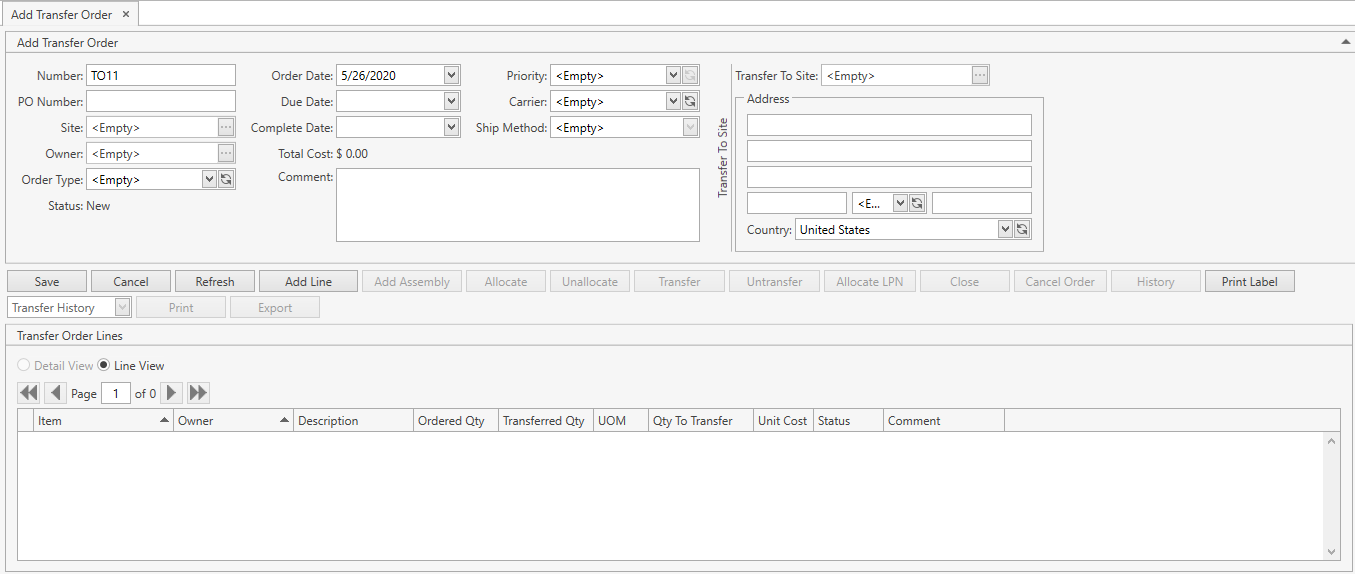
- Specify all the necessary attributes:
| Attribute | Required/Optional | Comment |
|---|---|---|
| Number | Required | Shall be unique across the system; automatically prepopulated by CoreIMS if Autonumbering Setting for Transfer Order is turned on. |
| PO Number | Optional | |
| Site | Required | Drop-down list of active Sites that you have access to. The necessary Site can be searched by the ellipsis button [...] as well. CoreIMS automatically prepopulates the field, if you have a specified Default Site (refer to Users section). |
| Owner | Optional | Drop-down list of active Companies marked as Owner. The necessary Company can be searched by the ellipsis button [...] as well. Visible only if Ownership mode is set up as Item Level or Stock Level in System Settings. If you (your CoreIMS user) have a specified Owner (refer to Users section), you will be able to specify only this Owner or leave the Transfer Order without an owner. |
| Order Type | Optional | Drop-down list of Order Types. |
| Status | Required | Non-editable; CoreIMS auto populates the field with one of the following values: New, In Process, Closed, Canceled. |
| Order Date | Required | CoreIMS prepopulates the field with the current date. You can change it, if necessary. |
| Due Date | Optional | |
| Complete Date | Optional | Non-editable; CoreIMS auto populates the field with the current date when the Transfer Order gets into Closed status. |
| Total Cost | Required | Non-editable; CoreIMS auto populates the field according to the following: Total Cost = SUM (Unit Cost * Quantity) of order details |
| Comment | Optional | |
| Priority | Optional | Drop-down list of the predefined system values: Rush, Low, Medium, High. |
| Carrier | Optional | Drop-down list of the values defined in Configuration section. |
| Ship Method | Optional | Drop-down list of the values defined in Configuration section. You can specify the ship method for the selected carrier. |
| Transfer to Site | Required | Drop-down list of active Sites that you have access to. The necessary Site can be searched by the ellipsis button [...] as well. |
| Transfer to Site: Address | Optional | CoreIMS automatically prepopulates address fields with selected Site's address. Can be changed if needed. For United States you can specify the state. For other countries city and postal code are accepted. |
| Custom Fields | Optional | If Transfer Order has any Active Custom Fields. |
Click Cancel button to reset the unsaved changes within the order header.
If you want to proceed with this new order, click Save button. The order will be saved in CoreIMS. Now you can edit the order.
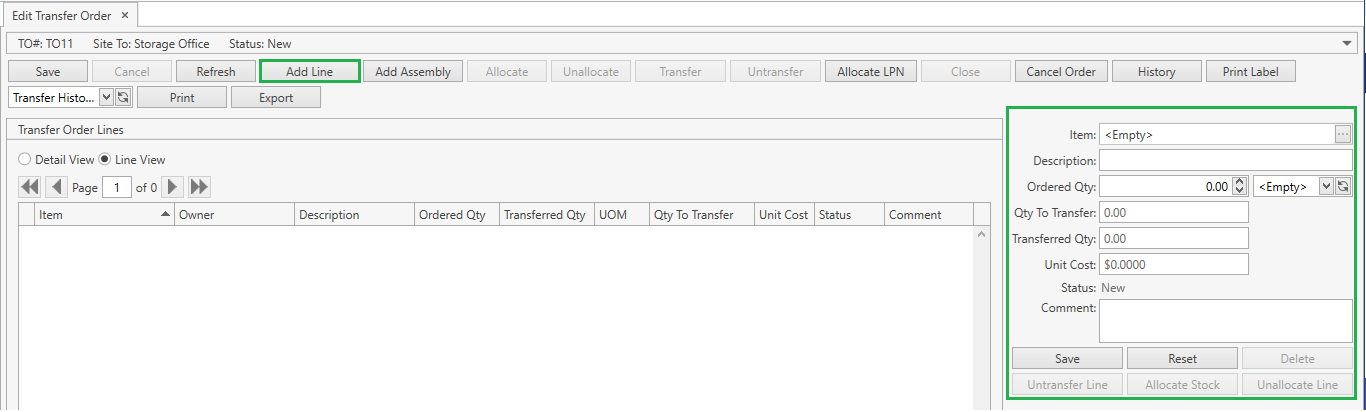
You can also save a new Transfer Order by clicking Add Line button:
- the order will be saved;
- the order header will be collapsed (refer to Orders: View Features section);
- the frame for adding a new line will open:
Edit Order
After saving the changes in Add Transfer Order tab, you will be redirected to Edit Transfer Order screen:
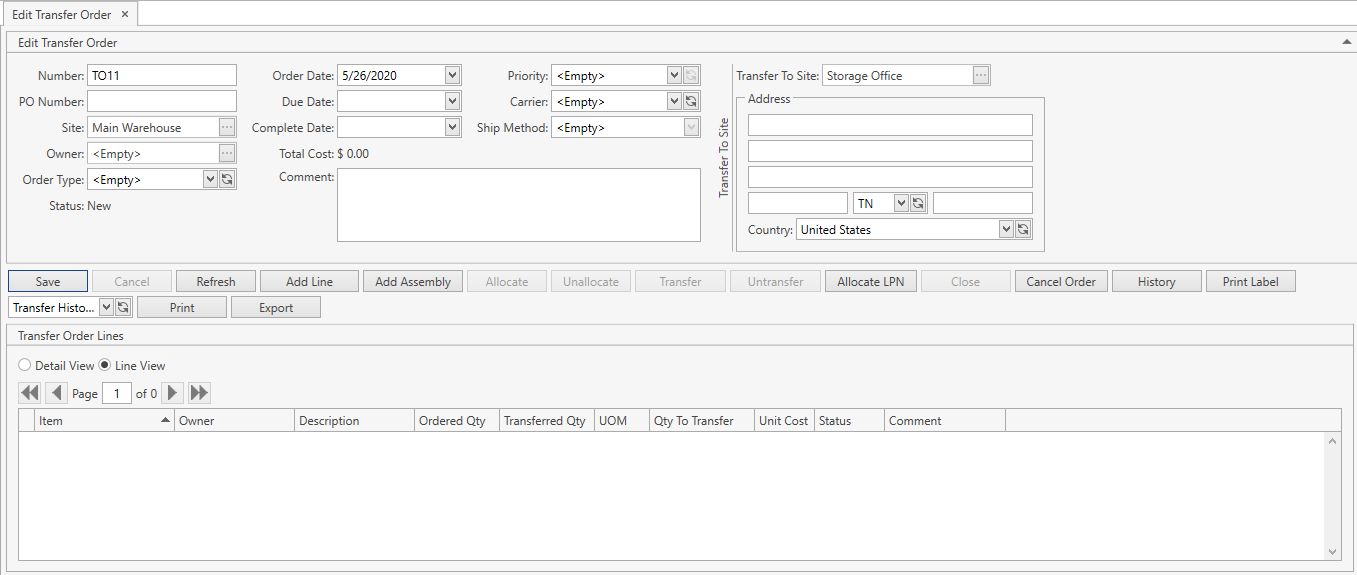
You can also get to Edit Transfer Order tab from Search Transfer Order screen.
Refer to Orders: View Features section for the details on different view parameters.
You can do the following:
Edit all the necessary order attributes.
Click Save button to apply the changes made within the order header.
Click Cancel button to reset the unsaved changes within the order header.
Click Refresh button to reset the unsaved changes within the order header and update the displayed Transfer Order with the up-to-date values.
Use the following buttons:
- Add Line – to add a new line to the order
- Add Assembly – to add an assembly or it components as a new order line(s)
- Allocate – to allocate stocks for order lines
- Unallocate – to unallocate stocks for order lines
- Allocate LPN – to manually select LPN and allocate stocks from it
- Transfer – to perform the transfer operation
- Untransfer – to untransfer previously sent stocks
- Close – to manually close the order if there are transferred details
- Cancel Order – to cancel the order if there are no transferred details
- History – to view Transfer Documents created for this order
- Print Label – to print a label for order lines or details
- Print or Export – to print/export reports
Cancel Order
The button is enabled only if there are no details in Transferred or In Transit status in the order.
- Click Cancel Order button.
- Confirm the operation:
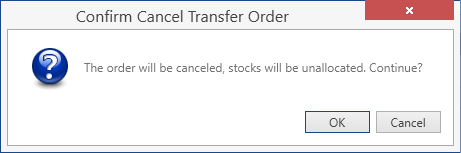
Once you confirm the operation, CoreIMS will do the following:
- reset lines Ordered Qty to 0;
- unallocate stocks;
- update Total Cost in the order header;
- assign to the order lines Closed status;
- assign to the order Canceled status.
Even if the order was canceled, it is still available in CoreIMS and you can search, view and edit it.
Troubleshooting
- Cancel Order button is disabled.
Check statuses of the order details. Cancel Order button is enabled only if there are no details in Transferred or In Transit status in the order.
Close Order
The button is enabled only if there is at least one detail in Transferred or In Transit status in the order.
- Click Close button.
- Confirm the operation:
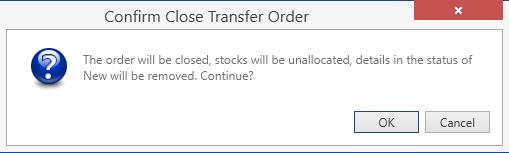
Once you confirm the operation, CoreIMS will do the following:
- unallocate stocks;
- set lines Ordered Qty equal to Transferred Qty;
- update Total Cost in the order header;
- assign to the order Closed status.
Add Line
- Open the necessary order.
- Click Add Line button. The following window will show up:
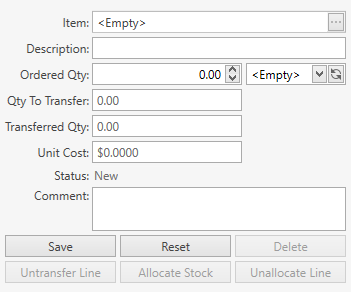
- Specify the line attributes according to the following:
| Attribute | Required/Optional | Comment |
|---|---|---|
| Item | Required | Drop-down list of active items. The necessary item can be searched by the ellipsis button [...] as well. If Ownership mode is set up as Item Level: if you (your CoreIMS user) have a specified Owner (refer to Users section) and/or you indicated Owner in the order header, you will be able to select an item only of this Owner or without an owner. |
| Description | Optional | Non-editable; CoreIMS auto populates the field if the respective item has the specified description. |
| Ordered Qty: Qty + UOM | Required | You cannot enter the decimal quantity for serial-controlled items. |
| Qty to Transfer | Required | Non-editable; CoreIMS auto populates the field according to quantities and statuses of the line's details. |
| Transferred Qty | Required | Non-editable; CoreIMS auto populates the field according to quantities and statuses of the line's details. |
| Unit Cost | Optional | Calculated as SUM (Quantity * Unit Cost of details) / SUM (Quantity of details). |
| Status | Required | Non-editable; CoreIMS auto populates the field with one of the following values: New, In Process, Closed. |
| Comment | Optional |
Note: you cannot transfer Service items.
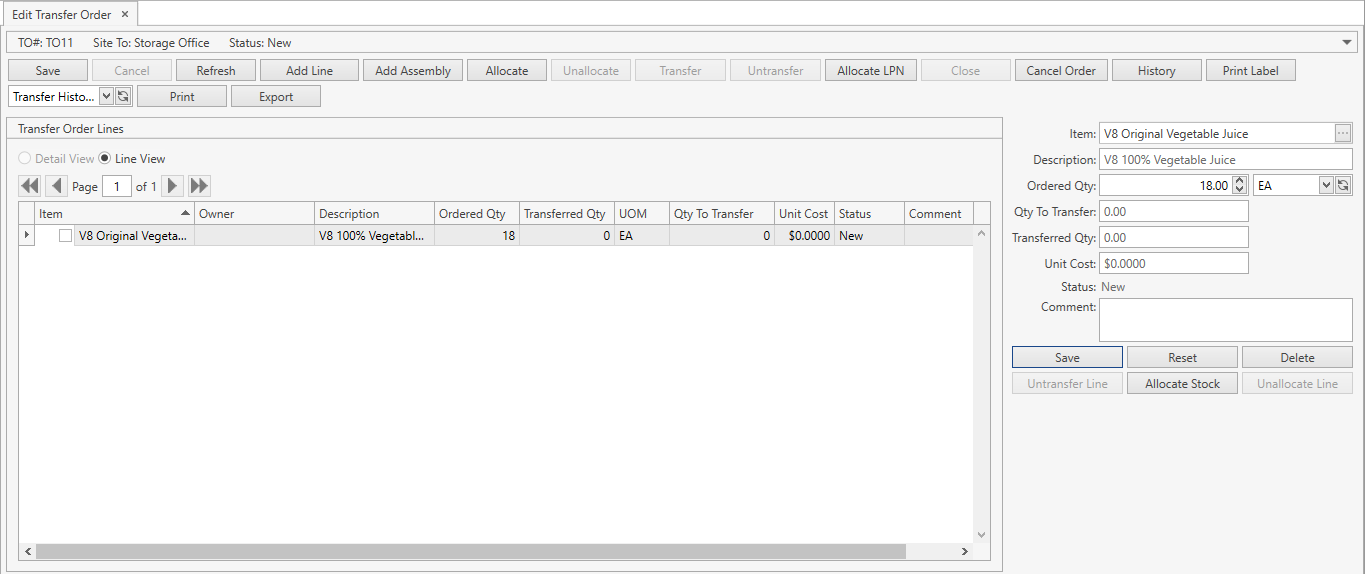
- Click Save button. A new line in New status will be added to the order:
- Or click Reset button if you want to cancel adding of a new order line.
Unlike other order types, like Receiving and Shipping, in Transfer Orders you cannot directly add details to lines – CoreIMS automatically generates details for lines upon allocation. The detail status will be Allocated after this.
After a line has been created, you can do the following to it:
- change Ordered Qty, UOM and Comment;
- delete line – use the corresponding button for this;
- allocate;
- unalocate;
- untransfer.
Add Assembly
You can also add an order line(s) by clicking Add Assembly button. This is a common functionality for orders. Refer to this section for details.
Allocate
CoreIMS allows you to work with mass allocations within the order. Use the following buttons in the order header:
- Allocate – allocate the entire order
- Unallocate – unallocate stocks for all order lines
You can also perform allocation per line:
- Allocate Stock – allocate stock for a selected line
- Unallocate Line – unallocate line entirely
There's a way to Allocate LPN – use the corresponding button in the order header.
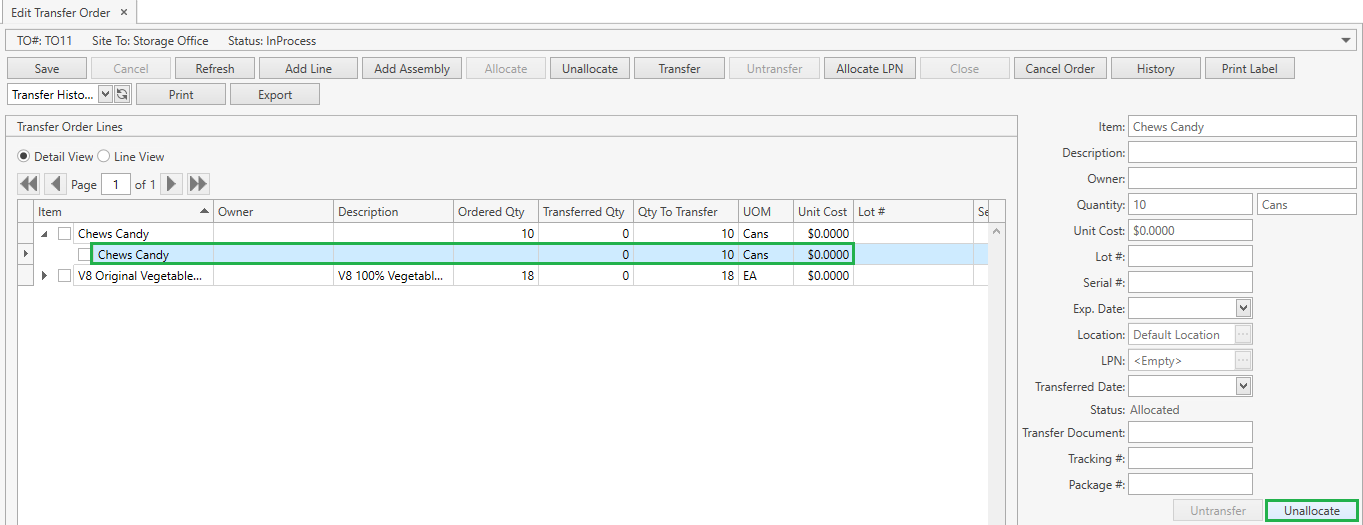
Speaking of detail operations, use Unallocate button to release the allocated stock and remove the detail.
Allocate Order
Click Allocate button in the order header:
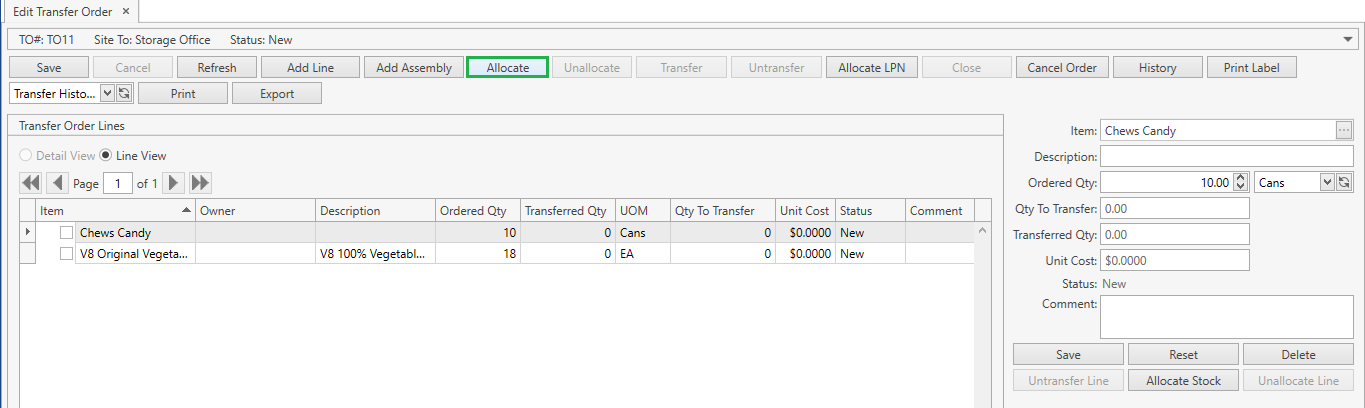
CoreIMS will attempt to allocate order lines with remaining quantity greater than 0. The remaining quantity is calculated as follows:
Remaining Qty = Ordered Qty - (Transferred Qty + Qty to Transfer)
Please refer to this section to learn more about the algorithm which CoreIMS uses for the allocation. It's possible that an order line would be allocated only partially or ended up being not allocated at all due to the lack of the inventory.
Unallocate Order
Use the order header's Unallocate button:
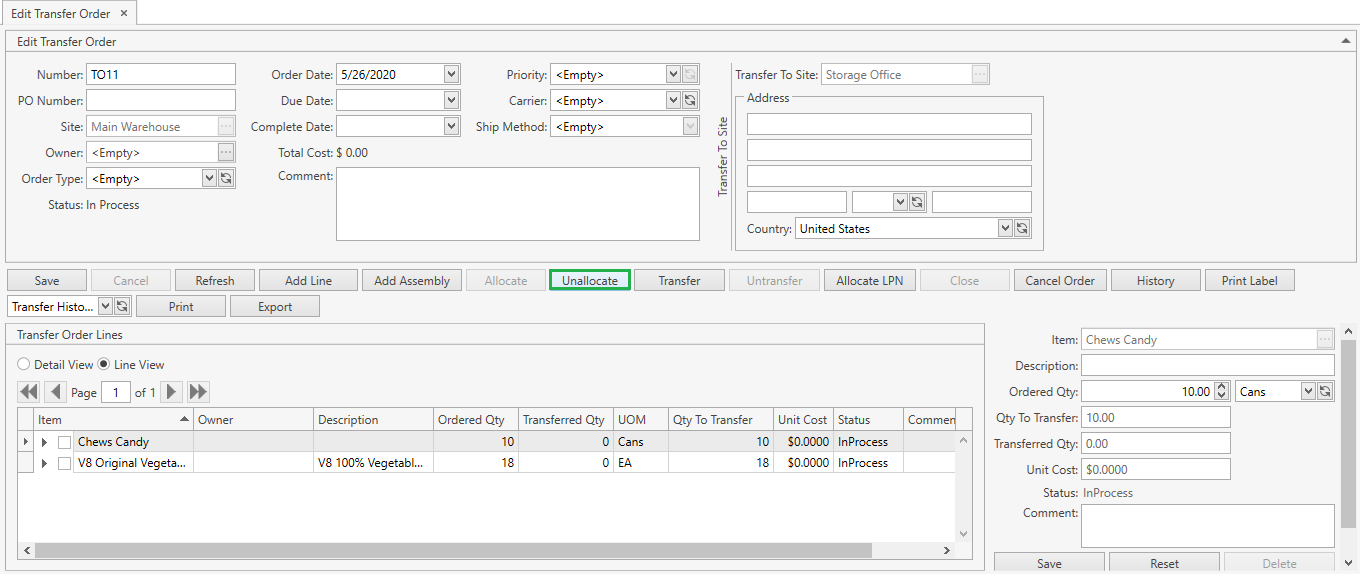
This will release previously allocated stocks and remove line details.
Allocate Stock
- Select the line you want CoreIMS to allocate.
- Click Allocate Stock button:
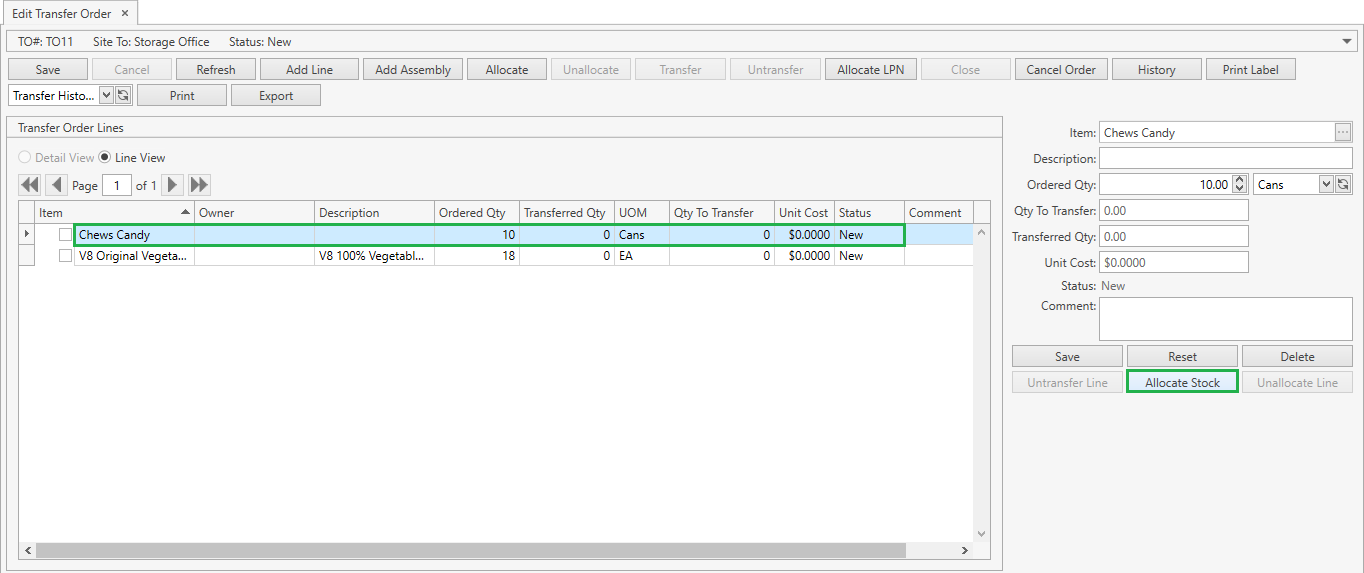
Inventory window will show up:
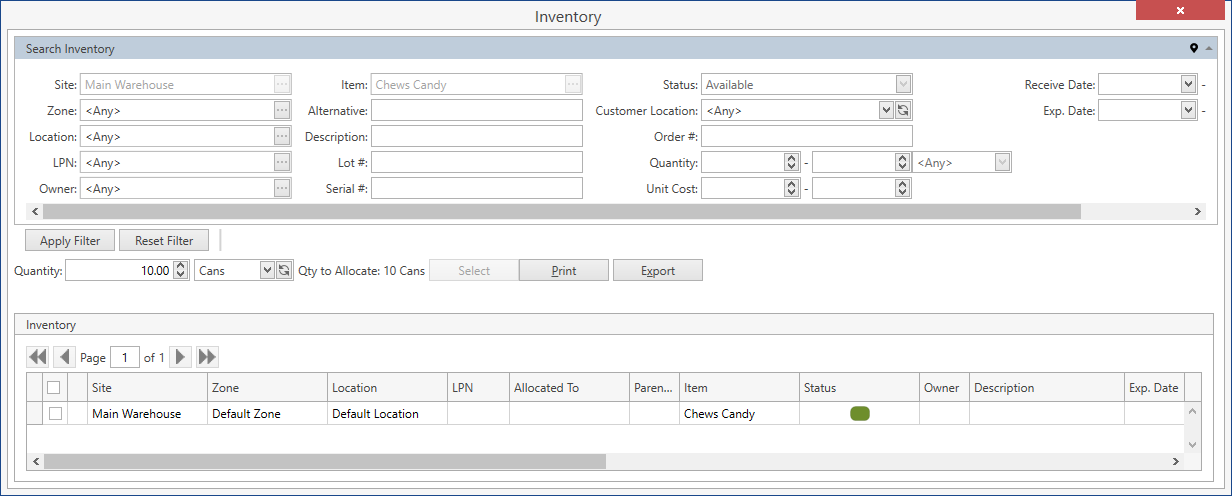
CoreIMS will attempt to allocate order lines with remaining quantity greater than 0. The remaining quantity is calculated as follows:
Remaining Qty = Ordered Qty - (Transferred Qty + Qty to Transfer)
For further details please refer to Allocate Stock section.
Allocate LPN
You can allocate an LPN (without even adding preliminary respective order lines) by clicking Allocate LPN button. This is a common functionality for orders. Refer to Allocate LPN section for details.
Unallocate Line
- Select the line you want to unallocate.
- Click Unallocate Line button:
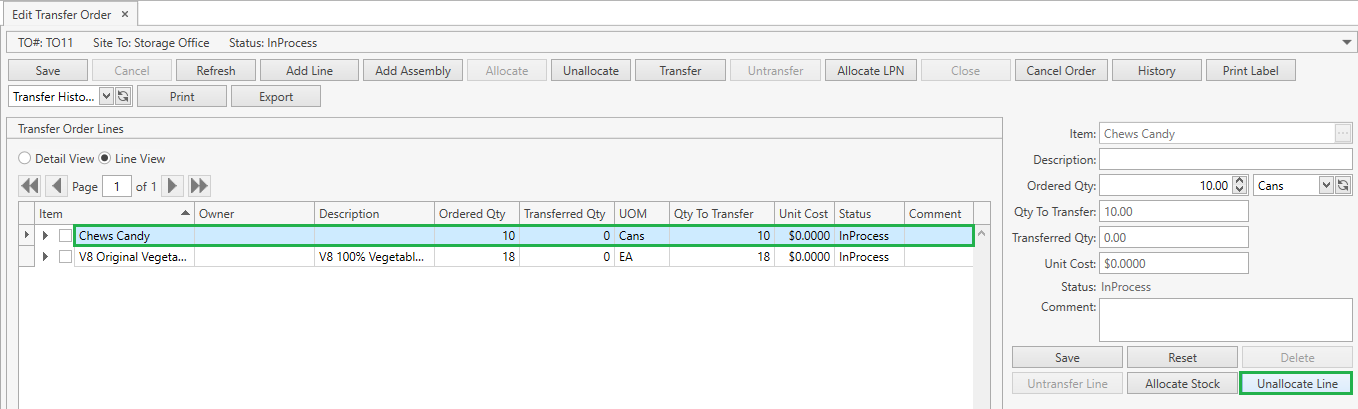
- If you want to unallocate the specific detail, select this detail and then click Unallocate button:
Transfer
- Add order lines.
- Allocate stocks.
- If you don't want some of the lines/details to be transferred, you can checkmark
 only those lines/details that are to be transferred as shown below:
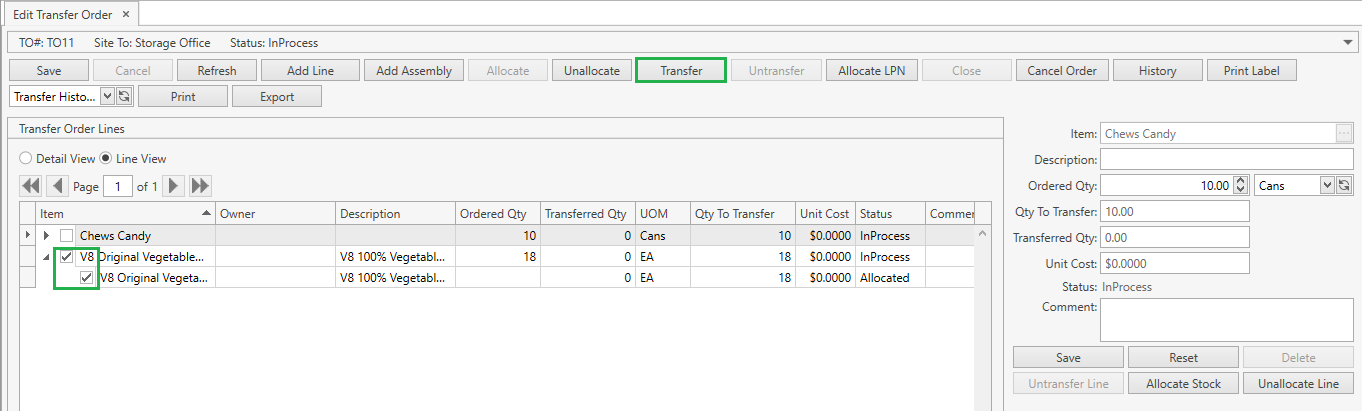
If you didn't check any of the order lines/details, CoreIMS will attempt to transfer all of the details in Allocated status.
- Click Transfer button. The following window will show up:
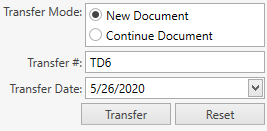
Select Transfer Mode:
- New Document: CoreIMS will generate a new Transfer Document; you need to specify Transfer # – CoreIMS prepopulates Transfer # if Autonumbering Setting for Transfer Document is turned on.
- Continue Document: CoreIMS will record the operation results into one of the Transfer Documents generated during the previous transfer operations within the current Transfer Order.
Change Transfer Date, if needed. By default the date is set to the current date.
Click Transfer button to confirm the operation.
- Or click Reset button to cancel the operation.
On transfer, CoreIMS does the following:
- Create new Transfer Document. To view it, click History in the order header or use Search Transfer Document screen.
- Change details' status from Allocated to In Transit.
- If Autoreceive option is enabled in System Settings, the shipped stock will be automatically received upon transfer, so the details will be in status Transferred.
- Write off the allocated stocks from the source Site.
- Add stocks in In Transit status to the destination Site (or in Transferred status if Autoreceive option is enabled in System Settings).
Untransfer
You can untransfer a detail or an entire line, unless the stock has already been received or Autoreceive option is enabled in System Settings.
To untransfer a detail:
- Select an In Transit detail.
- Click Untransfer button:
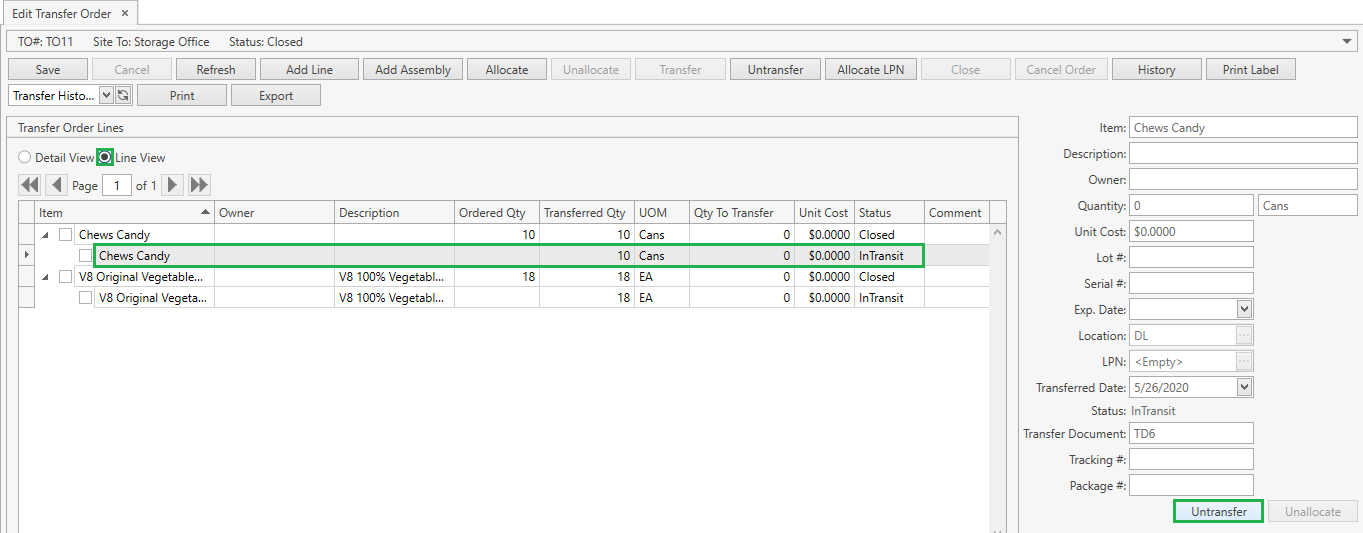
The detail will be removed and the transferred stock will be returned to the source Site.
To untransfer a line:
- Select a transferred line.
- Click Untransfer Line button:

CoreIMS will perform the following:
- remove line details;
- reset line Transferred Qty to 0;
- assign the line status New;
- return the transferred stock(s) to the source Site.
Receive Transfer
The destination site's users can receive stock via Inventory screen. Consult this page for instructions.
History
Use History button to access Transfer Documents generated for a Transfer Order:
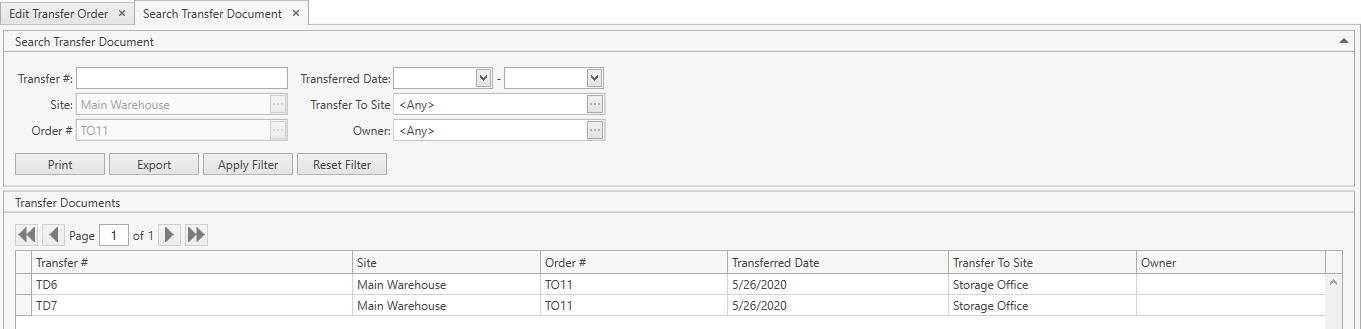
CoreIMS prepopulates Site and Order # fields and makes them disabled as you're accessing Search Transfer Document window through the specific Transfer Order. This means that you will be able to see Transfer Documents only of this order.
Refer to Search Transfer Document section to view the operations you can perform from Search Transfer Document screen.
Print Labels
You can print a label for the order line(s)/detail by clicking Print Label button. This is a common CoreIMS functionality. Refer to this section for details.
Transfer Order Reports
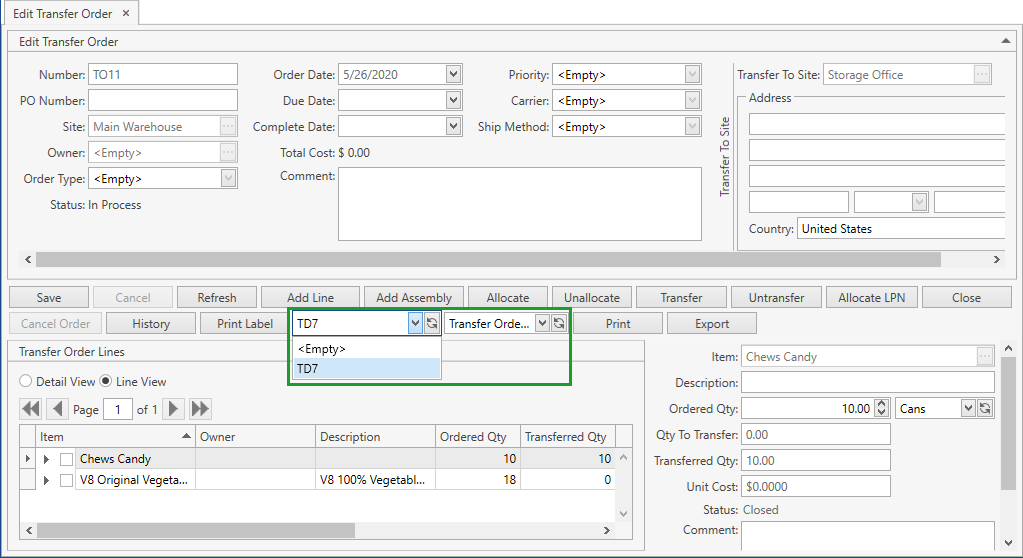
You can print or export Transfer Order reports. These reports are available from the drop-down list in the order control panel:

Select one of the following reports and click Print or Export button:
Pick Ticket Transfer Order: Report displays a list of allocated stocks that have to be picked up and brought to the shipping zone for transferring to another site.
Transfer History: Report displays the data on all transfers within the current Transfer Order with the detailed information of each Transfer Document.
Transfer Order: Report shows the information on the order header and lines.
Transfer Order Document: Report shows the information on selected Transfer Document. You should select the exact Transfer Document to be printed/exported: