Custom Fields
Required Permissions
- Setup System
- ability to view and edit Custom Fields
- ability to add, view, edit, delete user-defined Custom Dictionaries and records within these dictionaries
- View System Setup
- ability to view Custom Fields in read-only mode
- ability to view user-defined Custom Dictionaries and records within these dictionaries in read-only mode
Custom Fields
Custom Fields allow you to add fields that hadn't been delivered with the software. You might need them to add various attributes, for example, to inventory, such as Color or Repair Date.
You can view and edit custom fields of the following system entities:
- Item
- Stock
- Receiving Order
- Shipping Order
- Transfer Order
- Work Order
- Manufacturing Order
- Shipping Document
You can assign up to 20 custom fields to Item and up to 15 custom fields to all other entities.
View
Go to Setup section of the main menu.
Select Custom Fields menu item.

The following window displaying custom fields for Item opens:
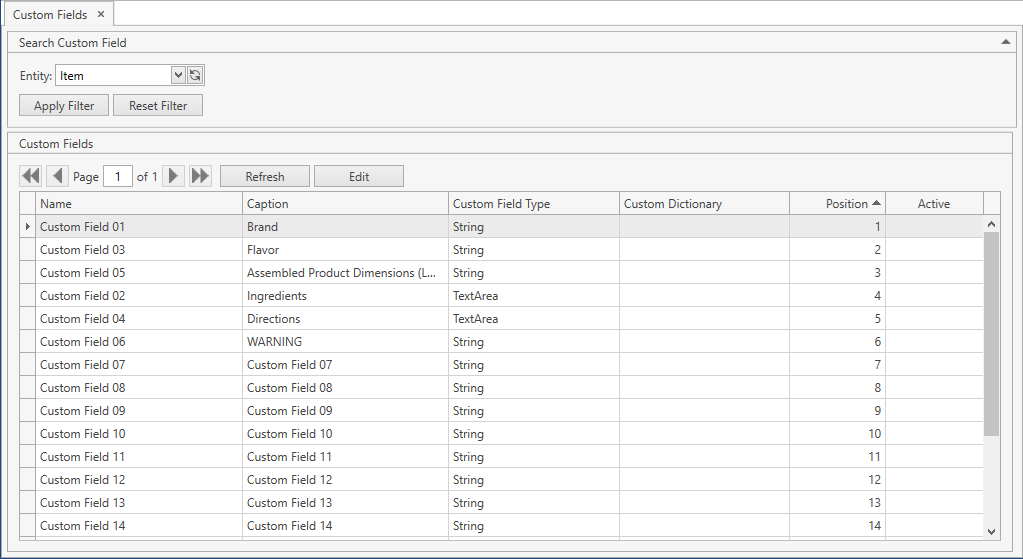
Use navigation buttons
 to switch the pages of the grid.
You can also customize the view of the grid and use Ctrl+F for searching.Pick a necessary entity from the drop-down list to view custom fields of some other entity rather than Item:
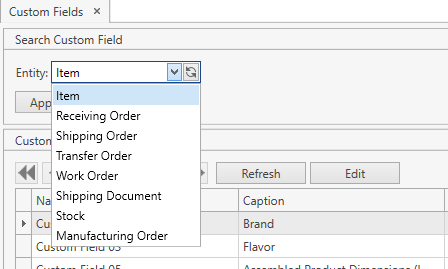
- Click Apply Filter button. The entity's custom fields are listed on the grid:
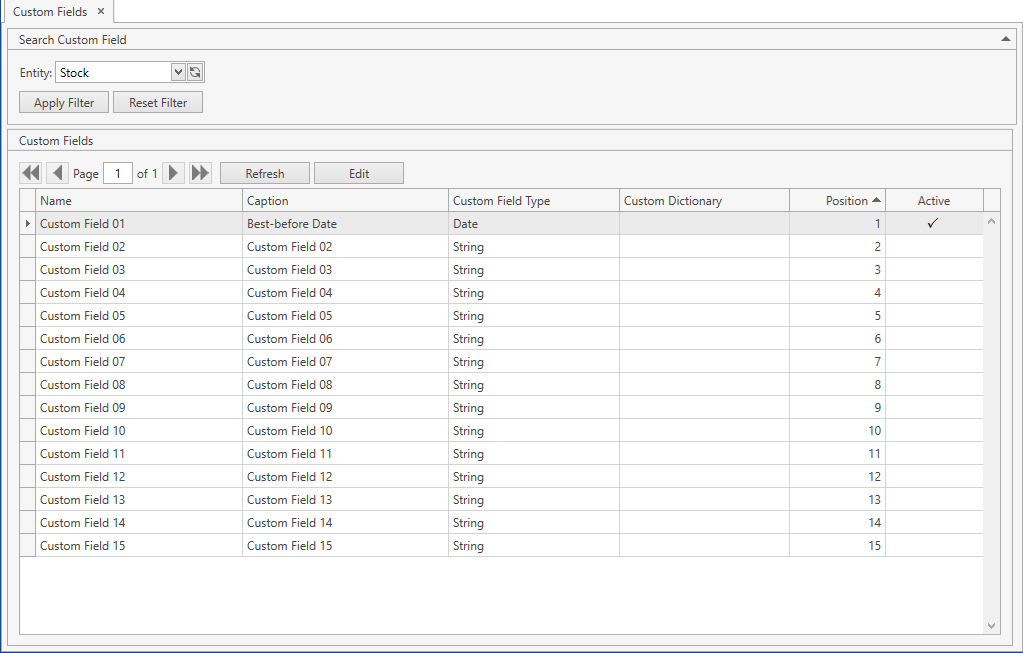
If you click Reset Filter button, the system will display custom fields for Item.
You can update the list of displayed custom fields with the up-to-date data from the database by clicking Refresh button.
Edit
- Select Custom Fields menu item from Setup tab of the main menu.
- Click on a custom field and then click Edit button or, if the filter area is collapsed, simply click on the necessary custom field to edit it. The Edit Custom Field frame will show up:
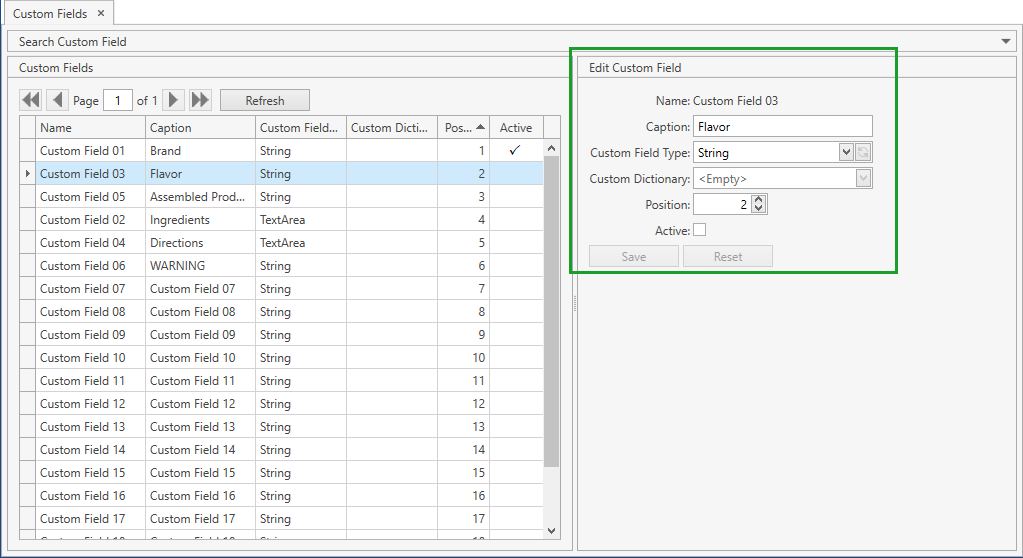
You can edit the following attributes of a custom field:
Caption: that's how the custom field is named in the system.
Custom Field Type:
- String (any characters)
- Integer (only whole numbers)
- Decimal (fractional numbers)
- Flag
- Date
- Dictionary
- Link
- TextArea (multi-line text)
Custom Dictionary: this field is available only if you specify Custom Field Type as Dictionary. You should select a custom dictionary from the drop-down list of Custom Dictionaries to bind the custom field to the particular custom dictionary:

Position: the custom field's position on the entity's forms, filters and on the respective grids.
Active: if checked, the custom field is displayed on all forms, filters and grids of the respective entity. Custom fields are inactive by default.
Click Save button.
- Click Reset button if you want to reset the unsaved changes.
Example. If you set the custom field, for example, for Item to Active as shown below:
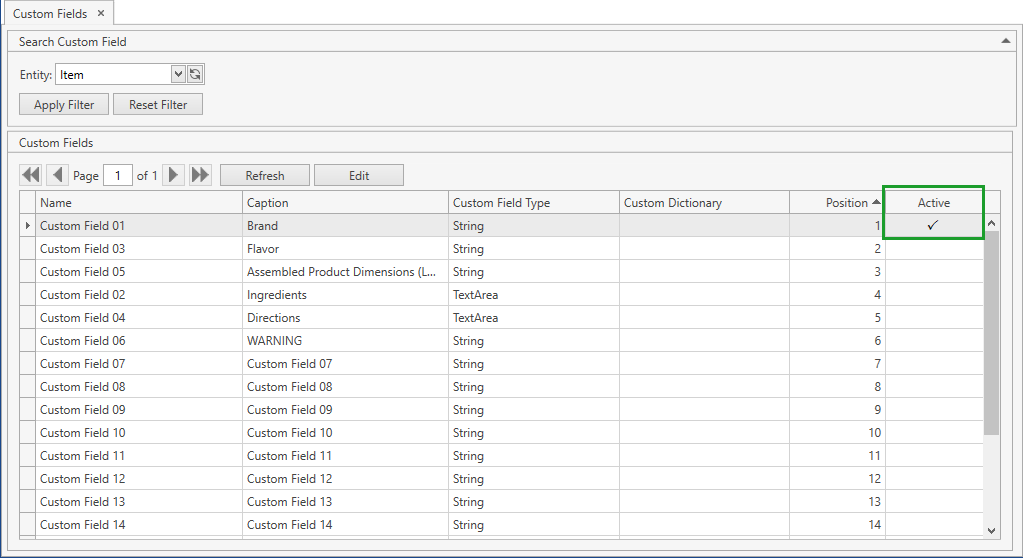
it will show up on all Search Item forms, the respective grids:
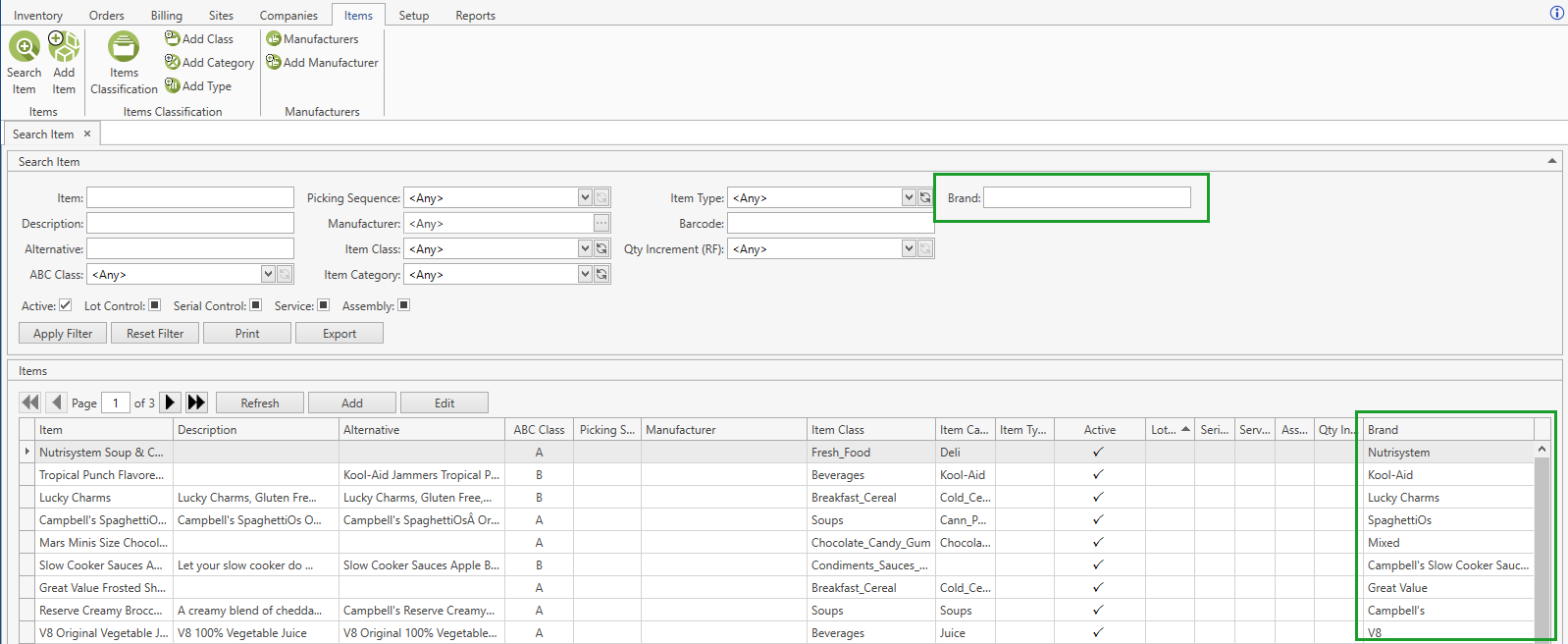
as well as on Add Item/Edit Item screens:

Custom Dictionaries
Custom dictionaries can be associated with Custom Fields of the Dictionary type. You can add, view, edit and delete custom dictionaries and their entries.
View
Go to Setup section of the main menu.
Select Custom Dictionaries menu item.

The following window with all custom dictionaries opens:
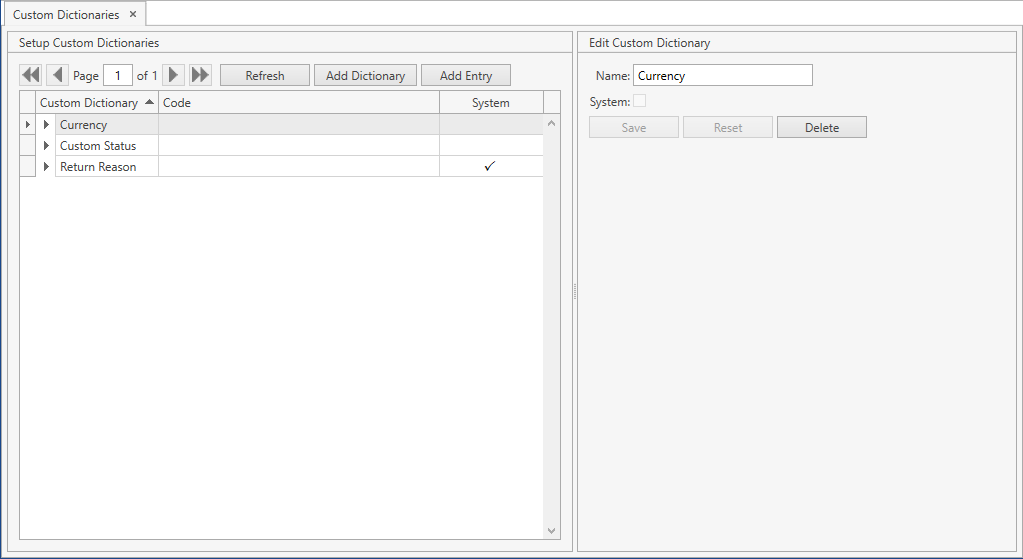
- Select a dictionary and click the button:
 . You will see the entries that belong to the dictionary selected:
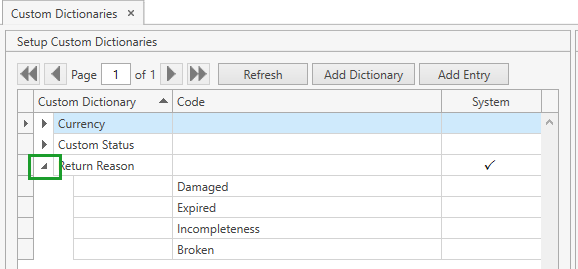
Use navigation buttons
to switch the pages of the grid.
You can also customize the view of the grid and use Ctrl+F for searching.You can update the list of displayed custom dictionaries with the up-to-date data from the database by clicking Refresh button.
Add
- Select Custom Dictionaries menu item from Setup tab of the main menu.
- Click Add Dictionary. The following frame will show up:
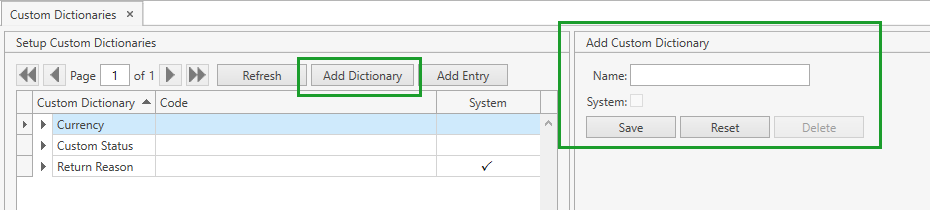
Note. Alternatively, you can reach the same window from Setup section of the main menu: click Add Dictionary there.
- Specify Name for a new custom dictionary.
- Click Save button.
- Click Reset button if you want to cancel adding of a new custom dictionary.
Once you created a custom dictionary, you can add an entry to it:
- Click on a necessary custom dictionary. Then click Add Entry button. The following frame will show up:
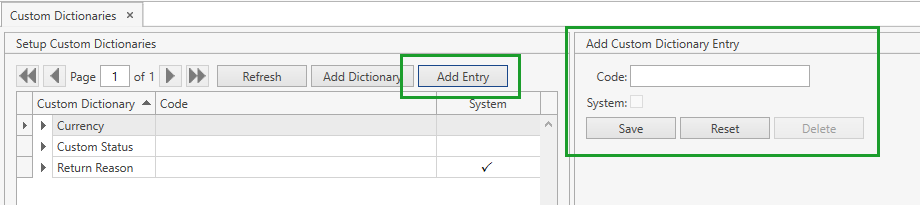
- Specify Code for a new entry.
- Click Save button.
- Click Reset button if you want to cancel adding of a new entry.
You can add a new entry from the main menu as well:
Go to Setup section of the main menu.
Select Add Entry menu item.
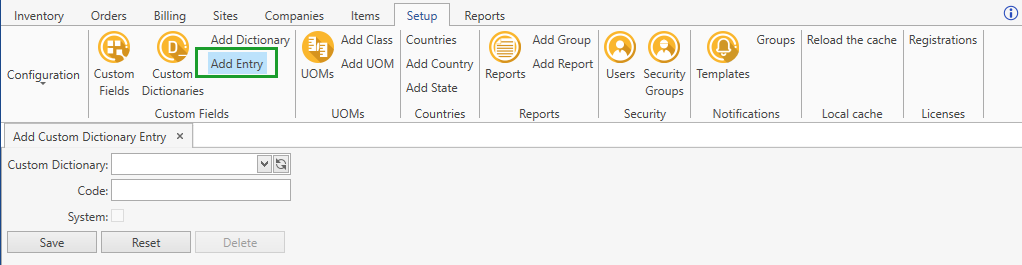
- Select a custom dictionary you want to add an entry to.
- Specify Code for a new entry.
- Click Save button.
- Click Reset button if you want to cancel adding of a new entry.
Edit
- Select Custom Dictionaries menu item from Setup tab of the main menu.
- Click on a custom dictionary or its entry, depending on what you want to edit. The following frame will show up:
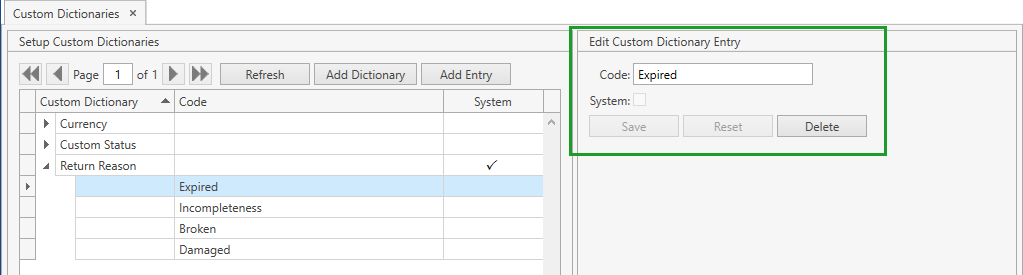
- Edit Name/Code.
- Click Save button.
- Click Reset button if you want to reset the unsaved changes.
Delete
- Select Custom Dictionaries menu item from Setup tab of the main menu.
- Click on a custom dictionary or its entry, depending on what you want to delete. The following frame will show up:
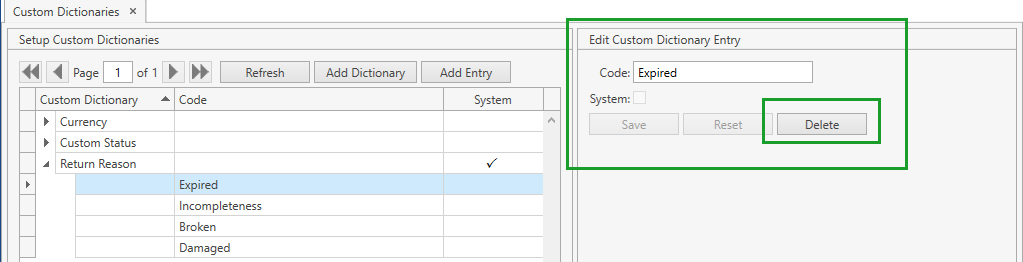
- Click Delete button.
Note. You cannot delete a custom dictionary that is marked as System.
You cannot delete a custom dictionary and its entries if this dictionary has custom fields associated with it.