UI Configuration
- Customize look & feel of grids
- Hide/unhide search filters
- Collapse/expand filter area
- Fasten/unfasten filter area
Customize look & feel of grids
You can customize the settings of any grid in CoreIMS:
- Right-click on the grid header. The following pop-up shows up:
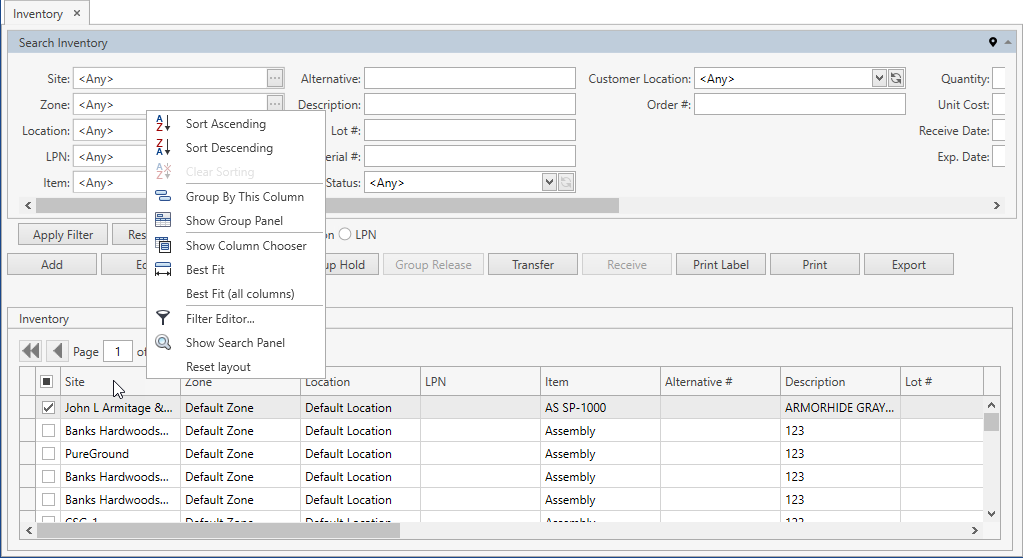
- Select one of the following options to customize the grid (some of the options listed below might be unavailable for a specific grid):
- Sort Ascending/Descending
- Clear Sorting
- Group By This Column
- Show Group Panel
- Show Column Chooser (you can determine which columns must be displayed and which ones must be hidden on the grid by dragging and dropping all columns to be hidden into the pop-up window Column Chooser)
- Best Fit / Best Fit (all columns)
- Filter Editor
- Show Search Panel
- Reset Layout
All custom settings are saved for your Windows user within the machine you work on and will be applied when you log in to CoreIMS next time.
These settings are stored in the folder C:\Users\%username%\AppData\Local\coreims-var. If you want to reset the customized settings for all grids in CoreIMS, you can delete this folder.
Hide/unhide search filters
You can hide/unhide search filters on a screen that contains a filter area:
- Right-click within the filter area and select Filter chooser.
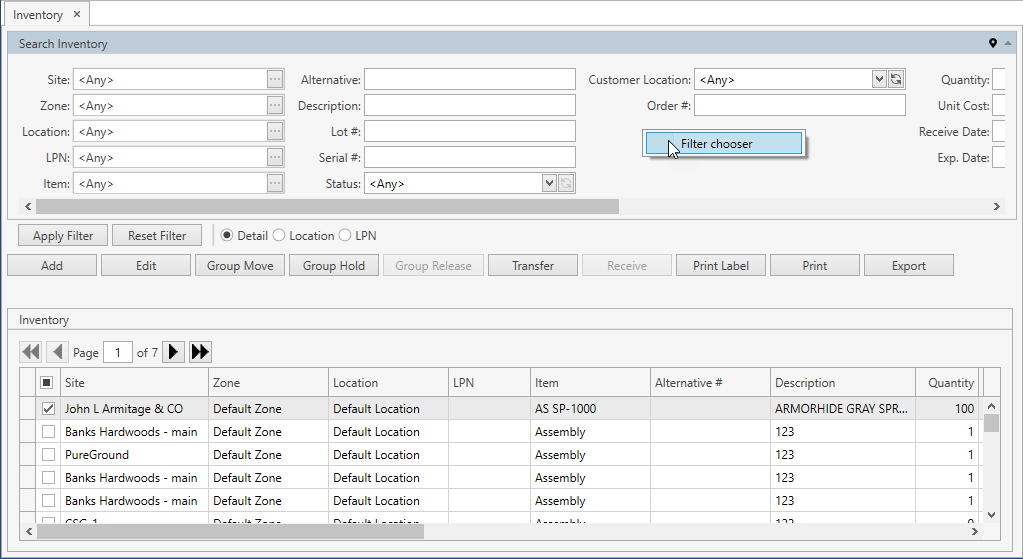
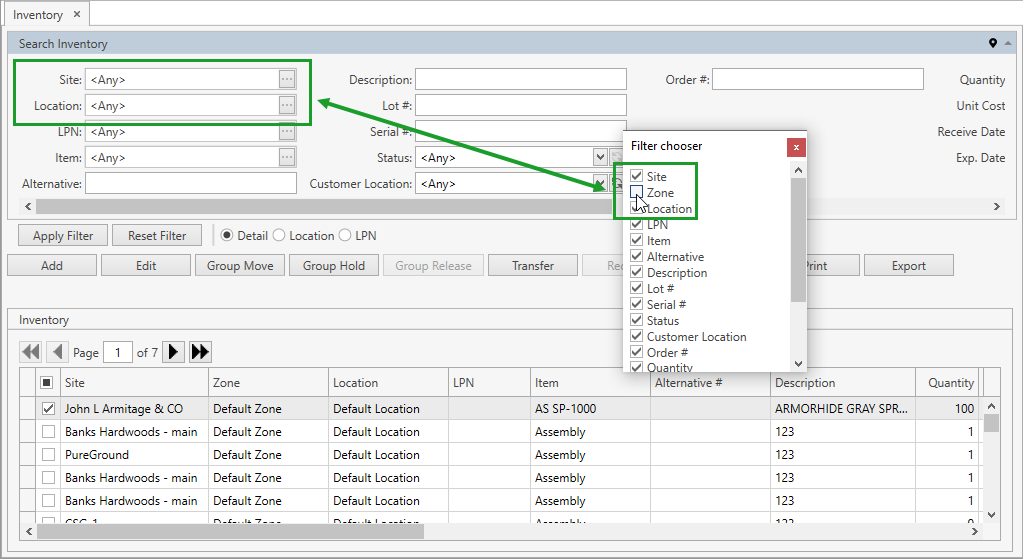
- Check/uncheck all necessary filters.
Once filter is unchecked, it will be hidden from the filter area as shown for Zone filter on Inventory screen below:
All custom settings in terms of hidden/unhidden search filters are saved for your Windows user within the machine you work on and will be applied when you log in to CoreIMS next time.
These settings are stored in the folder C:\Users\%username%\AppData\Local\coreims-var. If you want to reset the customized settings for all filters in CoreIMS, you can delete this folder.
Collapse/expand filter area
You can collapse a filter area on any screen that contains a filter area:
- Click on the heading of the filter area which is highlighted in the screenshot below:
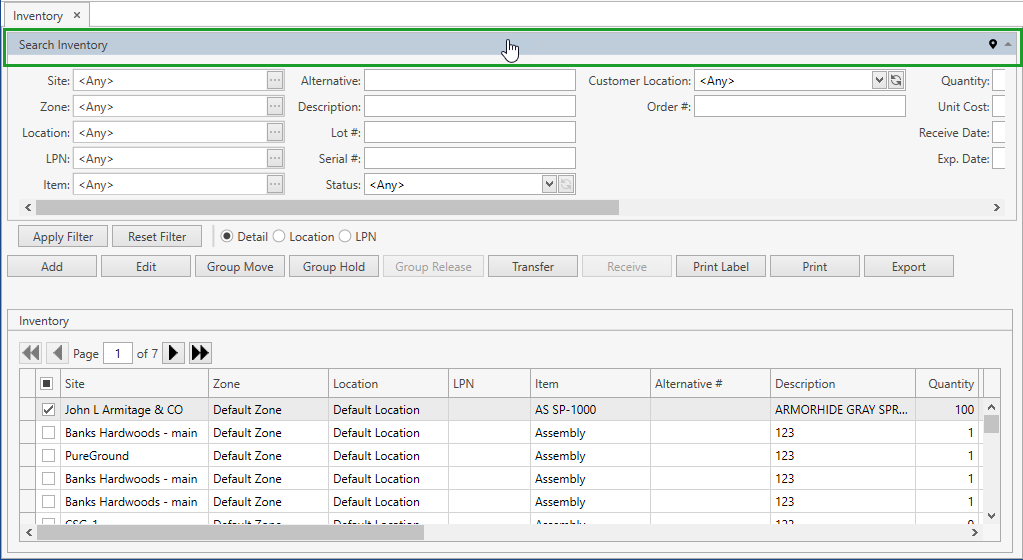
As a result, the filter area will be collapsed:
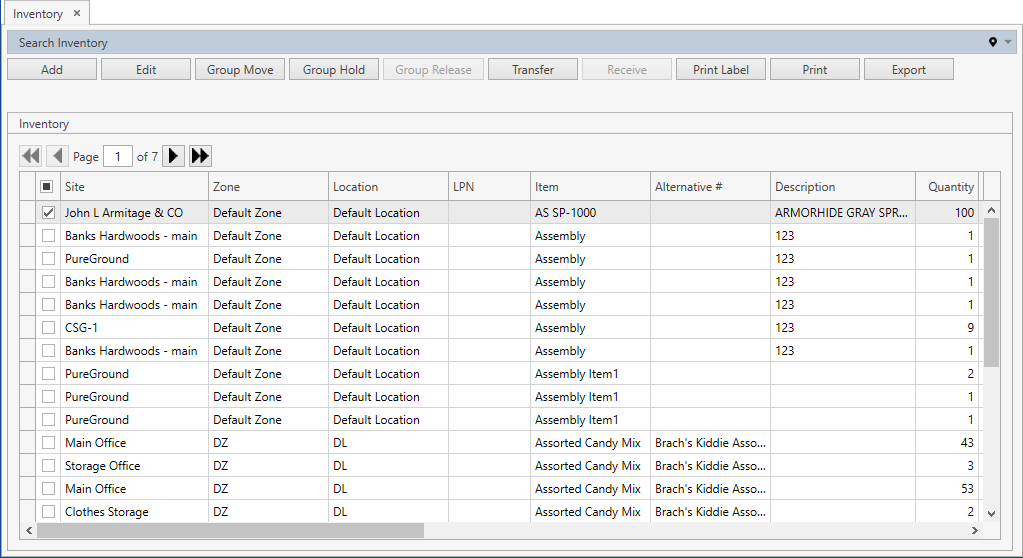
- Once the filter area is collapsed, you can expand it by clicking on its heading once again.
Fasten/unfasten filter area
You can fasten a filter area on any screen that contains a filter area and a pin icon  :
:
- Click on a pin icon
 on the heading of the filter area which is highlighted in the screenshot below:
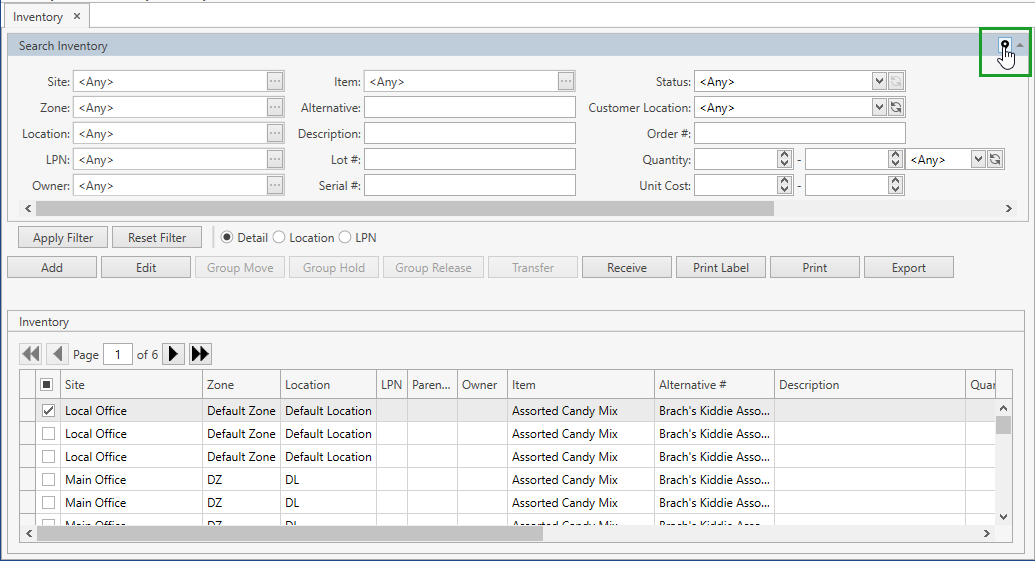
As a result, the filter area will be collapsed and when you open this screen next time, the filter area will be hidden at once:
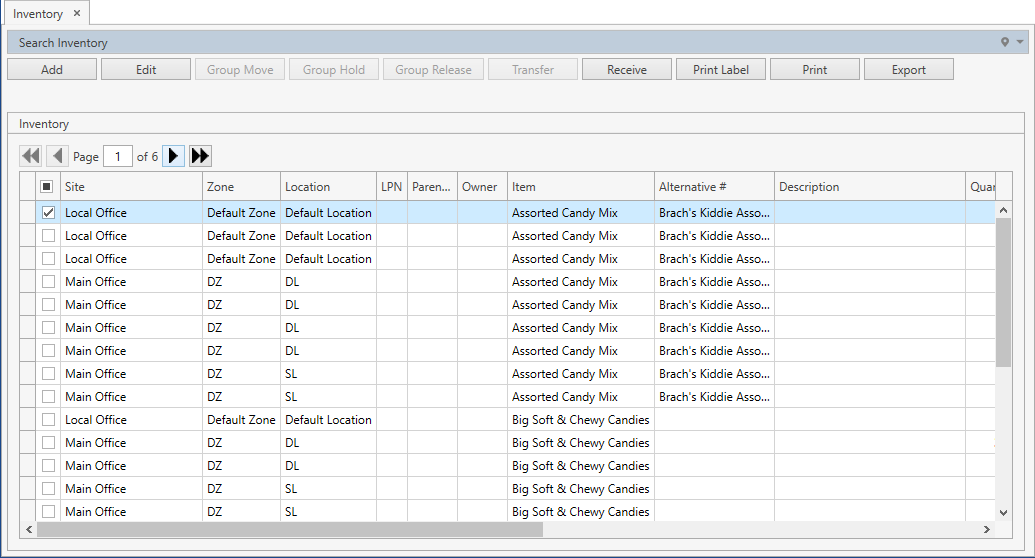
- Once the filter area is fastened, you can unfasten it by clicking on a pin icon
 on its heading once again.