Searching Features
- Text fields: search by the beginning of a word
- Text fields: search by any part of a word
- Three-state checkboxes
- Multiple Select
- Ctrl+F Search
- Paging
Text fields: search by the beginning of a word
You can enter only the beginning of the value for search, the system will search for all the corresponding text fields that start with the specified filter value.
As an example, you can see below the result of searching for stocks by the beginning of Description on Inventory screen.
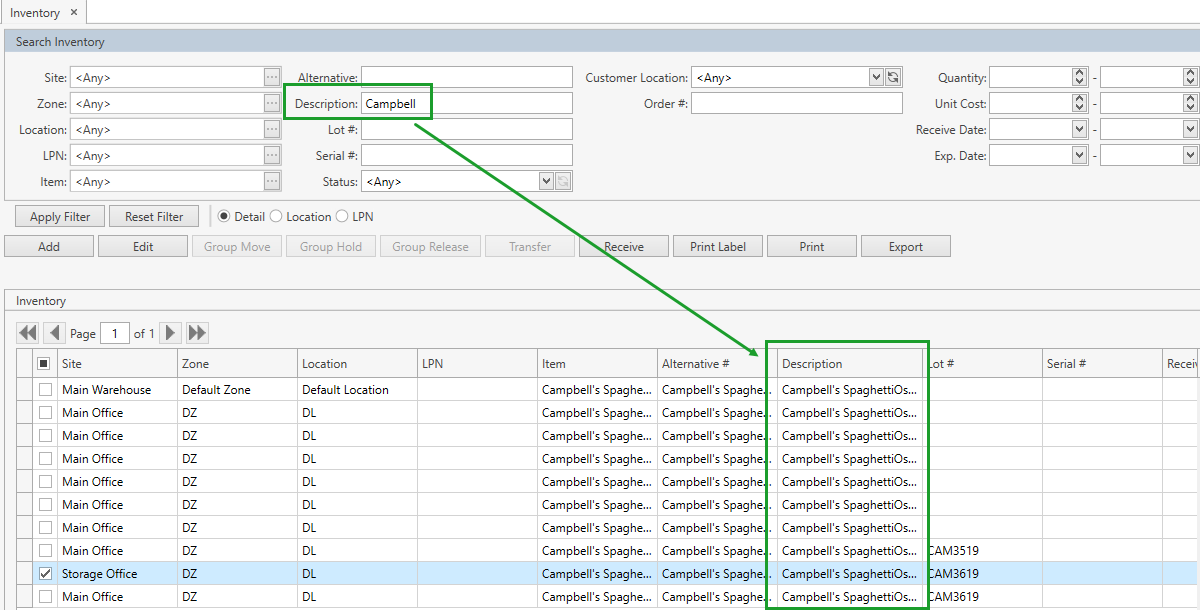
The search is case-insensitive, that means that values 'Campbell' and 'campbell' are the same for the system search.
Text fields: search by any part of a word
If you enter '%' before the value for search, the system will search for all the corresponding text fields containing the specified filter value.
As an example, you can see below the result of searching for stocks by the part of Description on Inventory screen.
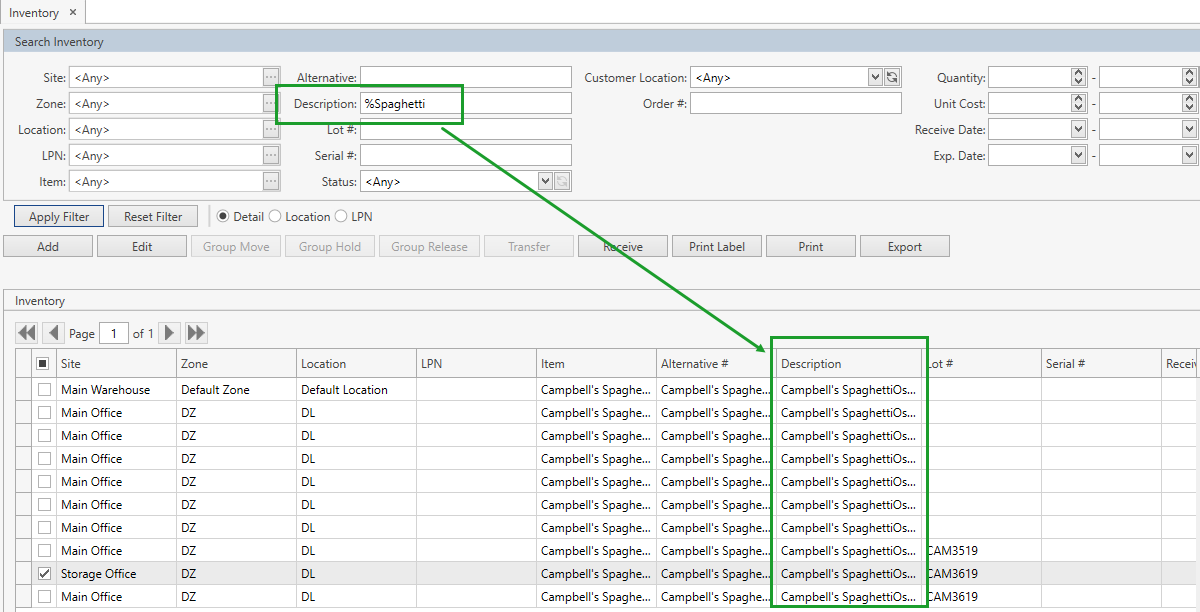
The search is case-insensitive, that means that values '%Spaghetti' and '%spaghetti' are the same for the system search.
Three-state checkboxes
If a filter area contains a checkbox, you can set the latter in one of the three states:
- checked
 : the system will search for all the records that have the respective attribute checked
 - unchecked
 : the system will search for all the records that have the respective attribute unchecked
 - indeterminate
 : the system will search for all the records that have the respective attribute either checked or unchecked
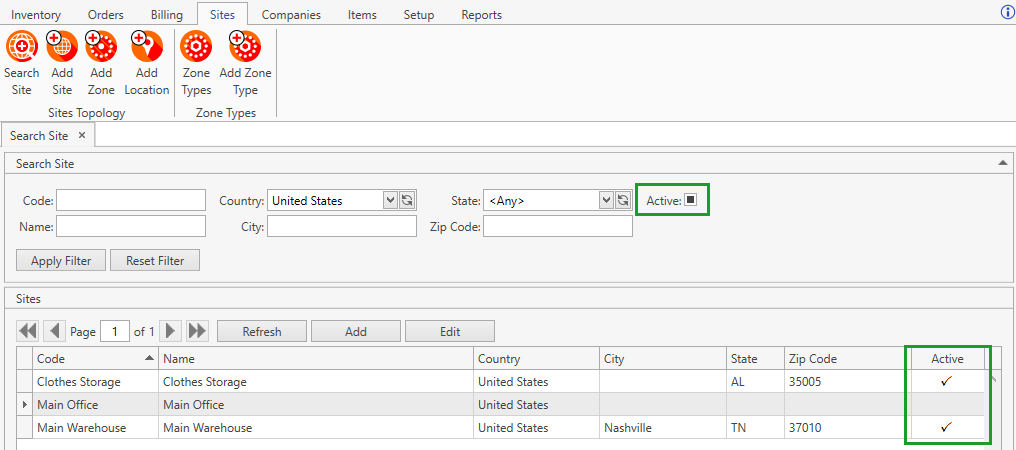
If you, for example, want to search for both active and inactive sites, you can set Active checkbox to indeterminate state. Therefore, after the searching the system will display both active and inactive sites:
Multiple Select
The system supports the multiple select for:
- Items (including the reports from Reports Center where Item is defined as a filter).
- Sites.
The multiple select for Sites is available only from Search Shipping Order and Search Transfer Order screens.
You can search by multiple Items as follows (for multiple Sites the algorithm is the same):
- Open Search Item screen by clicking on the ellipsis button [...] near Item field within any search window that allows searching by Item. For example, on Inventory screen.

- Check all necessary Items and click Select button.
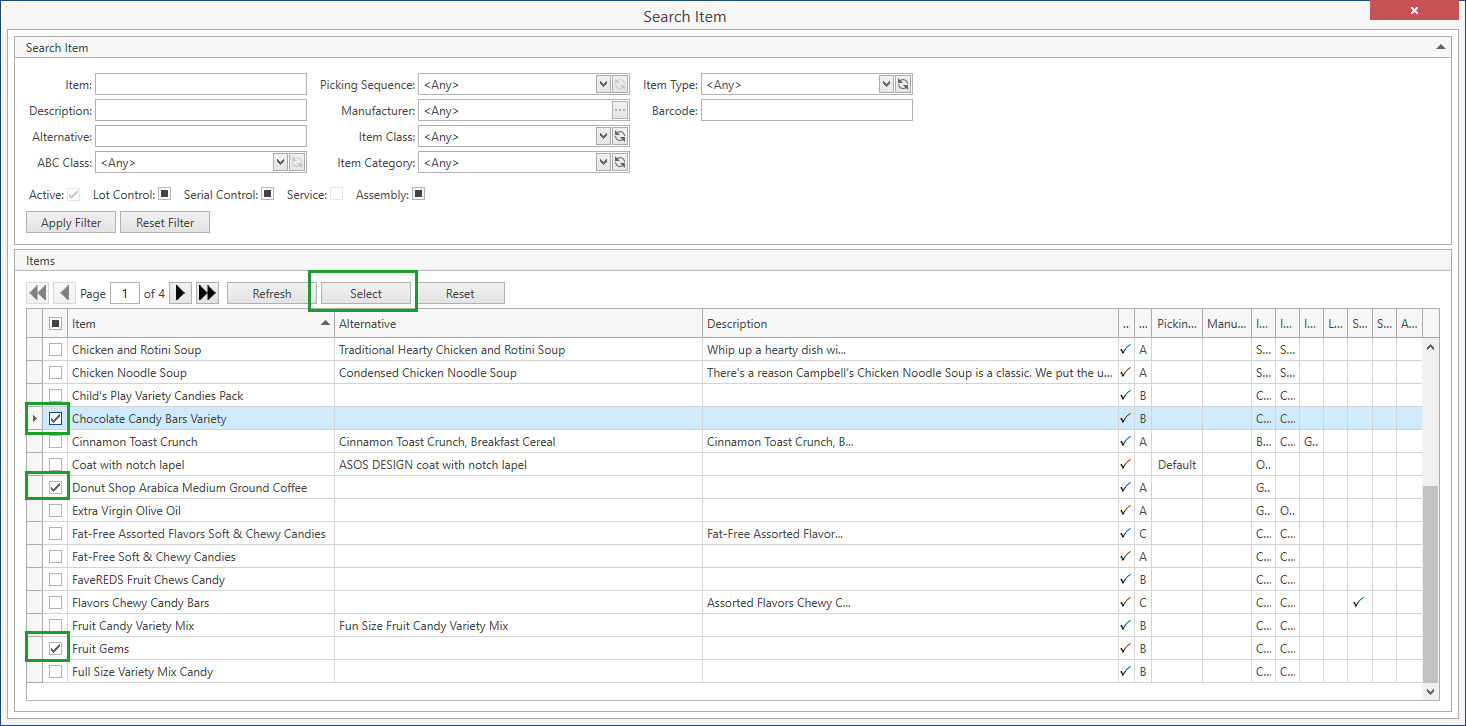
- Once you select necessary Items and specify all other filter criteria, click Apply Filter button to display all records that satisfy the search criteria.

Ctrl+F Search
The system supports the keyboard shortcut Ctrl+F for searching by keywords on the grid.
- Click on any line on the grid within which you want to search. The grid becomes active.
- Press Ctrl+F.
- Enter any symbols in the search box that appears.
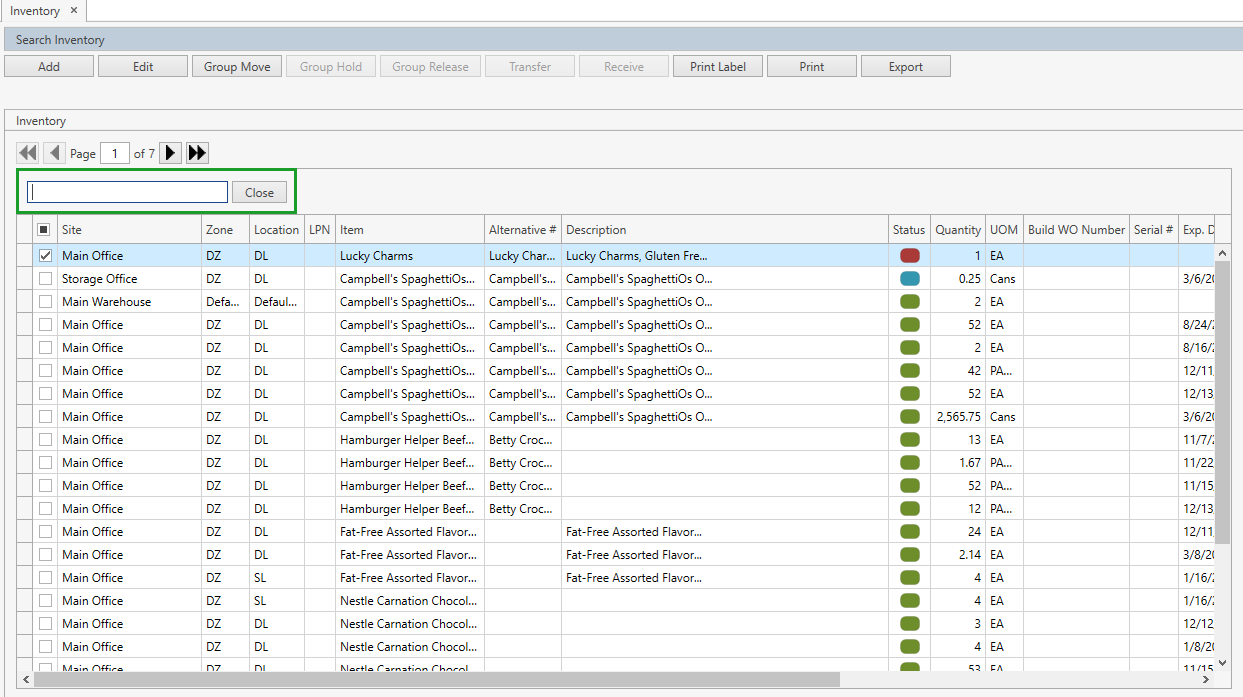
The system will display all rows that include the entered symbols as a substring. These symbols will be highlighted in yellow.
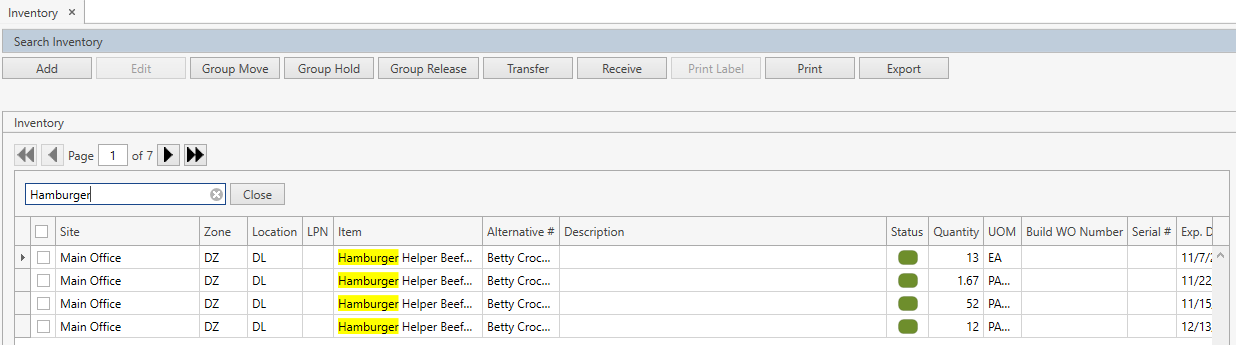
Note. The result grid will be empty if nothing is found.
Paging
At the top of each grid on the left side there are navigation buttons:

You can use these buttons to switch the pages according to the following:
- go to the next page clicking on

- go to the previous page clicking on

- go to the last page clicking on

- go to the first page clicking on

- specify the number of the page you want to go within
 and click on Enter