Report Center
Required Permissions
- View Reports
- ability to view Report Center, build, print and export reports there
View Reports
Go to Reports tab of the main menu.
Select Reports Center menu item.
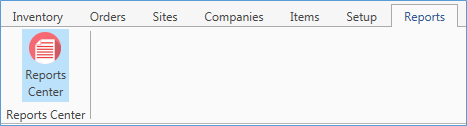
The following window will show up:
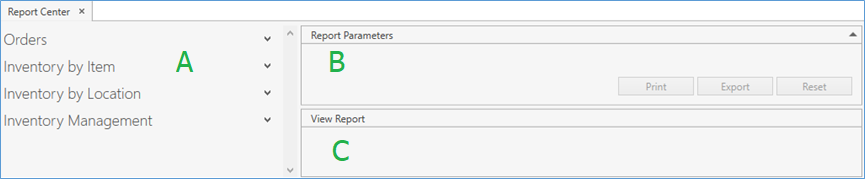
There are three frames in Report Center:
A. Report Group: shows thematically sorted reports, including your custom reports.
B. Report Parameters: allows you to define options that will help CoreIMS narrow down the data to produce the selected report. Also, you can initiate the report building and/or exporting: refer to Printing and Exporting section for details.
C. View Report: reflects the actual report building results with listing and zooming options.
- Click on a report group:
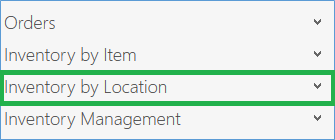
- The group will expand, showing the list of reports. Pick the necessary one.
Click
next to a report to see its description. Also find the description for all of the reports below.

- Specify all the necessary report parameters:
- You can even build a report without any report parameters specified. The system will display info for all items/orders/date ranges, etc.
- Click Reset button if you want to clear the parameter fields.

In some reports you may encounter Owner field. It's visible only with the Ownership Level enabled.
- Click Print button to initiate the report building. You will see the report in View Report section.
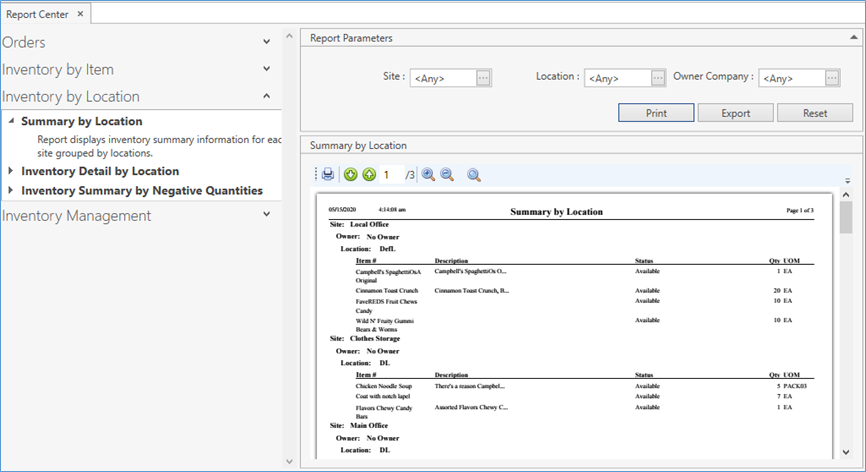
In View Report section, when a report has already been built and displayed, use the following operation buttons to work with the report:
- print the report clicking on
 : the system opens the standard Microsoft Windows Print screen where you can select a printer and initialize the printing
 - navigate through the document pages clicking on

- go to the particular page of the report specifying the number within

- zoom in/out the report canvas clicking on

- fit width/height clicking on

- print the report clicking on
By clicking Export button you can save the report to your workstation in .pdf, .xls, .doc formats.
Refer to this section for additional guidance on exporting.
Reports Description
If you don't want any of the reports listed below to be displayed in Report Center, you can hide them. Please refer to Setup Reports for more details.
Orders
Shipping Orders Open: Report displays the information about lines that are not closed in Shipping Orders.
Receiving Orders Open: Report displays the information about lines that are not closed in Receiving Orders.
Shipping Orders Closed: Report displays the information about lines that are closed in Shipping Orders.
Receiving Orders Closed: Report displays the information about lines that are closed in Receiving Orders.
Allocated Inventory by Shipping Orders: Report displays all the inventory allocated to Shipping Orders as a list of Shipping Orders with the related data on allocated stocks for each of the selected sites.
Open Shipping Orders with Available Inventory: Report displays Open Shipping Orders which are not fully allocated. For each order the report displays remaining lines to be shipped with the data on respective available stocks that can be allocated to these lines.
Allocated Inventory by Transfer Orders: Report displays all the inventory allocated to Transfer Orders as a list of Transfer Orders with the related data on allocated stocks for each of the selected sites.
Open Transfer Orders with Available Inventory: Report displays Open Transfer Orders. For each order the report prints the data on respective available stocks that can be allocated to these Transfer Orders.
Transfer Orders Closed: Report displays the information about lines that are closed in Transfer Orders.
Transfer Orders Open: Report displays the information about lines that are not closed in Transfer Orders.
Shipping Totals: Report displays the data on shipped inventory.
Return Orders Open: Report displays the information about lines that are not closed in Return Orders.
Return Orders Closed: Report displays the information about lines that are closed in Return Orders.
Return Orders by Companies: Report displays the general return information for each of the Customer Companies.
Item by Return Orders: Report displays the information on items that were returned. The displayed data includes Lot #, Shipped and Returned Quantities.
Assembly Items to Build against Open Shipping Orders: Report displays information on Assembly items that are planned to be built as part of Kitting Work Orders and/or Assembly items that are planned to be shipped as part of Shipping Orders. It also lists Shipping and Kitting Work orders which contain a particular item.
Products to Build: Report displays the information about ordered products that are not fully built in Open Manufacturing Work Orders, i.e. products that should be produced.
Produced Products: Report displays the information about produced products in Manufacturing Work Orders during the selected period.
Inventory by Item
Inventory Detail by Item: Report displays the inventory data grouped by owner (if Ownership Level is enabled) and item. The report displays all stocks in any status.
Summary by Categories Extended: Report displays the inventory summary data for each item grouped by owner (if Ownership Level is enabled) and item category.
Summary by Categories/Custom Fields: Report displays the inventory summary data for each item grouped by owner (if Ownership Level is enabled) and item category. The report displays also any custom fields that are specified for stocks.
Summary by Categories: Report displays the inventory summary data for each item grouped by owner (if Ownership Level is enabled) and item category. The report allows you to display items that currently don't have any inventory stocks (whose Quantity On Hand (QOH) are equal to 0).
Inventory Detail by Item Extended: Report displays the inventory data grouped by owner (if Ownership Level is enabled) and item. The report displays all stocks in any status and includes the information about the cost of stocks.
Inventory Demand: Report displays the information about the demand on stocks as number of Open Shipping Orders for each item with total Ordered Quantities grouped by item class. The report helps to check if there are enough stocks in the warehouse for covering the current demand.
Inventory Summary by Item Alternative #: Report displays the inventory summary data grouped by owner (if Ownership Level is enabled) and alternative #. The report displays all stocks in any status.
Total Inventory by Item: Report displays the inventory summary data grouped by owner (if Ownership Level is enabled).
Inventory by Location
Summary by Location: Report displays the inventory summary data for each site grouped by owner (if Ownership Level is enabled) and location.
Inventory Detail by Location: Report displays the inventory data for each site grouped by owner (if Ownership Level is enabled) and location. The report includes the information about the cost of stocks.
Inventory Summary by Negative Quantities: Report displays the inventory summary data of stocks with negative quantities for each site grouped by owner (if Ownership Level is enabled) and location.
Inventory Management
Items for Replenishment: Report displays the list of items, that should be replenished (QOH (Quantity On Hand) < Min Qty from Replenishment Settings for the specific site), with the respective replenishment settings and QOH for each site.
Overstocked Items: Report displays the list of items, that are overstocked (QOH (Quantity On Hand) > Max Qty from Replenishment Settings for the specific site), with the respective replenishment settings and QOH for each site.
Projected Items for Replenishment: Report displays the list of items, that should be projected to replenish at the selected due date, with their Replenishment Settings and Projected QOH (Quantity On Hand). Projected QOH is calculated based on existing orders and their due dates.
Cycle Counting Settings: Report displays Cycle Count Settings for items for the specific site grouped by owner (if Ownership Level is enabled).
Cycle Counting Schedule: Report displays the Cycle Count Schedule according to Cycle Count Settings for items for the specific site at the selected date grouped by owner (if Ownership Level is enabled).
FPL Replenishment: Report displays the list of items, that have FPL Settings and their FPL locations should be replenished (QOH (Quantity On Hand) on FPL location < Min Qty from FPL settings for this location), with their FPL Replenishment Settings and quantities for the replenishment for each of the locations.
Expired Inventory: Report displays the inventory expired at the selected due date grouped by owner (if Ownership Level is enabled).
Custom Report Group
Custom report groups with custom reports will be visible and available if you created any. Please refer to Setup Reports for details.