Label Printing
Print Labels from Inventory
This functionality can be accessed from Inventory section. To print labels you need to do the following:
- Select all stock records you want to print labels for and click Print Label button:
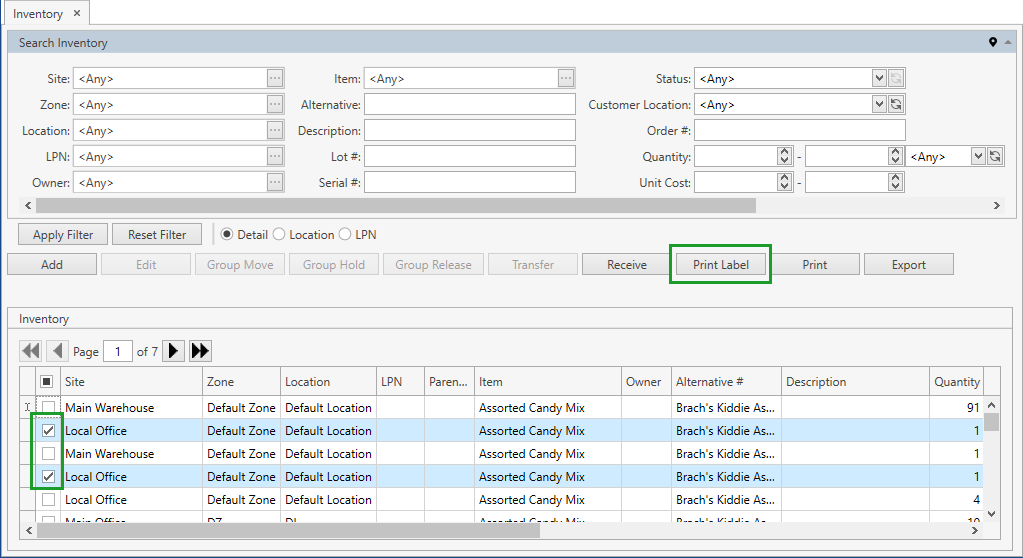
The following frame will show up:
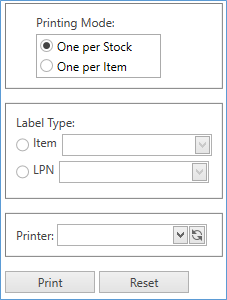
Select Printing Mode:
- One per Stock: labels are printed for each stock. The stock quantity on a label is equal to the system stock quantity.
- One per Item: labels are printed for each item from the selected stock. The stock quantity on a label equals 1 for every item. Please note that the stock quantity must be an integer.
Select Label Type:
- Item
- LPN
Select a printer.
- Click Print button.
- Click Reset button to cancel the printing operation.
Print Labels from Orders
This functionality can be accessed from CoreIMS Orders, e.g. Receiving, Shipping. To print labels from an order you need to do the following:
- Select the order line/detail you want to print labels for and click Print Label button on the order control panel. The following frame will show up:
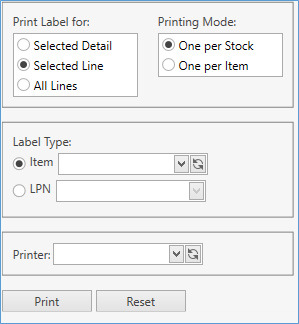
Define the printing scope – whether you want to print a label(s) for:
- Selected Detail (only One per Stock printing mode is available)
- Selected Line
- All Lines
Select Printing Mode:
- One per Stock: labels are printed for each order detail. The stock quantity on a label is equal to:
- Received Qty of the order line for Receiving Orders
- Shipped Qty of the order line for Shipping Orders
- Transferred Qty of the order line for Transfer Orders
- Ordered Qty of the order line for Kitting Work Orders
- Quantity of the order detail for any order if you print a label for the selected detail
- One per Item: labels are printed for each line. The stock quantity on a label is 1 for each label. The number of printed labels is equal to:
- Received Qty for Receiving Orders (must be an integer)
- Shipped Qty for Shipping Orders (must be an integer)
- Transferred Qty for Transfer Orders (must be an integer)
- Ordered Qty for Kitting Work Orders (must be an integer)
- One per Stock: labels are printed for each order detail. The stock quantity on a label is equal to:
While printing labels CoreIMS takes into account order details only in the following statuses:
- Received for Receiving Orders
- Shipped for Shipping Orders
- In Transit for Transfer Orders
- any status for Kitting Work Orders
In Kitting Work Orders you can print labels only for Build/Unbuild To Section.
Select Label Type:
- Item
- LPN
Select a printer.
- Click Print button.
- Click Reset button to cancel the printing operation.