Cycle Count Requests and Sheets
- Cycle Count Sheets
Required Permissions
- Setup Cycle Count
- ability to add, view, edit, delete and initiate Cycle Count Requests
- ability to generate and edit Cycle Count Sheets
- View Cycle Count
- ability to view Cycle Count Requests and Sheets
- Process Cycle Count
- ability to view Cycle Count Requests
- ability to view and edit Cycle Count Sheets
- View Reports
- ability to print and export Cycle Count Request and Cycle Count Sheet
Overview
Cycle counting is an inventory process where items are counted on a cyclic schedule rather than the traditional inventory counting process which occurs once a year. You can determine how often certain items should be counted.
Cycle Count Request serves as a template for the actual cycle count process: it includes Cycle Count settings and scope.
Cycle Count Sheet is a form with a list of all stocks included into the corresponding Cycle Count Request, where actual counts shall be entered and confirmed (you can approve or reject the counting results, or request the recount).
Cycle Count Requests
Add Cycle Count Request
- Go to Inventory tab of the main menu.
- Select Cycle Counts -> Add Request menu item.
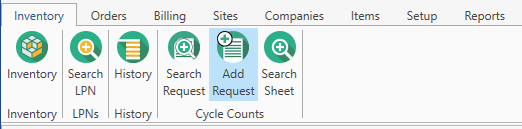
The following window will show up:
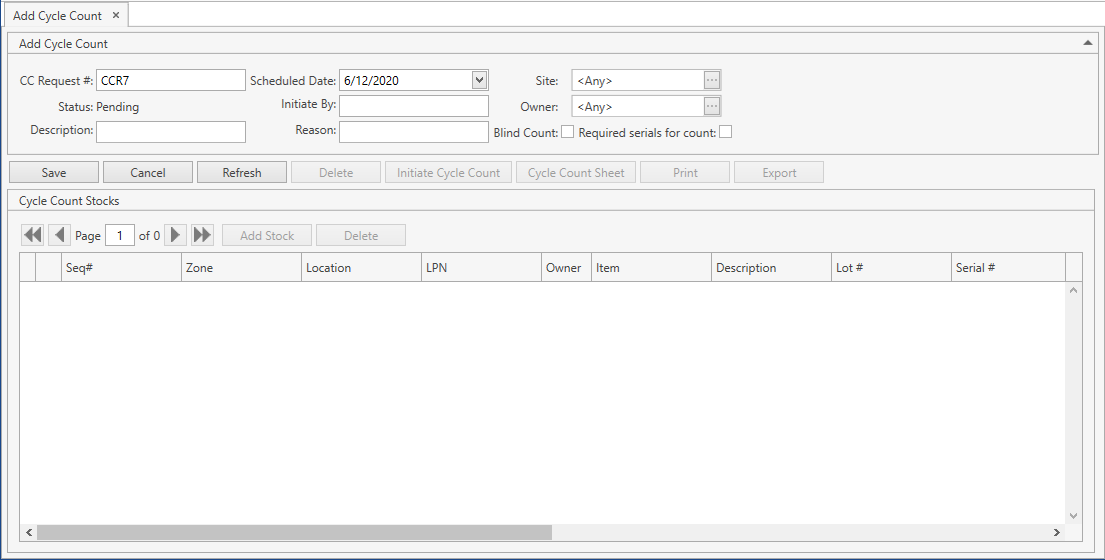
- Specify all the necessary attributes:
| Attribute | Required/Optional | Comment |
|---|---|---|
| CC Request # | Required | Shall be unique across the system; automatically prepopulated by CoreIMS if Autonumbering Setting for Cycle Count Request is turned on. |
| Status | Required | Non-editable; CoreIMS auto populates the field with one of the following values: Pending, In Progress, Completed. Refer to this section for more info on Cycle Count Request statuses. |
| Description | Optional | You can add a memo for yourself or other users. |
| Scheduled Date | Optional | A date when the cycle count is planned to be performed on the Site. |
| Initiate By | Optional | |
| Reason | Optional | |
| Site | Required | A specific Site where the cycle count is to be performed. |
| Owner | Optional | Drop-down list of active Companies marked as Owner. The necessary Company can be searched by the ellipsis button [...] as well. Visible only if Ownership mode is set up as Item Level or Stock Level in System Settings. If you (your CoreIMS user) have a specified Owner (please refer to Users section), you will be able to specify only this Owner or leave the Cycle Count Request without an owner. |
| Blind Count | Checkbox | If you check this option, quantities on hand of stocks to be counted will not be visible in Cycle Count Sheet to the user who does the counting. This is applied to both the desktop application and RF scanner. |
| Required serials for count | Checkbox | If you leave this option unchecked, the user who does the counting will be able to enter only a total quantity of all serial numbers for the serial-controlled item. This is applied to both the desktop application and RF scanner. |
Click Save button. The request will be saved in CoreIMS. Now you can edit it.
Click Cancel button if you want to reset the unsaved changes.
Edit/Delete Cycle Count Request
After saving the changes in Add Cycle Count tab, you will be redirected to Edit Cycle Count tab:
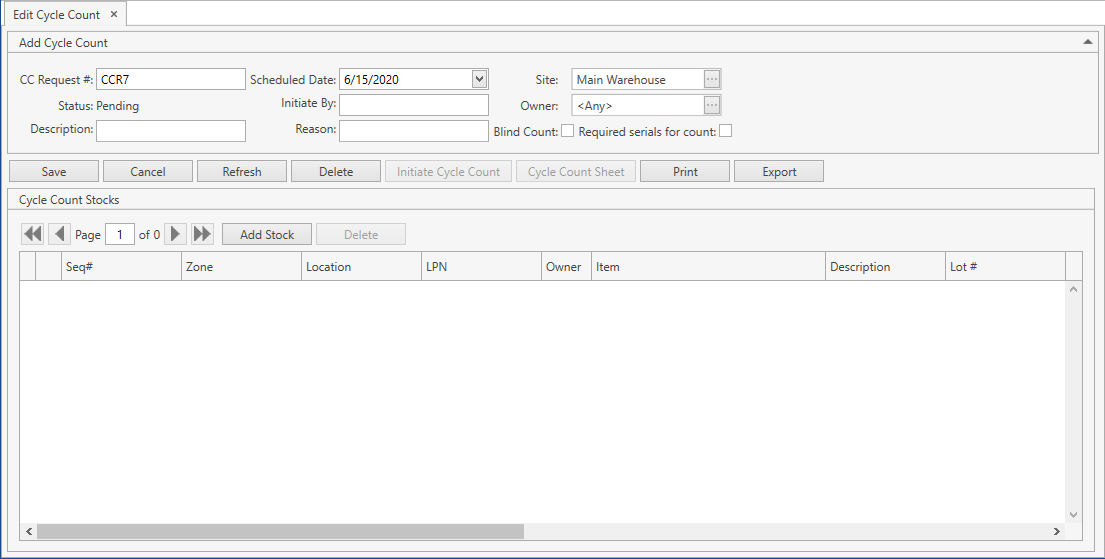
Note. You can also get to Edit Cycle Count tab from Search Request screen.
You can do the following within this screen:
- Edit the Cycle Count Request header (only of Pending requests). Please refer to Add Cycle Count Request to see a list of the request attributes so that you can figure out which limitations are there for request fields.
You will not be allowed to change Site/Owner if at least one stock has already been added to the Cycle Count Request. In order to modify these fields, delete all stocks from the request first.
Click Save button to apply the changes made within the request header.
Click Cancel button to reset the unsaved changes within the request header.
Click Refresh button to reset the unsaved changes within the request header and update the displayed request with the up-to-date data from the database.
Click Delete button to delete a request (available only to Pending requests).
Click Initiate Cycle Count button to initiate the cycle count process and generate a Cycle Count Sheet (available only to Pending requests with at least one specified stock to be counted).
Click Cycle Count Sheet button to view a Cycle Count Sheet associated with the current Cycle Count Request (available only to In Progress and Completed requests).
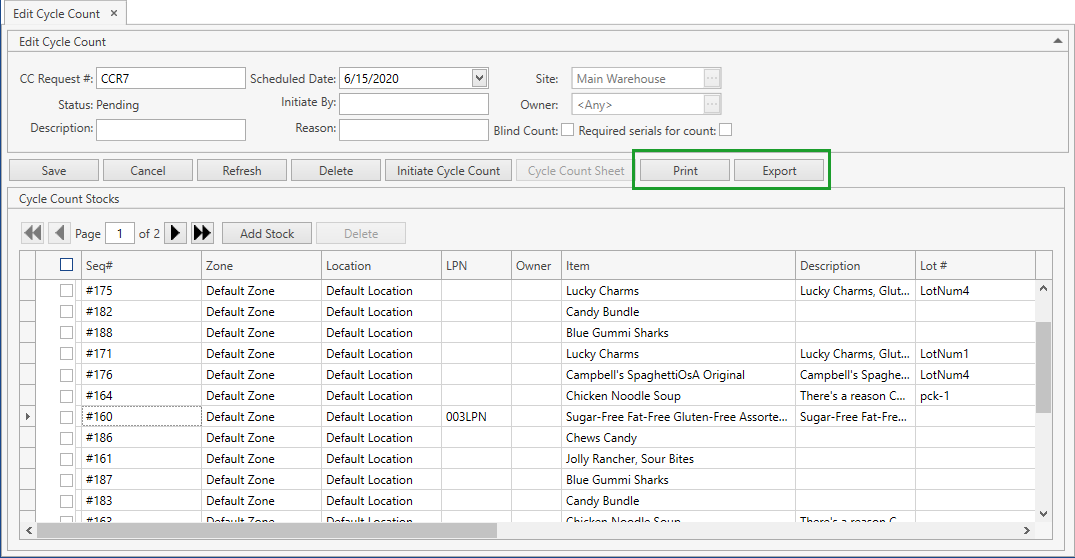
Click Print/Export button to print/export the current request.
Click Add Stock button to evoke Add Stock pop-up window where you can define the cycle count scope, i.e. stocks to be counted. Available only to Pending requests.
- Click Delete button to delete previously added stocks. Available only to Pending requests.
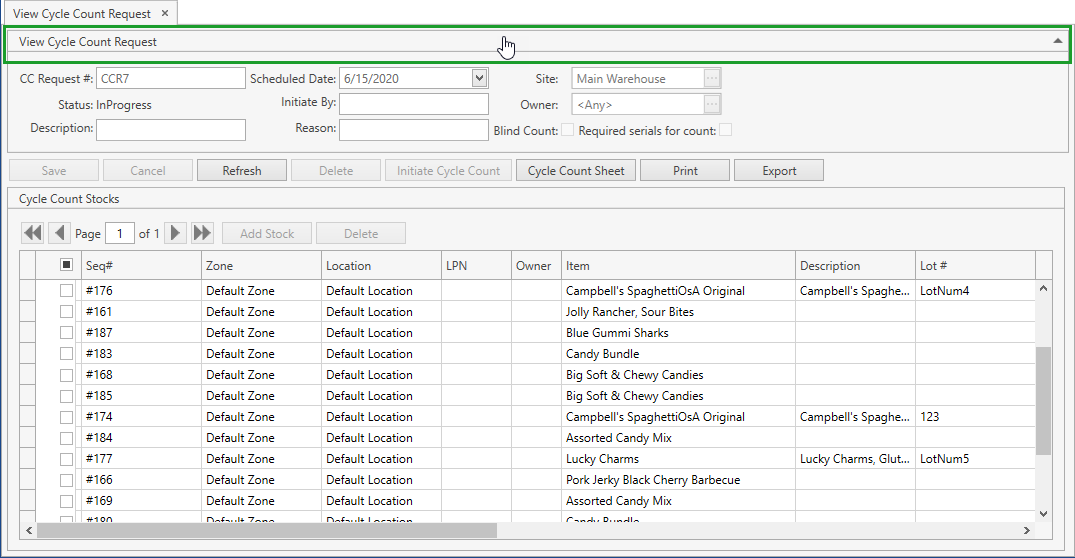
Note that you can collapse/expand a request header by clicking within the area which is highlighted in the screenshot below:
Add Stocks to Cycle Count Request
- Click Add Stock button to define stocks that should be counted within the current Cycle Count Request. The following frame will open up:
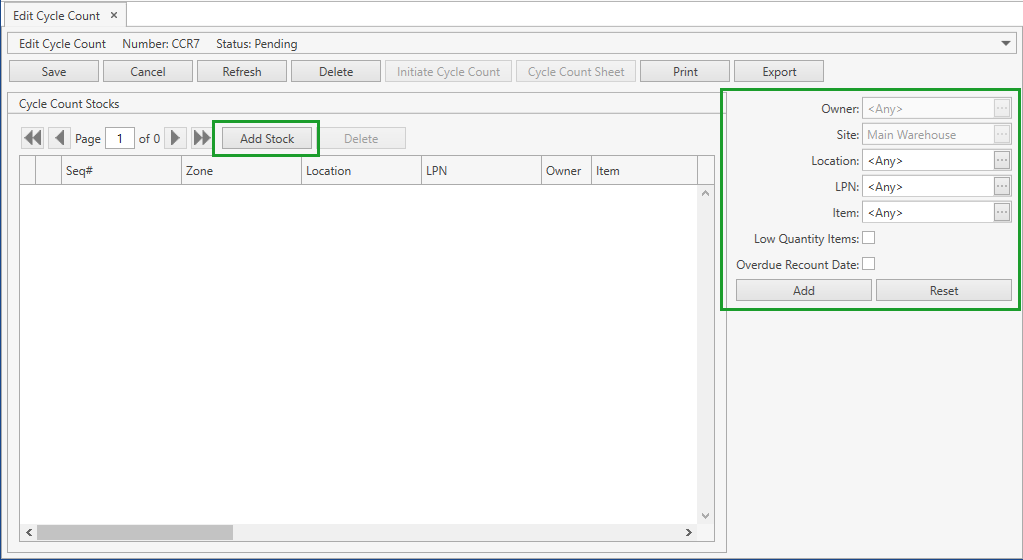
- Define stock parameters according to the following:
| Parameter | Comment | |
|---|---|---|
| Owner | Visible only if Ownership mode is set up as Item Level or Stock Level in System Settings. Non-editable; CoreIMS auto populates the field with the value from the request header. |
|
| Site | Non-editable; CoreIMS auto populates the field with the value from the request header. | |
| Location | You can select a Location to load stock records from. The necessary Location can be searched by the ellipsis button [...] as well. | |
| LPN | You can select an LPN to load stock records from. The necessary LPN can be searched by the ellipsis button [...] as well. | |
| Item | You can select an item whose stocks should be added to the request. The necessary item can be searched by the ellipsis button [...] as well. Please note the following: You cannot select Service items here as such items cannot have physical stocks. If Ownership mode is set up as Item Level in System Settings and Owner is specified in the request header, you will be able to select an item only of this Owner. |
|
| Low Quantity Items | If you check this option, stocks of all items with the low quantity will be added (i.e. stocks of the items whose quantity is less than Minimum Quantity defined for the selected Site in Item Replenishment Settings). | |
| Overdue Recount Date | If you check this option, stocks of all items, for which the planned count date is less or equal to the current date, will be added. Planned Count Date is defined as follows: Last Count Date + Period defined in Item Cycle Count Settings |
. |
Click Reset button to cancel adding of stocks.
Or click Add button once you specified all the necessary parameters. The corresponding stock(s) will be added to Cycle Count Stocks grid with the following columns:
- Seq # is an automatically generated unique number of each stock against the Cycle Count Request (Autonumbering Setting for Cycle Count Request Stock shall be turned on).
- Various stock attributes, such as Location, LPN, Lot #, Expiration Date, UOM, etc.
- Quantity field will be populated when the Cycle Count Request gets initiated.
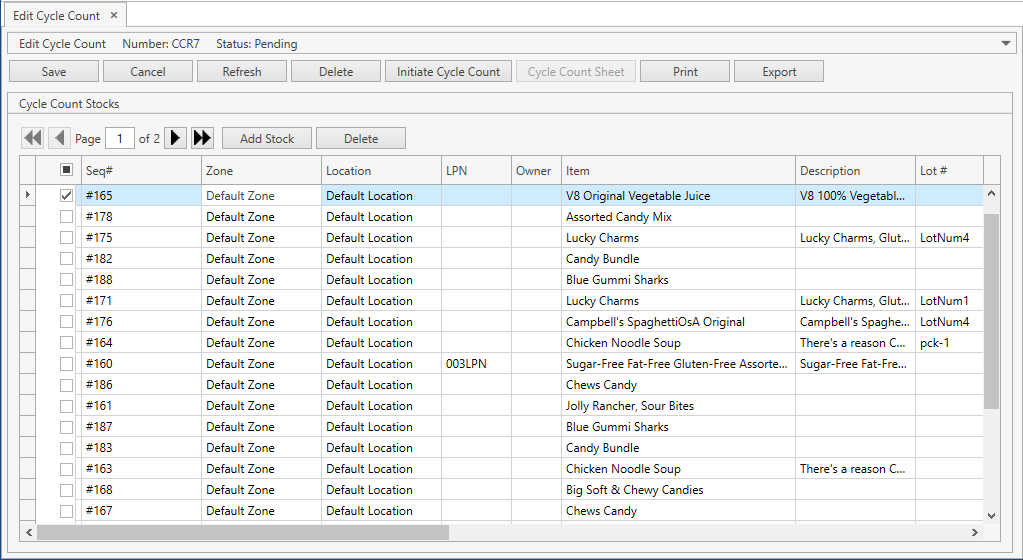
- If needed, use navigation buttons
 to switch the pages of Cycle Count Stocks grid.
You can also customize the view of the grid and use Ctrl+F for searching.
Notes:
- If Ownership mode is set up as Item Level or Stock Level in System Settings and Owner is specified in the request header, CoreIMS will automatically validate that only stocks of the corresponding Owner are added to the Cycle Count Request.
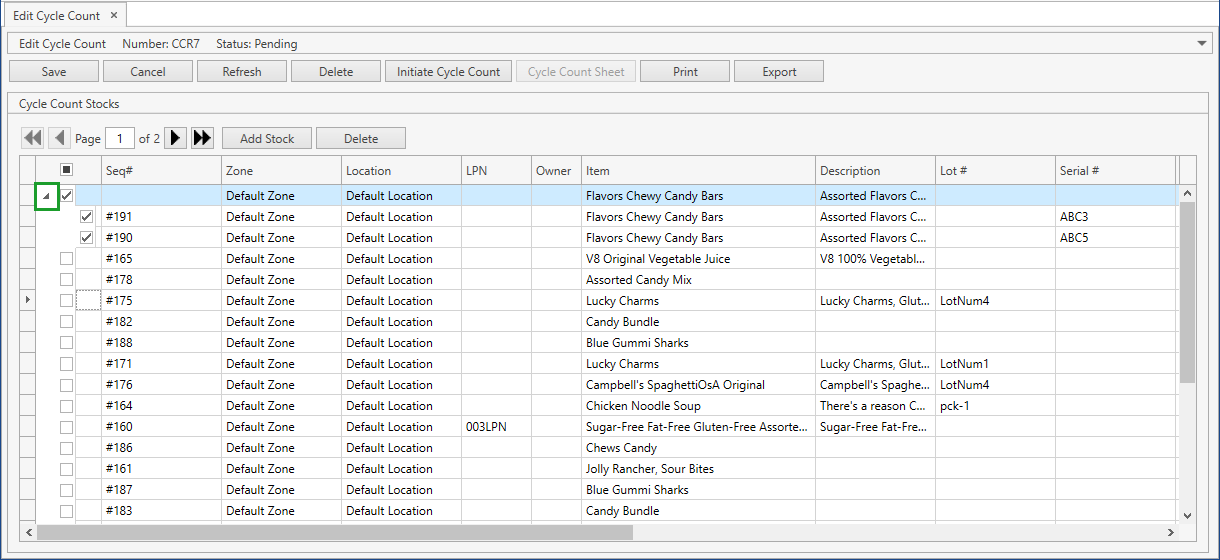
- Stocks of serial-controlled items will be grouped in Cycle Count Stocks grid. You can expand a list of these stocks:
Delete Stocks from Cycle Count Request
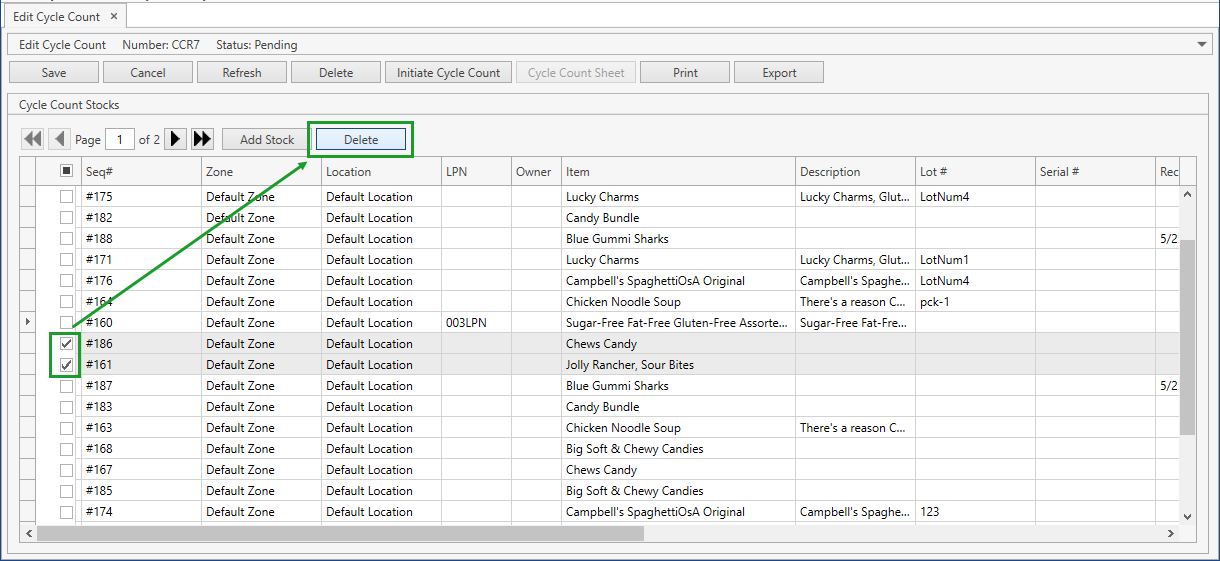
Select stocks you are going to delete:
- checkmark
 records on Cycle Count Stocks grid
 - or press Ctrl on keyboard and select records, one by one, by clicking on any place in a record line. Shift selection works too.
- checkmark
Click Delete button:
- Confirm the operation:
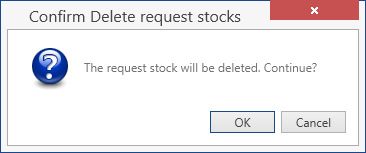
Initiate Cycle Count
- Once you specified all the necessary Cycle Count Request attributes and defined stocks to be counted, you can initiate the cycle count process by clicking Initiate Cycle Count button:

- Confirm the operation:
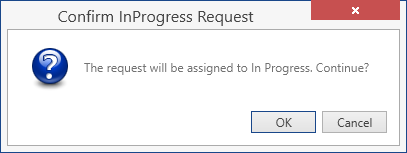
Before initiating the cycle count, CoreIMS will validate that:
- the stocks selected are not included in any other Cycle Count Request of In Progress status. Otherwise, the cycle count process will not be initiated and CoreIMS will output an error message with a list of overlapping stocks and corresponding request numbers.
- stock attributes have not been changed. Otherwise, a warning message with a list of all changed stocks will be shown. You can delete these stocks or initiate the cycle count anyway. It's also possible to cancel the operation, so that the cycle count will not be initiated.
You will not be able to add/delete stocks in the Cycle Count Request after the cycle count initiation.
If the cycle count has been initiated successfully, the request status will be switched to In Progress and a corresponding Cycle Count Sheet form will be generated – users will be expected to input counts via the desktop application or RF scanner.
Cycle Count Sheet
You can view a Cycle Count Sheet generated for the current request by clicking Cycle Count Sheet button:
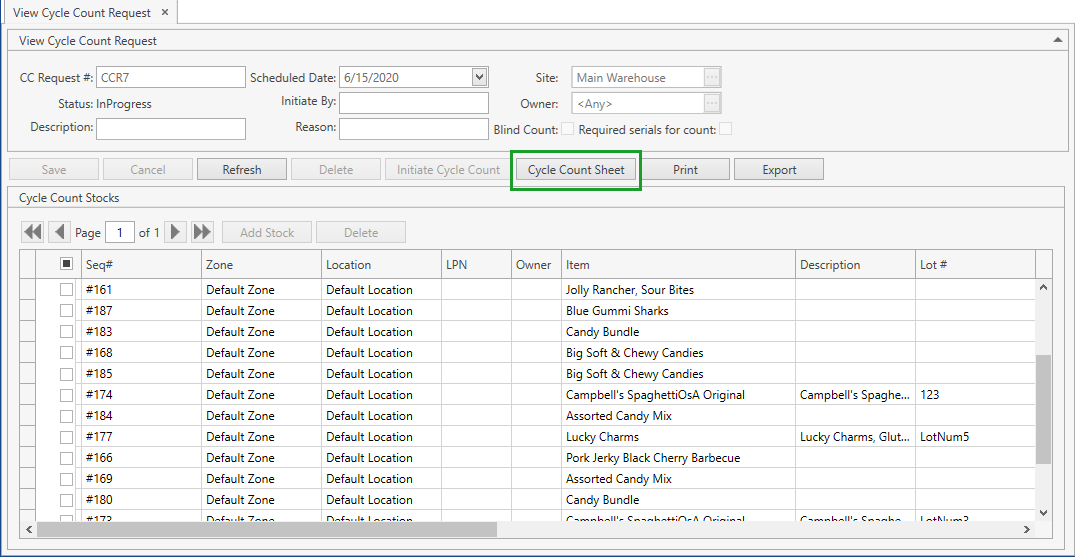
CoreIMS opens the respective Cycle Count Sheet in a separate window:
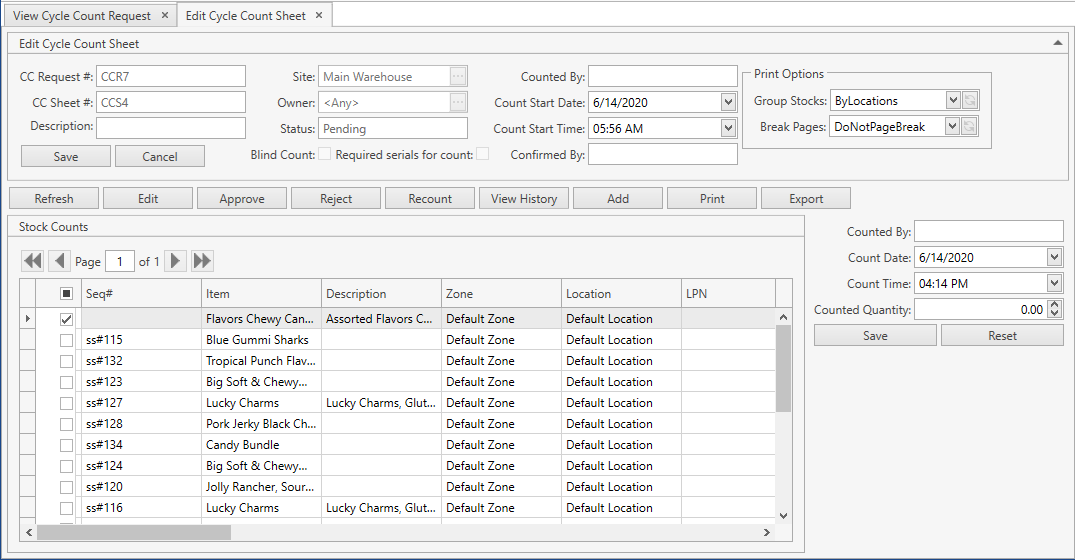
Please refer to Cycle Count Sheets section to view the operations you can perform from this screen.
Print & Export Cycle Count Request
You can print or export Cycle Count Requests of any status.
Click Print or Export button on Edit Cycle Count Request or View Cycle Count Request screen (depending on the request status):
Cycle Count Sheets
View Cycle Count Sheet
A Cycle Count Sheet is generated automatically by CoreIMS, once the cycle count was initiated from the Cycle Count Request.
Sheets are generated with the following attributes:
| Attribute | Required/Optional | Comment |
|---|---|---|
| CC Request # | Required | Non-editable; automatically populated by CoreIMS with the respective CC Request # of the request from which the current Cycle Count Sheet was generated. |
| CC Sheet # | Required | Non-editable; automatically generated unique number (Autonumbering Setting for Cycle Count Sheet shall be turned on). |
| Description | Optional | Prepopulated by CoreIMS with Description from the respective Cycle Count Request. You can update this description. |
| Site | Required | Non-editable; automatically populated by CoreIMS with Site from the respective Cycle Count Request. |
| Owner | Optional | Visible only if Ownership mode is set up as Item Level or Stock Level in System Settings. Non-editable; automatically populated by CoreIMS with Owner from the respective Cycle Count Request. |
| Status | Required | Non-editable; CoreIMS auto populates the field with one of the following values: Pending, Confirmed. Refer to this section for more info on Cycle Count Sheet statuses. |
| Blind Count | Checkbox | Non-editable; automatically populated by CoreIMS with the value from the respective Cycle Count Request. |
| Required serials for count | Checkbox | Non-editable; automatically populated by CoreIMS with the value from the respective Cycle Count Request. |
| Counted By | Optional | |
| Count Start Date | Required | Automatically populated by CoreIMS with the date the Cycle Count Sheet was generated. You can edit the field. |
| Count Start Time | Required | Automatically populated by CoreIMS with the time the Cycle Count Sheet was generated. You can edit the field. |
| Confirmed By | Required* | *Automatically populated by CoreIMS with user names of users who confirmed counts within the current Cycle Count Sheet. May include more than one user name. Non-editable for you. |
| Print Options | Required | The following printing options are available: Group Stocks: By Locations (selected by default) By LPNs By Items Break Pages: Do not page break (selected by default) Do page break between each Location/LPN/Item |
You can open an existing Cycle Count Sheet in one of the following ways:
- click Cycle Count Sheet button in a corresponding Cycle Count Request;
- search an existing one via Search Sheet screen.
Once you've opened up a Cycle Count Sheet, CoreIMS will bring up the following screen:

You can do the following within this screen:
Edit the Cycle Count Sheet header (only of Pending sheets). Please refer to Edit Cycle Count Sheet section.
Click Refresh button to reset the unsaved changes within the sheet header and update the displayed sheet with the up-to-date data from the database.
Click Edit button to Input Counts for stocks being processed, including the stocks of serial-controlled items.
Click Approve button to set the selected stock(s) Confirm Action as Approved.
Click Reject button to set the selected stock(s) Confirm Action as Rejected.
Click Recount button to set the selected stock(s) Confirm Action as Recount.
Click View History button to view operations performed for items of the selected stock(s) within the Site from the sheet header. You will be redirected to Transaction History screen with the prepopulated Site and Item filter parameters.
Click Add button to add a new stock, if any was found during the cycle count process.
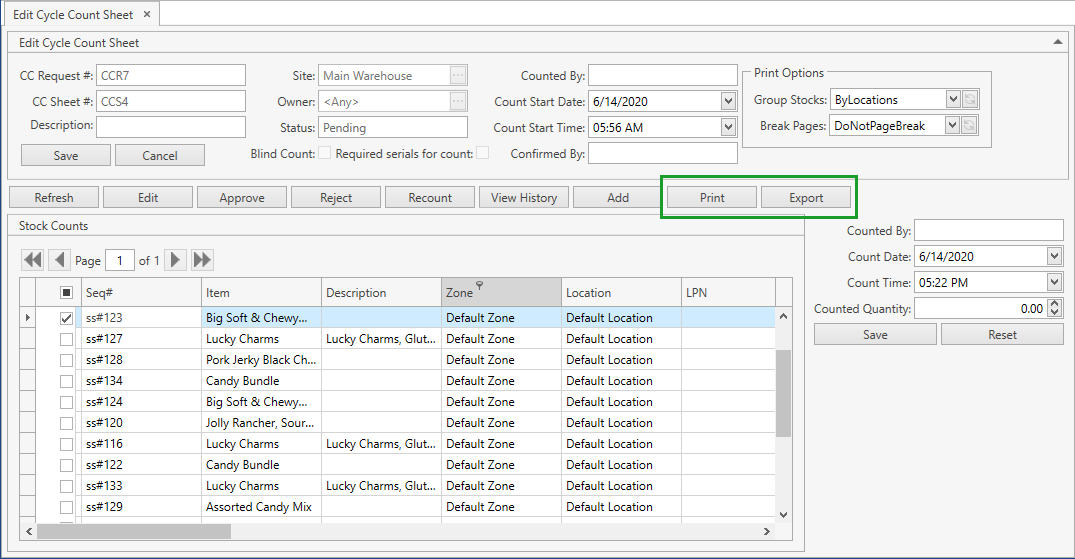
Click Print/Export button to print/export the current sheet.
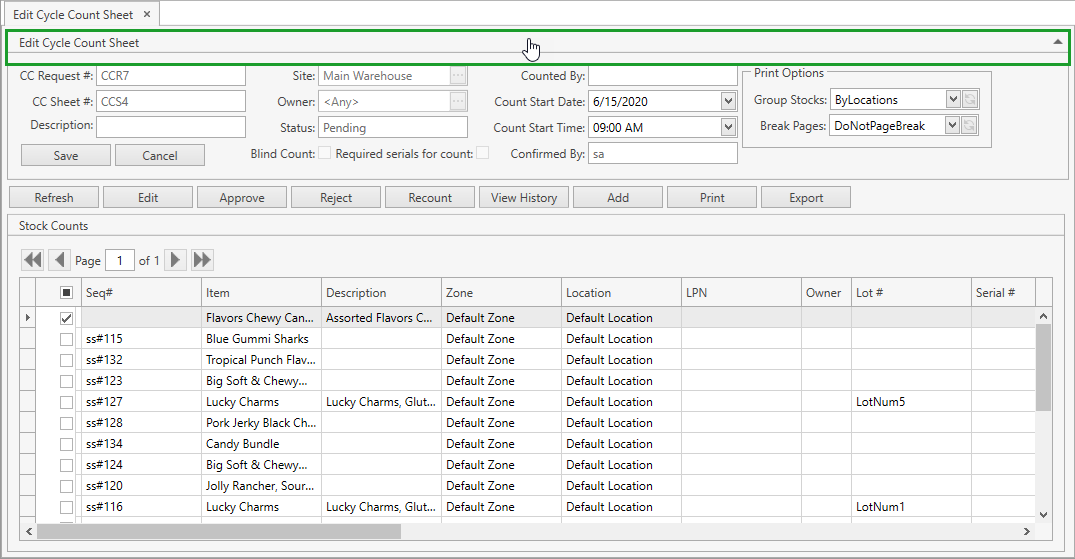
You can collapse/expand a sheet header by clicking within the area which is highlighted in the screenshot below:
- If needed, use navigation buttons to switch the pages of Stock Counts grid.
You can also customize the view of the grid and use Ctrl+F for searching.
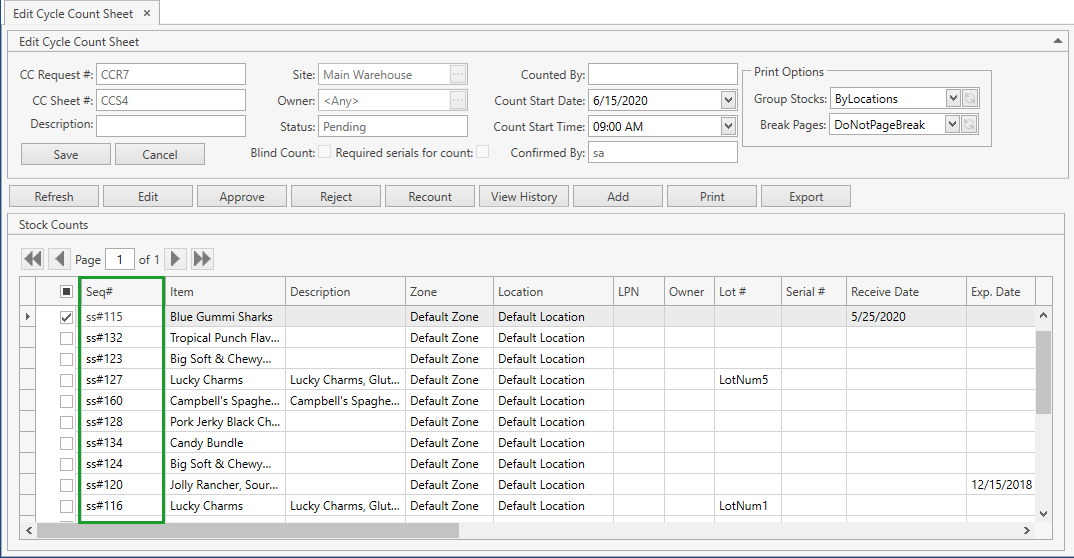
Note that values in Seq# column on Stock Counts grid are populated according to Autonumbering Setting defined for Cycle Count Sheet Stock:
Edit Cycle Count Sheet
CoreIMS allows you to edit only Pending Cycle Count Sheets.
- Open an existing Cycle Count Sheet in one of the following ways:
- click Cycle Count Sheet button in a corresponding Cycle Count Request;
- search an existing one via Search Sheet screen.
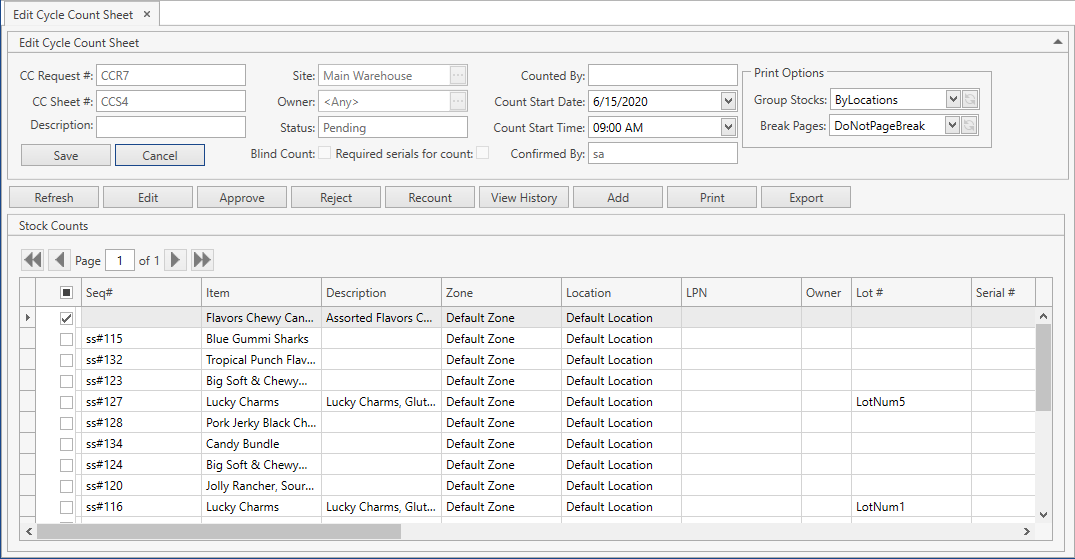
You will see Edit Cycle Count Sheet window:
- Modify the necessary attributes in the sheet header within the following frame:

The following fields are editable for you:
1) Description
2) Counted By
3) Count Start Date
4) Count Start Time
5) Print Options
Click Save button to apply the changes.
Click Cancel button to reset the unsaved changes.
Add New Stock to Cycle Count Sheet
If a new stock was found in the Location during the cycle count process, you can click Add button to add a new stock to the Cycle Count Sheet. The Add Stock form for entering the stock data will be brought up:
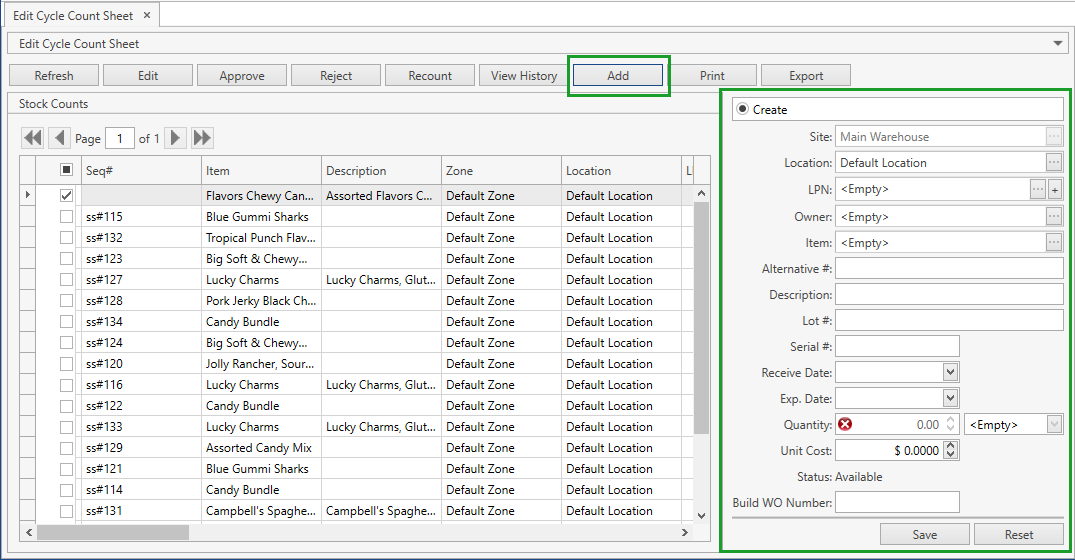
Site field will be non-editable and auto populated with Site from the sheet header.
Owner field is visible only if Ownership mode is set up as Item Level or Stock Level in System Settings. This field is non-editable and will be auto populated with Owner from the sheet header if it is specified there.
- Once you specified all the necessary data and clicked Save button, the new stock record will be added to Stock Counts grid in the Cycle Count Sheet.
- Once the stock has been confirmed in the Cycle Count Sheet, it will be added to Inventory section.
- Note that the operation on adding a new stock will be recorded to Transaction History as Adjust operation with an Adjustment Reason indicated as Cycle Count.
Input Counts in Cycle Count Sheet
Once you have solid stock quantity details, you can input these figures into the Cycle Count Sheet:
- Select a necessary stock and click Edit button:
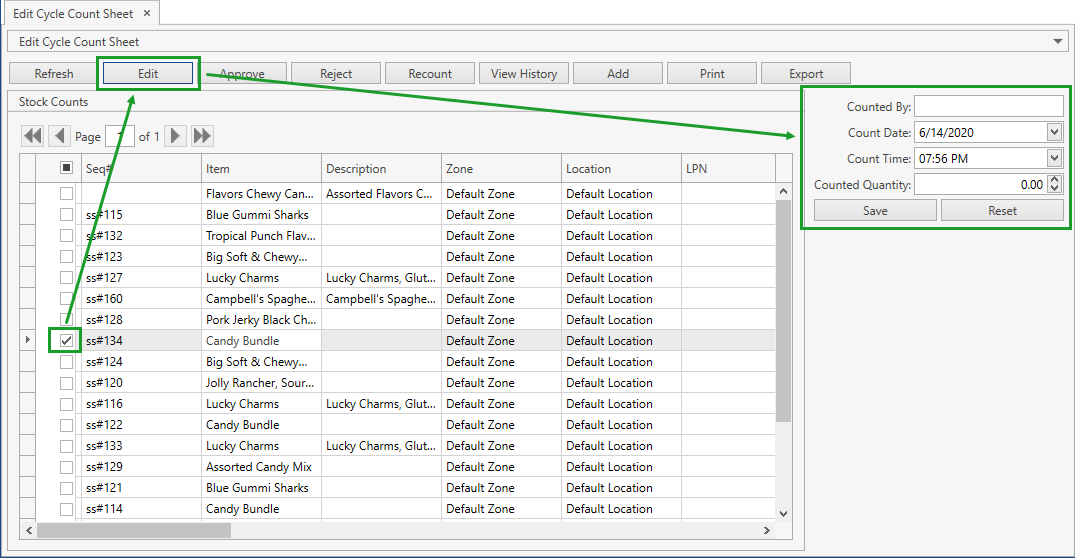
Enter all the necessary fields in the right pane:
- Counted By
- Count Date (prepopulated with the current date)
- Count Time (prepopulated with the current time)
- Counted Quantity
Click Save button to apply the counting results. They will be reflected on Stock Counts grid:
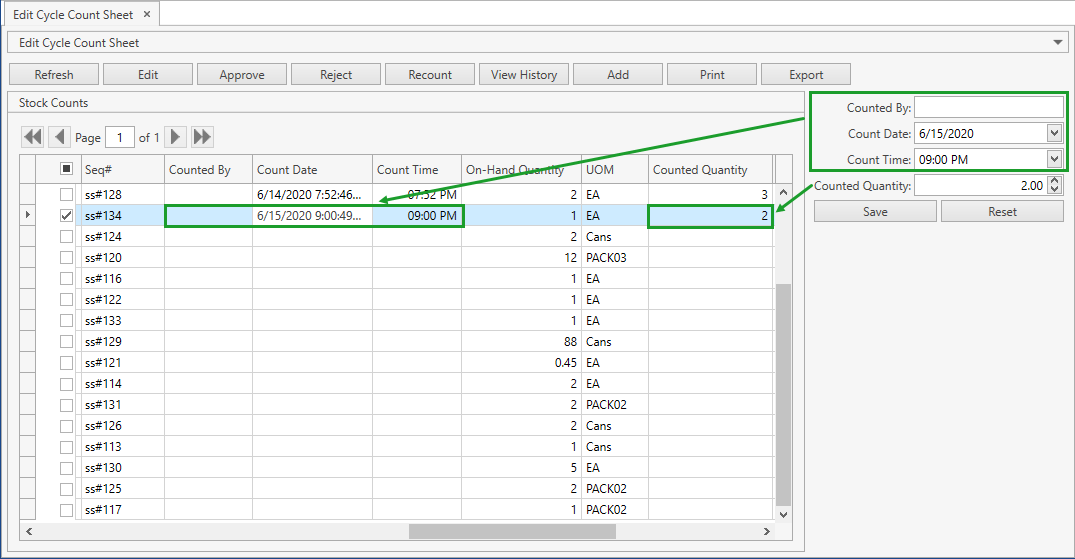
Once you input counts, a valid confirm action should be applied to stocks. Note that you are allowed to edit the counting result of a stock before you confirm it.
Input Counts for Serial-Controlled Items
CoreIMS tracks whether you checked Required serials for count flag in the corresponding Cycle Count Request:
- If Required serials for count flag was checked, CoreIMS displays stocks of serial-controlled items per Serial # and requires to enter Сounted Quantity for each Serial # separately.
- If Required serials for count flag was unchecked, CoreIMS collapses stocks of serial-controlled items and groups these stocks by item. You have to enter Сounted Quantity per item as a total quantity for all serial numbers.
Confirm Counts in Cycle Count Sheet
There are two confirmation modes:
- Automatic: runs by CoreIMS if Counted Quantity is equal to the stock On-Hand Quantity.
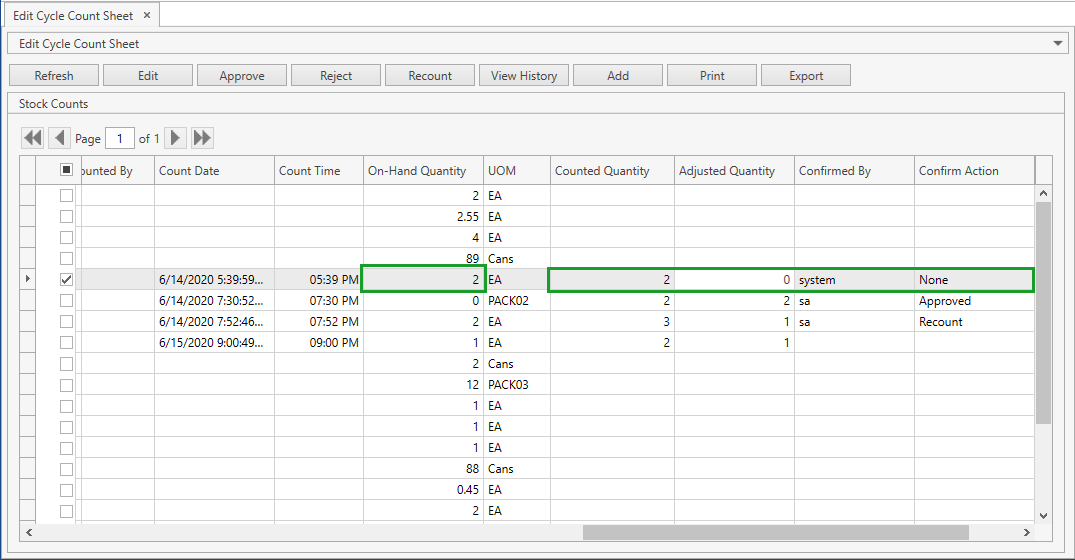
In this case Confirm Action and Confirmed By fields will be populated with None and system respectively.
No changes will be applied to the stock quantity and, finally, the stock will be protected from any editing or approving/rejecting/etc.
- Manual: if there is any variance between stock On-Hand Quantity and Counted Quantity, you will be required to define the stock confirmation action. Select a stock or a group of stocks and then click a button, corresponding to one the following actions:
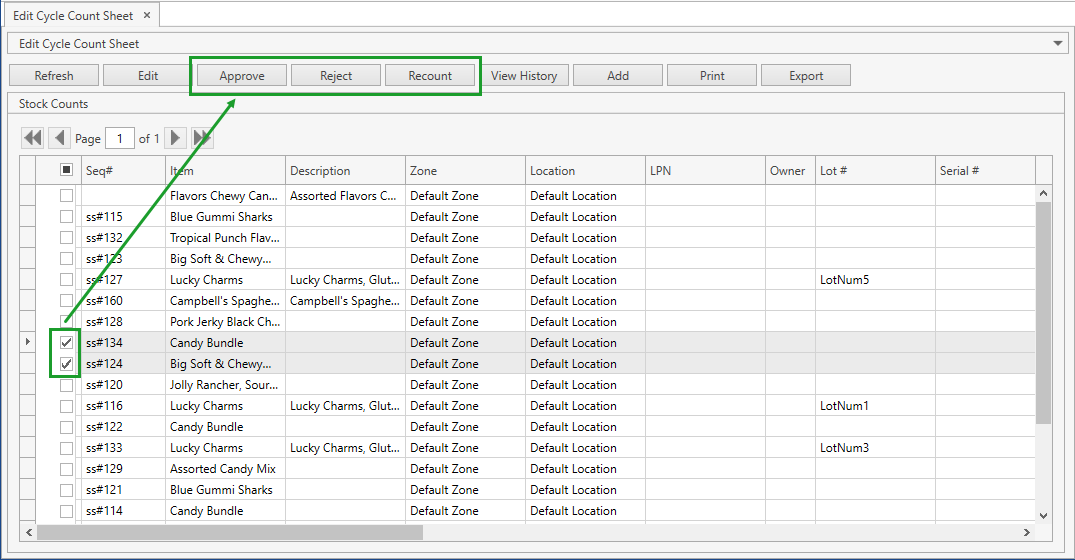
Approve
Once you selected the necessary stock(s) and click Approve button, CoreIMS performs the following:
- Set Approved as the stock(s) Confirm Action.
- Mark the stock as confirmed so that no further actions are available for this stock record.
- Adjust the stock quantity, rewrite the quantity with Counted Quantity from Stock Counts grid.
Reject
Once you selected the necessary stock(s) and click Reject button, CoreIMS performs the following:
- Set Rejected as the stock(s) Confirm Action.
- Mark the stock as confirmed so that no further actions are available for this stock record.
- Leave the current stock quantity without changes.
Request Recount
Once you selected the necessary stock(s) and click Recount button, CoreIMS performs the following:
- Set Recount as the stock(s) Confirm Action.
- Mark the stock as confirmed so that no further actions are available for this stock record.
- Leave the current stock quantity without changes.
When the whole Cycle Count Sheet gets processed, a new Pending Cycle Count Request will be generated for all stock records marked as Recount.
Confirm Stocks of Serial-Controlled Items
You won't be allowed to approve stocks of serial-controlled items if Required serials for count flag was unchecked since in this case you can only enter Counted Quantity per item as a total quantity for all serial numbers.
You can only reject or request the recount for such stock(s) in order to proceed with the current Cycle Count Sheet.
Automatically Confirm Cycle Count Sheet and Request
Once all stocks from the Cycle Count Sheet are confirmed (Confirm Action for every stock is defined), CoreIMS will automatically perform the following actions:
- Switch the Cycle Count Sheet status from Pending to Confirmed.
- Switch the Cycle Count Request status from In Progress to Completed.
- Populate the Last Count Date field in Item Cycle Counts Settings for all items within the Cycle Count Sheet with the current date.
- Generate a new Pending Cycle Count Request with a list of all stocks for which the request recount confirmation action was selected.
Print & Export Cycle Count Sheet
You can print or export Cycle Count Sheets of any status.
Click Print or Export button on Edit Cycle Count Sheet screen:
Appendix
Cycle Count Request Statuses
Cycle Count Request may have one of the following statuses:
Pending: Once a new Cycle Count Request is created, it has status Pending. Pending Cycle Count Request is editable: you can change stock selection or delete this request.
No Cycle Count Sheet is available for such requests.
More than one Cycle Count Request can be in status Pending at the same time.In Progress: Once the Cycle Count Request was initiated, its status is switched from Pending to In Progress. You cannot change or delete a Cycle Count Request that is in In Progress status.
A Cycle Count Sheet becomes available for a Cycle Count Request that is In Progress. You can enter results of the physical inventory counting into this sheet.
More than one Cycle Count Request in the status In Progress can exist in CoreIMS at the same time, but these Cycle Count Requests must have different stocks to be counted.Completed: Once a Cycle Count Sheet form was confirmed (you can approve or reject the counting results, or request the recount), the status of the respective Cycle Count Request is switched to Completed.
Cycle Count Sheet Statuses
Cycle Count Sheet may have one of the following statuses:
Pending: Once a new Cycle Count Sheet is generated, it has status Pending. Pending sheet is editable: you can enter, change counts information and save form incomplete.
Confirmed: Once you confirmed a Cycle Count Sheet, its status is switched to Confirmed. Confirmed sheets are read-only and you cannot edit them.