Inventory History
Required Permissions
- View History
- ability to search and view Transaction History records
- View Reports
- ability to print and export History Report
Overview
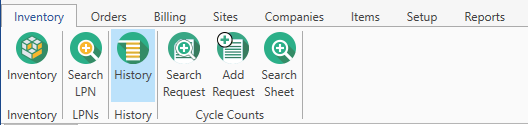
All operations performed on stocks are recorded into Transaction History that can be accessed by clicking on History menu item on Inventory tab of the main menu:
Transaction History section looks like displayed below:
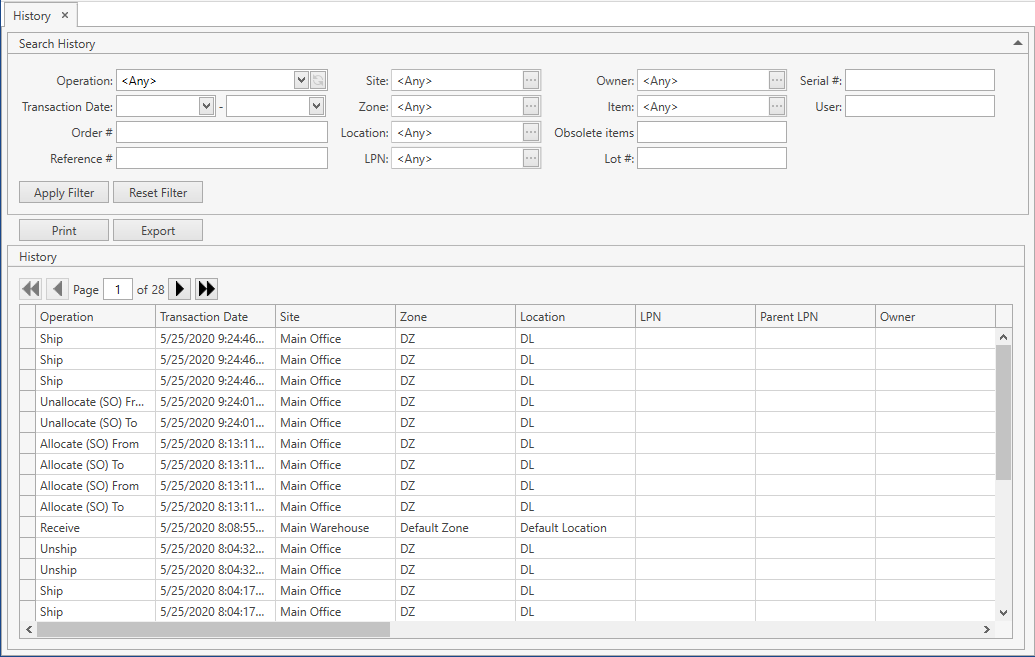
The system creates one transaction history record when one of the following operations is completed:
- Adjust Qty
- Receive
- Unreceive
- Ship
- Unship

The system creates two (From-To) transaction history records when one of the following operations is completed:
- Hold
- Release
- Move
- Break UOM
- Allocate (Allocate (SO) / Allocate (TO) / Allocate (WO) / Allocate (MWO))
- Unallocate (Unallocate (SO) / Unallocate (TO) / Unallocate (WO) / Unallocate (MWO))
- Adjust Attributes
- Transfer (Transfer Ship / Transfer Unship / Transfer Receive)
- Build
- Build (MWO)
- Unbuild

You cannot modify or delete transaction history records.
Search Transaction History Records
- Specify the necessary search criteria in Search History frame:
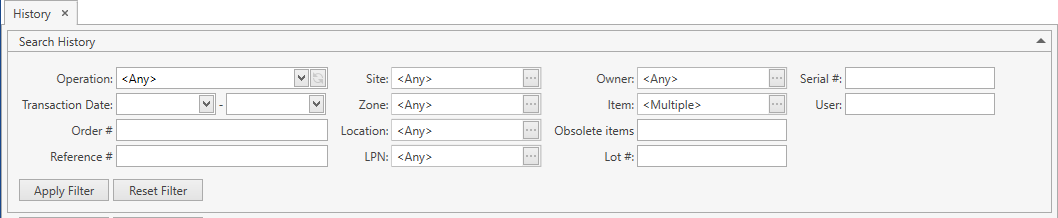
The following optional filters can be applied:
| Filter | Comment |
|---|---|
| Operation | |
| Transaction Date | From-To |
| Order # | |
| Reference # | |
| Site | The necessary Site can be searched by the ellipsis button [...]. |
| Zone | The necessary Zone can be searched by the ellipsis button [...]. |
| Location | The necessary Location can be searched by the ellipsis button [...]. |
| LPN | The necessary LPN can be searched by the ellipsis button [...]. |
| Owner | Visible only if Ownership mode has been set up as Item Level or Stock Level in System Settings. |
| Item | The necessary item can be searched by the ellipsis button [...]. Multiple Select is allowed. |
| Obsolete items | You can search within this field by Item Codes (by incomplete match) of items that were renamed / deleted / deactivated. |
| Lot # | |
| Serial # | |
| User | |
| Custom Fields | If stock has any Active Custom Fields. |
CoreIMS allows you to do the following when searching:
1) search by the beginning of text fields;
2) hide/unhide search filters;
3) collapse/expand the filter area.
- Once you specify all necessary filter criteria, click Enter or Apply Filter button.
The results that satisfy the search criteria will be loaded to History frame:
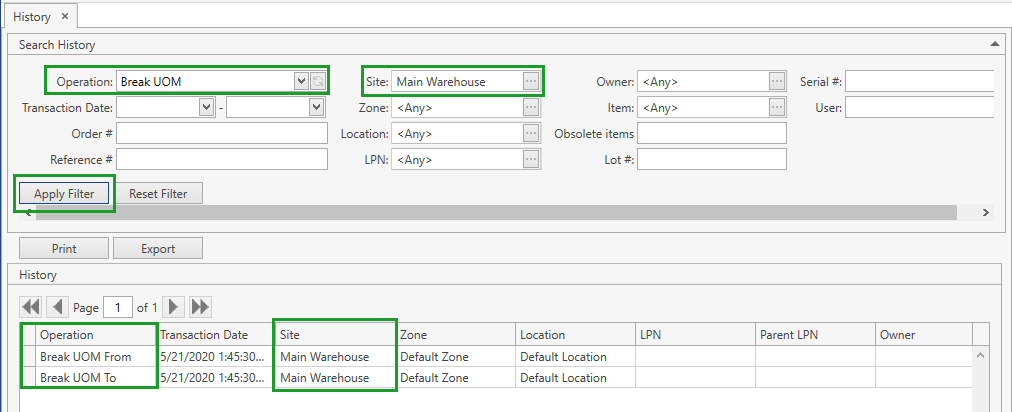
You can reset previously specified filter criteria by clicking Reset Filter button.
Use navigation buttons
 to switch the pages of the grid.
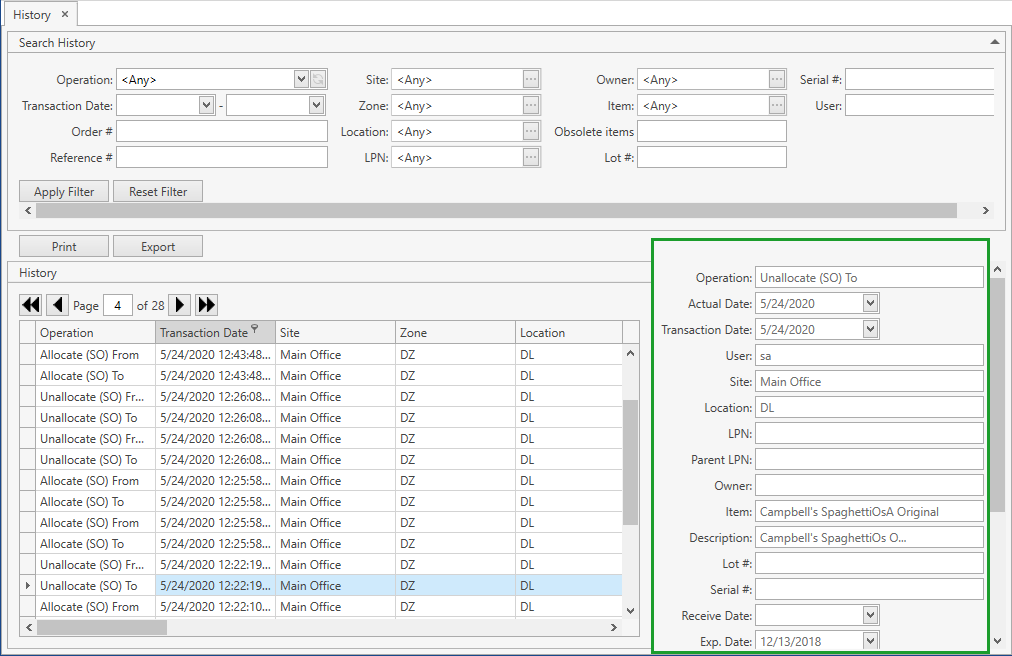
If needed, customize the view of the grid and use Ctrl+F for searching.You can view attributes of the transaction history record by clicking on the necessary record. The frame to the right will show up:
History Report
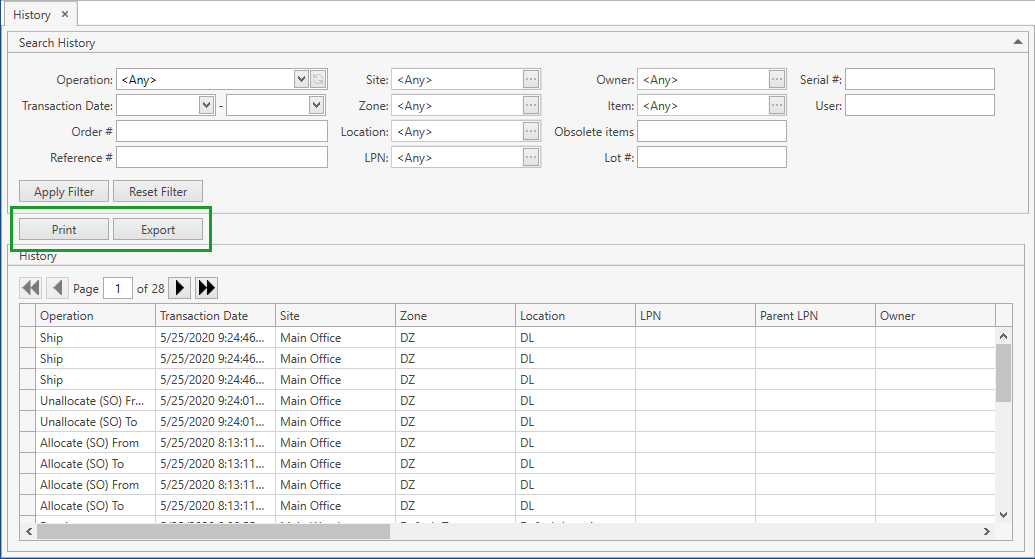
You can print or export History report displaying the data from the grid on History screen. To this end use Print or Export button accordingly.
Due to performance issues this report displays inventory operations performed only during the previous month starting back from the current date.