Replenishment: Generate Orders
Required Permissions
- View Items
- ability to view item list
- Setup Items
- ability to manage Replenishment Settings in item attributes
- View Receiving Orders
- ability to search and view generated Receiving Orders
- Modify Receiving Orders
- ability to access Replenishment section
- ability to generate Receiving Orders
- View Reports
- ability to print and export reports from Report Center
This functionality allows you to generate Receiving Orders filled with items that need replenishment.
To be more precise, it's about items that have Projected on Hand Qty less than Min Qty. For details on Projected on Hand Qty calculation, please refer to Appendix below.
Item Configuration
CoreIMS does not generate Orders from nowhere – there must be item demand captured in Warehouse:
- how much do we have versus how much should we have on hand?
- how much have we promised to ship out?
- perhaps it's time to order more?
To help CoreIMS figure this out, we need to configure Replenishment settings in Item setup. It's essential that min and max quantities are defined for each item, that's what CoreIMS uses to track demand, so we can generate Receiving Orders for the required items.
Consult Replenishment Settings section for details on configuration.
Generate Receiving Orders
In the Main menu, click Generate Orders in Replenishment section:

The following window opens:
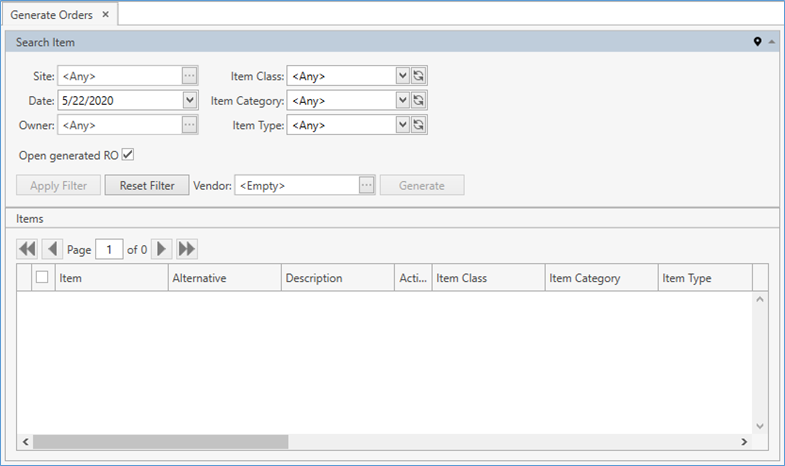
Before generating a Receiving Order, CoreIMS must go through item statistics: starting from a specific Date, for each item gather current On Hand quantity figures and collect information from Receiving, Shipping and Transfer Orders the item is ordered on – see Appendix below. This helps reveal the items requiring replenishment, and the amount to order.
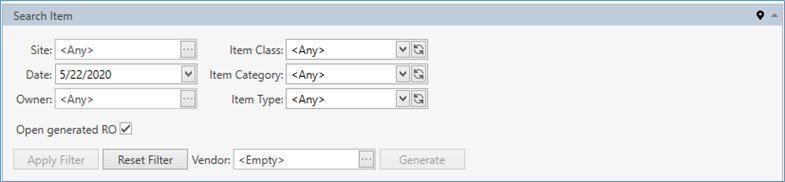
To narrow down the search scope, use Search Item frame:
| Filter | Comment |
|---|---|
| Site (required field) | Site to collect item statistics on. Drop-down list of active Sites that you have access to. The necessary Site can be searched by the ellipsis button [...] as well. CoreIMS automatically prepopulates this field if you have a specified Default Site (please refer to Users section). |
| Date | Defines a Due Date on Shipping, Receiving and Transfer Orders the search will start from. |
| Owner | Drop-down list of active Companies marked as Owner. The necessary Company can be searched by the ellipsis button [...] as well. Visible only if Ownership mode is set up as Item Level or Stock Level in System Settings. If your CoreIMS user has an assigned Owner (refer to Users section), you will be able to search for items in Orders only of this Owner or without owner. |
| Item Class | Drop-down list of user-defined Item Classes. |
| Item Category | Drop-down list of user-defined Item Categories. |
| Item Type | Drop-down list of user-defined Item Types. |
CoreIMS allows you to do the following when searching:
1) hide/unhide search filters;
2) collapse/expand the filter area;
3) fasten/unfasten the filter area;
4) use navigation buttons  to switch the pages of the grid;
5) customize the view of the grid and use Ctrl+F for searching.
Click Apply Filter to view search results:
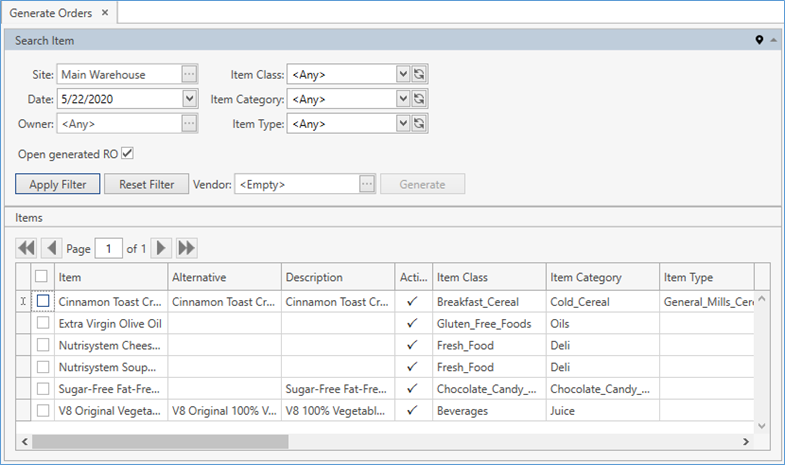
Pay attention to Proj. On Hand, Min Qty and other figures on the grid – this is extremely useful replenishment information.
Select the items to be added to Receiving Order:
- checkmark
 records on the Items grid
 - or press Ctrl on keyboard and select records, one by one, by clicking on any place on a record line. Shift selection works too.
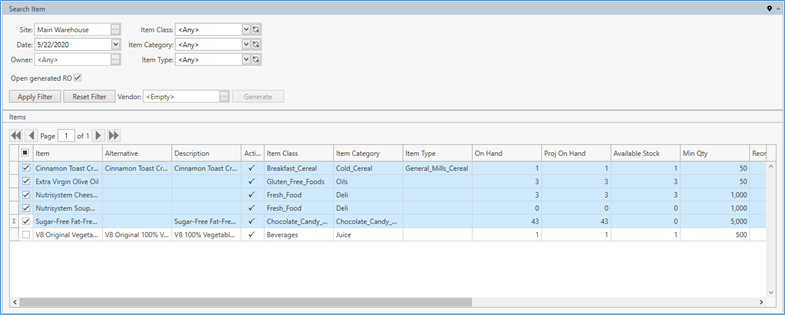
Notice Open generated RO option – if enabled, the Receiving Order will be opened in a separate tab when generated.
Then click the ellipsis button [...] to select a Vendor to order items from.
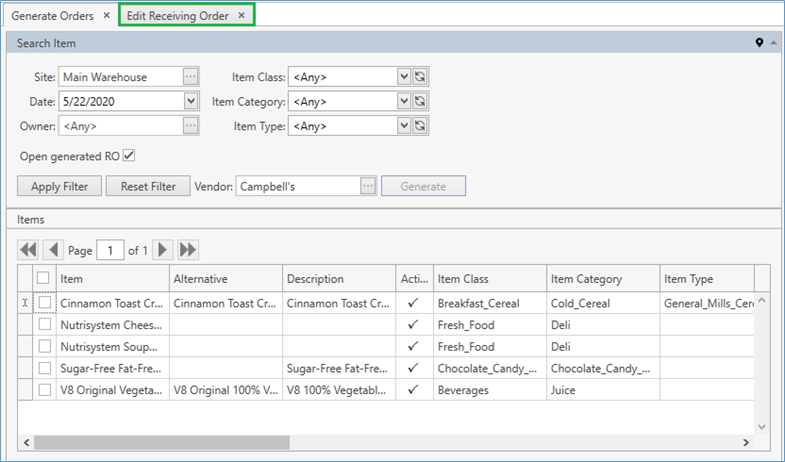
Click Generate to create a Receiving Order with lines of items previously selected. If Open generated RO option had been enabled, you can quickly access the Receiving Order by clicking on Edit Receiving Order tab (highlighted):
As you can see, the Receiving Order header is populated with the data specified in Search Item frame:
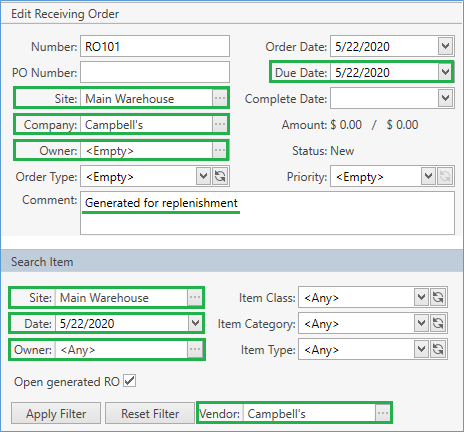
- Site corresponds to the Site selected on previous screen.
- Company is pulled from Vendor field.
- Owner here is empty, but if specified before, it would have been populated here as well.
- Due Date is taken from Date.
- Comment is populated by CoreIMS.
The Receiving Order is ready-to-use:
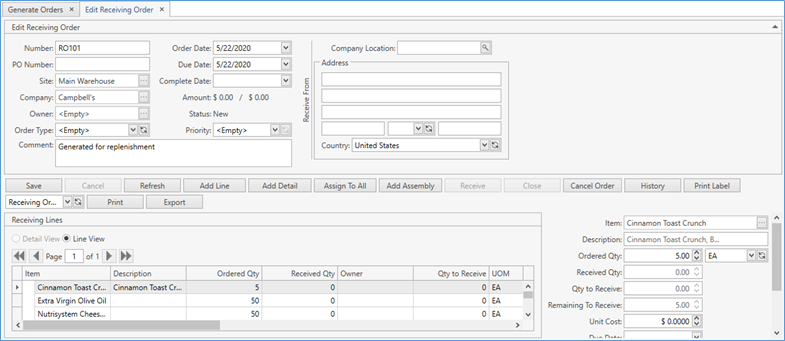
Note that all the order lines correspond to items selected on Generate Orders screen.
Ordered Qty in lines is populated from item's Replenishment settings: Reorder Quantity. If Reordered Qty is not assigned, then Ordered Qty = Min Qty - Projected On Hand.
Item UOM corresponds to Default Purchase UOM. If it's not assigned, the base UOM of item's Quantity UOM Class is taken.
Refer to Receiving Order Operations for instructions of how to handle Receiving Orders.
Replenishment Reports
Such reports as Items for Replenishment and Projected Items for Replenishment in Report Center can be of help.
Appendix
Projected On Hand = QOH + On RO Qty + On TO Qty (IN) - On SO Qty - on TO Qty (OUT),
where
- QOH (Quantity On Hand) = Qty in status Available + On Hold + Allocated + In Transit
- RO is Receiving Order
- TO is Transfer Order
- SO is Shipping Order
RO
On RO Qty = Sum (Ordered Qty - Received Qty). On RO quantity constitutes the difference between Ordered Qty and Received Qty for Site Receiving Orders.
For calculating On RO Qty, CoreIMS chooses only Orders that satisfy the following criteria:
- Due Date is less or equal to Date from filter. Orders with empty Due Date are also considered;
- Order Status is New or In Process;
- Order Lines with Closed status are not included into calculation.
TO
CoreIMS takes all TOs with Due Date <= Assigned Date (Date from Filter) and with empty Due Date. Take Orders and Lines in all statuses:
- On TO Qty (IN) = Ordered Transfer Qty - Transferred Qty; (for Transfer To Site);
- On TO Qty (OUT) = Ordered Transfer Qty - Transferred Qty; (for Transfer From Site).
SO
On SO Qty = Ordered Qty - Shipped Qty; (if Ordered Qty - Shipped Qty < 0 then CoreIMS calculates On SO as Sum of Shipping Order Details in status New):
- Take SO with Due Date <= Assigned Date (Date from filter) and with empty Due Date;
- Take only Shipping Order in status New and In Process;
- Order Line in status other than Closed.