Contract
- Overview
- Add Contract
- Edit/Delete Contract
- Manage Rates
- Approve Contract
- Extend Contract
- Close Contract
- Copy Contract
- Invoices
- Request Charges Generation
- Print & Export Contract
Required Permissions
- View Billing
- ability to work with contracts, invoices
- Setup Billing
- ability to modify billing settings in System Setup
- View Reports
- ability to print and export Contracts
Note. Billing Module requires to be activated separately and can be enabled only if Ownership mode is set up as Item Level or Stock Level in System Settings.
Overview
Billing is a process of generating and sending invoices.
There are service contracts signed with every client of a 3PL (third-party logistics) warehouse. A contract contains rates (the rules of charges and prices), contract period and other conditions for providing warehouse services. Thus, a contract defines a list of terms and conditions of 3PL warehouse services for every client (i.e. Owner in terms of the CoreIMS system).
According to this charge rules, the billing module will automatically generate charges for Owners.
Consequently to the billing period rules defined in the contract, CoreIMS will generate invoices. You can manage invoices, make corrections, add manual charges and export invoices to the external accounting system for further billing procedure.
Add Contract
- Go to Billing tab of the main menu.
- Select Contracts -> Add Contract menu item.

The following window will show up:
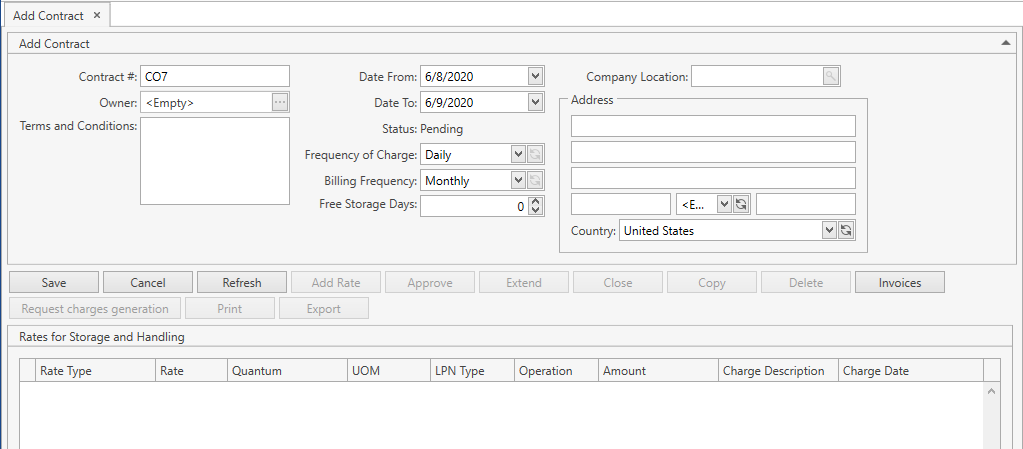
- Specify all the necessary attributes:
| Attribute | Required/Optional | Comment |
|---|---|---|
| Contract # | Required | Shall be unique across the system; automatically prepopulated by CoreIMS if Autonumbering Setting for Contract is turned on. |
| Owner | Required | Drop-down list of active Companies marked as Owner. The necessary Company can be searched by the ellipsis button [...] as well. If you (your CoreIMS user) have a specified Owner (please refer to Users section), you will be able to specify only this Owner. |
| Terms and Conditions | Optional | |
| Date From | Required | Prepopulated by the current date. |
| Date To | Required | Prepopulated by the current date + 1 day. |
| Status | Required | Non-editable; CoreIMS auto populates the field with one of the following values: Pending, Active, Closed. Refer to this section for more info on contract statuses. |
| Frequency of Charge | *Required | *Required, if any rate of Storage type is added to the contract. Can be one of the following: Daily, Weekly, Monthly. This frequency is used by CoreIMS for the generation of all charges of Storage type for the contract. Refer to this section for more details. |
| Billing Frequency | Required | In this period CoreIMS generates new invoices for the contract. Can be one of the following: Monthly, Semi Monthly. Refer to this section for more details. |
| Free Storage Days | Optional | A number of days for the free storage. You can define a number of days for which CoreIMS will not generate charges of Storage type for the first Free Storage Days days after the stock was received. |
| Bill To: Company Location | Optional | CoreIMS prepopulates Company Location if Company has only one address (please refer to Companies section). |
| Bill To: Address | Optional | CoreIMS automatically prepopulates Country if Default country is specified in System Settings. For United States you can specify the state. For other countries city and postal code are accepted. |
Click Save button. The contract will be saved in CoreIMS. Now you can edit it.
Click Cancel button if you want to reset the unsaved changes.
Edit/Delete Contract
After saving the changes in Add Contract tab, you will be redirected to Edit Contract tab.
You can also get to Edit Contract tab from Search Contract screen:
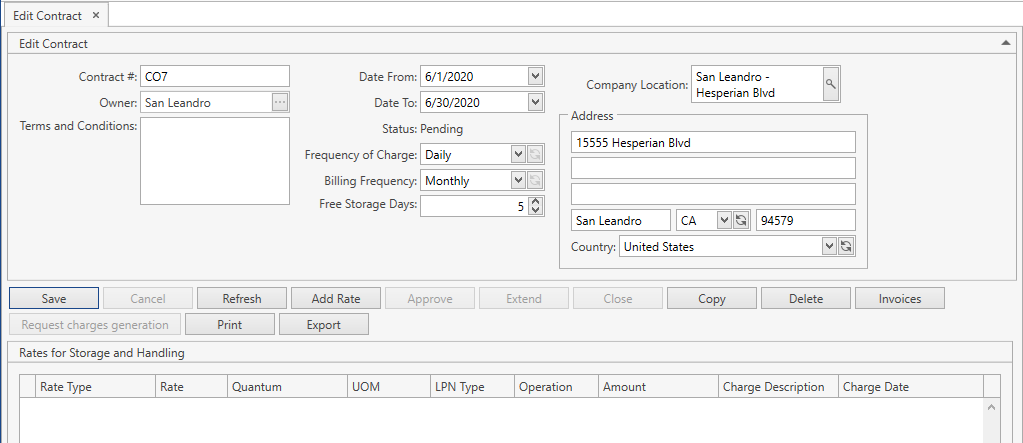
You can do the following within this screen:
- Edit the contract header (only of Pending contracts). Please refer to Add Contract to see a list of the contract attributes so that you can figure out which peculiarities are there for contract fields.
If you need to modify the details of an Active contract, you should close the current Active contract and using the Copy Contract functionality create a new instance of the contract.
Click Save button to apply the changes made within the contract header.
Click Cancel button to reset the unsaved changes within the contract header.
Click Refresh button to reset the unsaved changes within the contract header and update the displayed contract with the up-to-date data from the database.
Click Add Rate button to add a rate to the contract (available only to Pending contracts). CoreIMS allows adding more than one rate to the contract (rates can be of different types). For each of the rates you need to complete all specific attributes. See Manage Rates section for more details.
Click Approve button to approve a contract and make it Active (available only to Pending contracts with at least one specified rate).
Click Extend button to extend the contract period (available only to Active contracts).
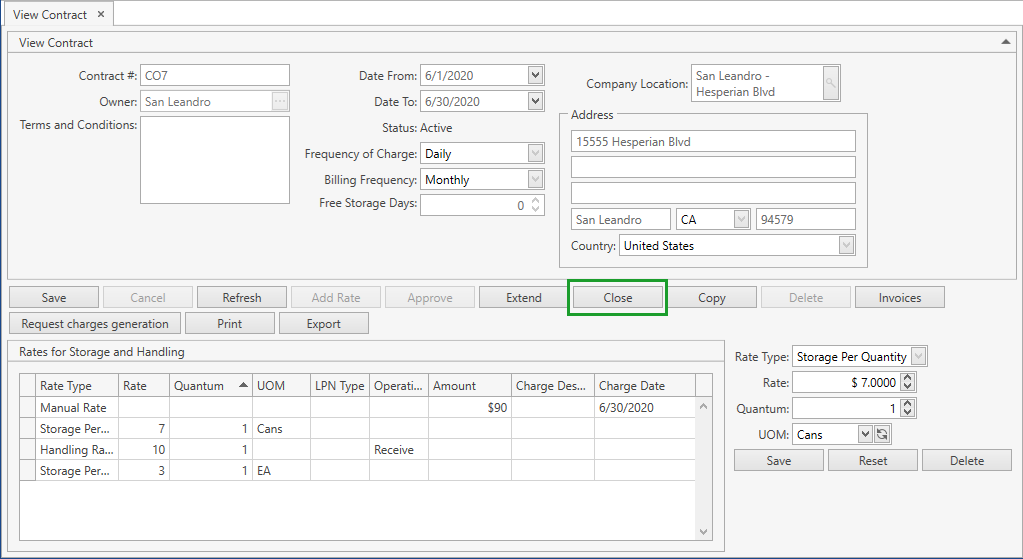
Click Close button to close an Active contract (available only to Active contracts).
Click Copy button to create a new contract based on the current one.
Click Delete button to delete a contract (available only to Pending contracts).
Click Invoices button to view a list of generated invoices for the current contract.
Click Request charges generation button to initialize the charges generation for the current contract.
Click Print/Export button to print/export the current contract.
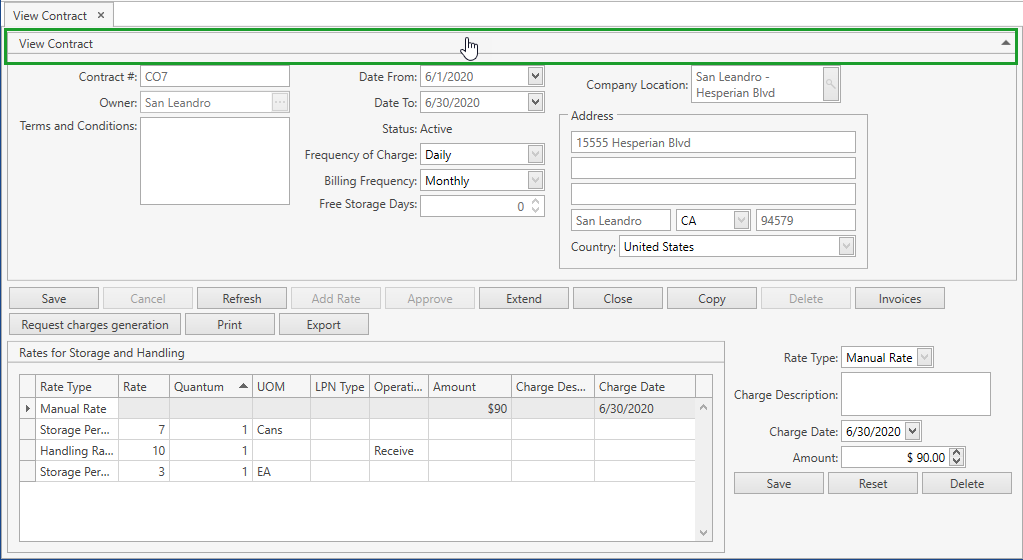
You can collapse/expand a contract header by clicking within the area which is highlighted in the screenshot below:
- If needed, customize the view of Rates for Storage and Handling grid and use Ctrl+F for searching.
Manage Rates
A rate is a predefined scheme of charges. Rates are included into contracts and used by CoreIMS to generate charges.
CoreIMS supports the following Rate Categories:
Standard Rate: standard rates are charging methods predefined in CoreIMS. Standard rates are used as a basis for any contract. The standard rate detail denotes the amount to be charged and for what service/operation. CoreIMS supports the following standard rate types:
- Storage Per Quantity (for example: $5 per 100 kg)
- Storage Per LPN (for example: $10 per LPN)
- Handling Rate (for example: $15 for Move operation)
Manual Rate: a manual rate does not relate directly to stock or lease. It is a fixed value charge that you may establish for an Owner. A Manual Rate is billed only once on a specified date.
To add a new rate to the contract, you need to do the following:
- Click Add Rate button. The following pane will show up:
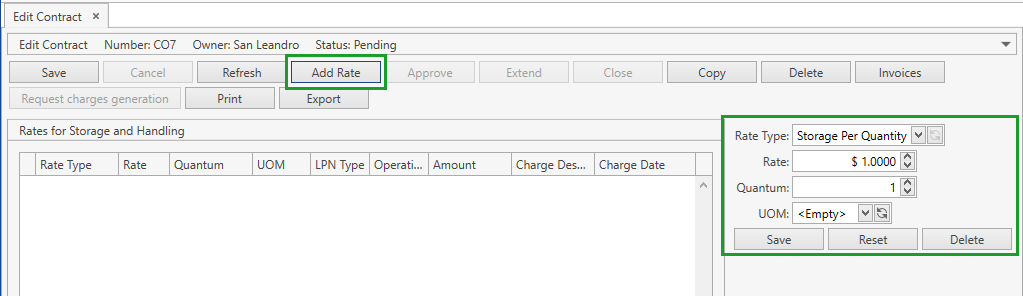
- Select a necessary rate type and specify the rate attributes. The following rate types are available:
1) Storage Per Quantity: specify Rate, Quantum and Storage UOM. This rate type is selected by default.
Once you add a new rate, CoreIMS will automatically add rates for base UOMs of all UOM classes existing in the system. The rate value will be equal to '0.0000'.
Example. There are two UOM classes in CoreIMS: Standard class with a base UOM EA and Weight class with a base UOM Pound. So when you add at least one rate of Storage Per Quantity type, CoreIMS will also add rates for all base UOMs: one for EA and another one for Pound. As a result, there will be three rates – the one you had added and two automatically added by CoreIMS (unless you had added a rate for one of the base UOMs).
You cannot change or delete a UOM for the rates automatically added by CoreIMS.
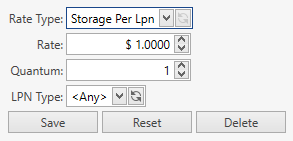
2) Storage Per LPN: specify Rate, Quantum and LPN Type (if you leave LPN Type as Any, this rate will be applied to LPNs of all types).
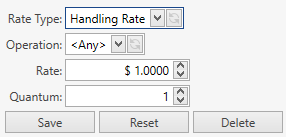
3) Handling Rate: specify Rate and Quantum, select an Operation from the drop-down list: e.g. Adjust, Receive, Unbuild (if you leave Operation as Any, this rate will be applied to all operations).
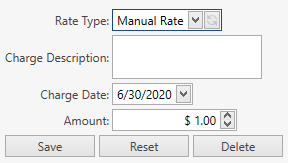
4) Manual Rate: specify Charge Description, Amount and Charge Date which is prepopulated by the contract Date To, but you can change it.
- Click Save button after specifying the necessary values.
- Click Reset button to cancel adding of a new rate.
If you completed all required fields and clicked Save button, a new rate record will be added to Rates for Storage and Handling grid:
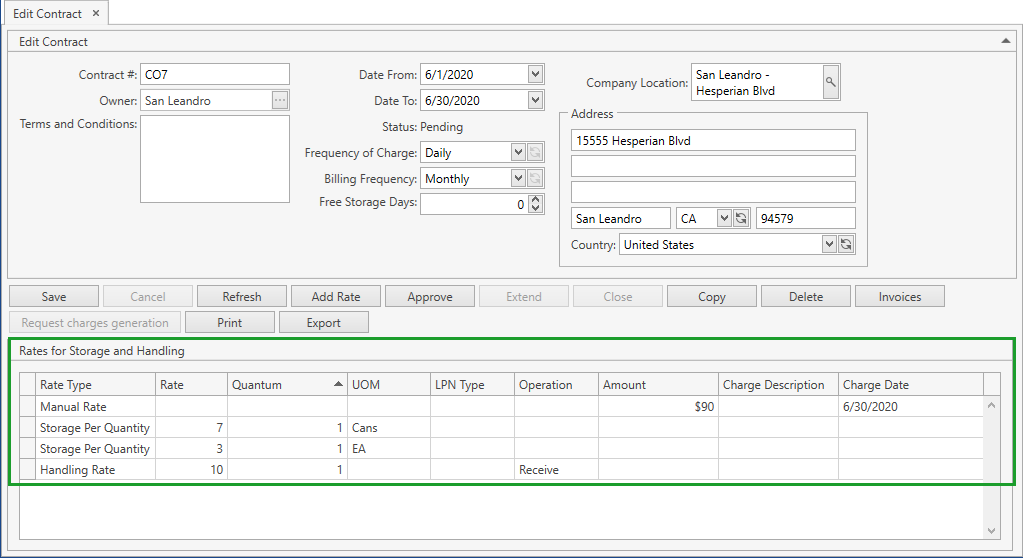
Before you approve a contract, you can always edit rates or delete the unnecessary ones:
- Click on a rate record on Rates for Storage and Handling grid. The pop-up with the rate attributes will show up:
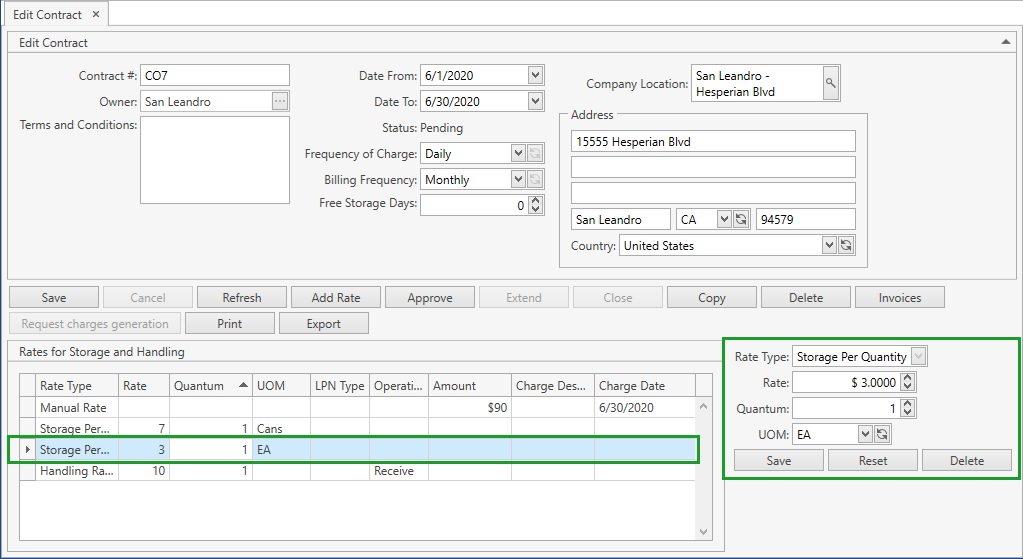
Edit all the necessary attributes.
Click Save button to save the changes.
Restrictions:
- You cannot change a UOM of Storage Per Quantity rates defined for base UOMs.
- Rate Type cannot be modified.
Charge Date for Manual rates should be greater than or equal to the contract Date From and less than or equal to the contract Date To.
Click Reset to reset the unsaved changes.
- Click Delete to remove a rate.
Restrictions:
- You cannot delete Storage Per Quantity rates defined for base UOMs.
Approve Contract
In order to approve a Pending contract and make it Active you need to do the following:
- Click Approve button:
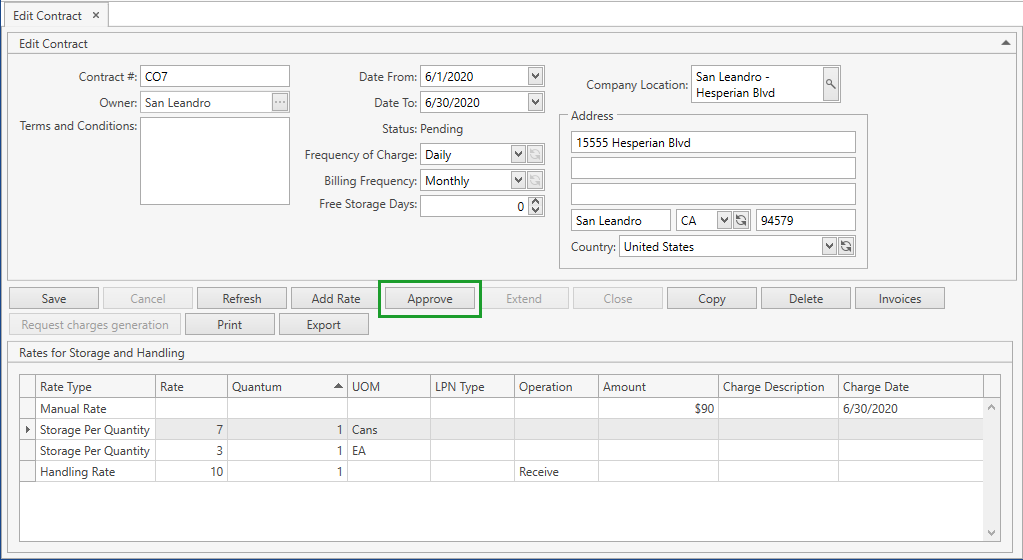
- Confirm the operation:
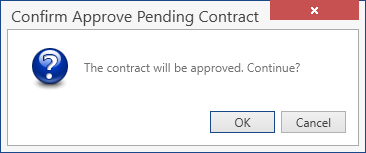
CoreIMS will validate that there is no other Active contract existing for the same date period as defined in the current contract. If there is another Active contract in the system for the same Owner and the same contract period, CoreIMS will display an error message. You will have to correct contract Date From and Date To and approve it again.
When the contract is transferred to the Active status, CoreIMS will start generating charges and invoices for this contract according to the rates defined in the contract.
Extend Contract
You can extend the contract period for an Active contract:
- Click Extend button:
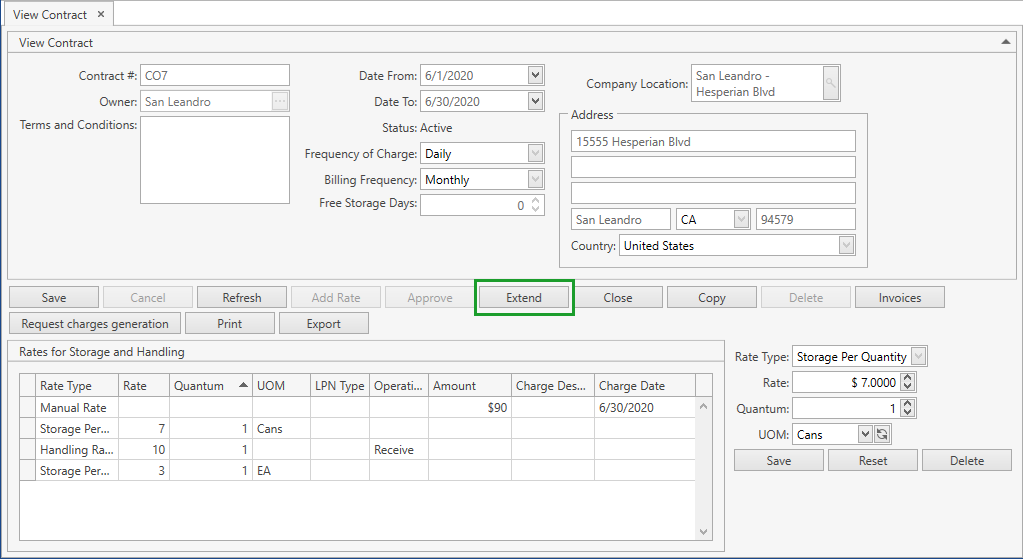
- Define a new Date To by selecting the date that is greater than or equal to Date From:
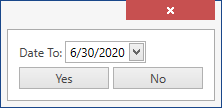
CoreIMS will validate that there is no other Active contract existing for the same date period as defined in the current contract:
- If there is another Active contract in the system for the same Owner and the same contract period, CoreIMS will display an error message and you will need to correct Date To field.
- If there is no such contract, the current one will be extended till the specified date.
Close Contract
In order to close an Active contract you need to do the following:
- Click Close button:
- Confirm the operation:
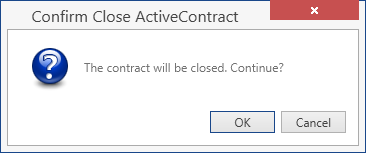
Once you confirm the operation, the contract will have the status Closed. No charges and invoices will be generated for this contract since then.
Copy Contract
You can create a new contract based on a selected one without closing and even affecting the original instance – in other words, you can copy a contract. More than that, contracts in any status can be copied.
In order to copy a contract you need to do the following:
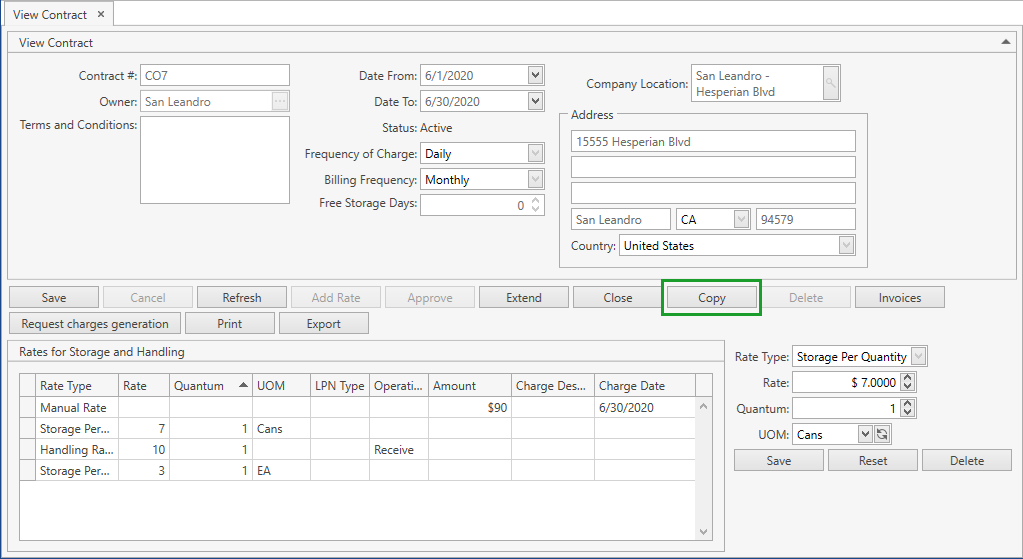
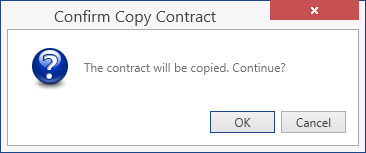
- Confirm the operation:
A new Pending contract will be created and opened in the individual tab:
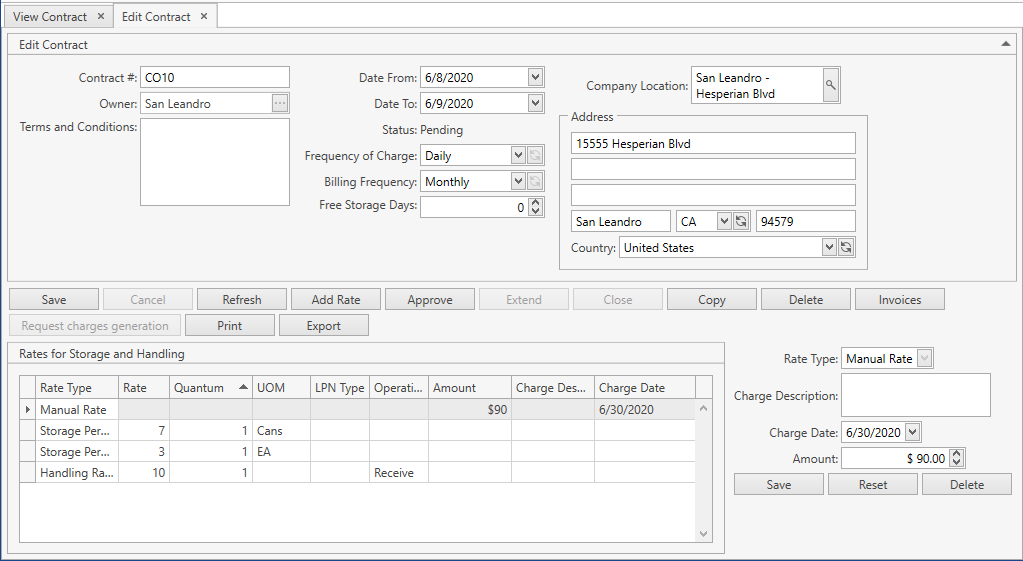
Note that all fields from the original contract will be copied, except for Contract #, Date From, Date To and Status - these fields will be automatically generated for a new contract.
Invoices
You can view all invoices generated for a contract by clicking Invoices button. The following window will show up:
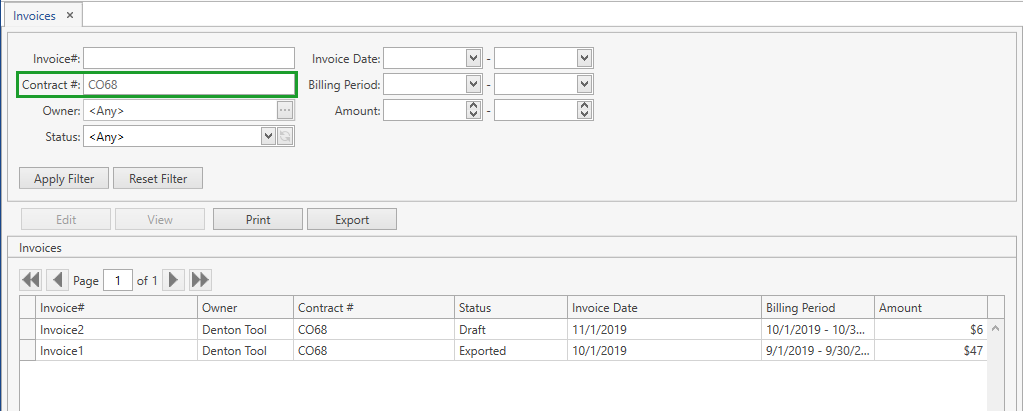
CoreIMS prepopulates Contract # field and makes it disabled as you're accessing Invoices window through the specific contract. This means that you will be able to see invoices only of this contract.
Please refer to Search Invoice section to view the operations you can perform from Invoices screen.
Request Charges Generation
After you click Request charges generation button, CoreIMS will send a corresponding request. As a result, charges will be generated for previous periods (unless charges have been already generated for these periods).
If everything was done correctly, CoreIMS will notify you with a respective message. Next you can go to Invoices section.
Print & Export Contract
You can print or export contracts of any status.
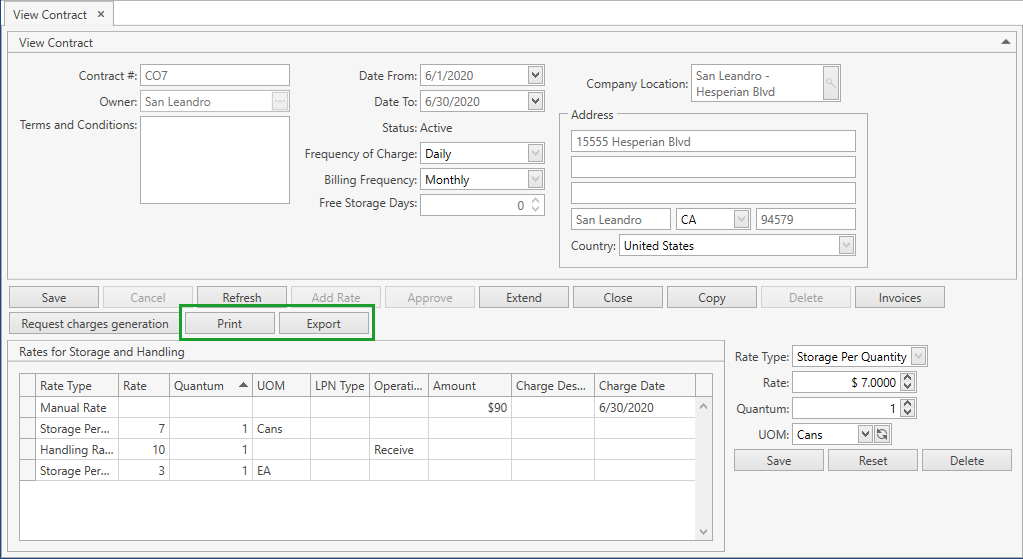
Click Print or Export button on Edit Contract or View Contract screen (depending on the contract status):
Appendix
Contract Statuses
A contract defines a list of terms and conditions of 3PL warehouse services provided for every client (i.e. Owner in terms of the CoreIMS system).
Any contract can have one of the following statuses:
Pending: A contract is considered Pending in its initial stages, while its details are being entered in CoreIMS. You can save Pending contracts in the system. CoreIMS will not generate charges and invoices for such contracts.
Active: Once you are satisfied with the entered contract details and clicked on Approve button, the contract status will be switched to Active. This status tells CoreIMS that the contract details are correct, and the contract is in force. For an Owner there can be only one Active contract for the same period at a time.
CoreIMS generates charges and invoices for Active contracts. You cannot change the details of such contracts, except for Date To field (see Extend Contract section).Closed: If you need a contract to be closed, click Close button. The contract status will be switched to Closed. Once a contract is closed, CoreIMS will not generate charges and invoices for this contract anymore.
Invoice Statuses
An invoice is a document automatically created by CoreIMS, according to the set of charges for the defined period specified in Active contract. Invoices are used for exporting from CoreIMS into the external accounting system.
An invoice can have one of the following statuses:
Draft: Once the first charge in a new billing period is created for the contract, CoreIMS automatically generates a new invoice in Draft status. Each of the newly generated charges for the same billing period will be added to the current Draft invoice. CoreIMS does not allow you to approve or export Draft invoices.
Ready For Approval: Once billing period of the invoice is in the past, CoreIMS will switch the status of the invoice from Draft to Ready For Approval. The system will not add any new charges into Ready For Approval invoice. CoreIMS allows you to edit and approve such invoices, but you cannot export them into the external accounting system.
Approved: Once you approved an invoice, CoreIMS will set the invoice status to Approved. Approved invoices can be further exported into the accounting system.
Exported: Once you exported an approved invoice to the accounting system, CoreIMS will set the invoice status to Exported.
Charge Generation Rules
A charge is a calculated cost for a warehouse service or an operation provided to the client. Charges are automatically calculated by CoreIMS, according to the rates defined in the contract between the client and the warehouse.
To set up the charge Generation Time, please refer to System Setup. This time will be used by CoreIMS as a start time for the job of the automatic charges generation.
CoreIMS generates charges automatically according to the following algorithm:
1) Everyday at a time defined in System Setup, CoreIMS searches for rates defined for Active contracts.
2) For every rate of Storage type CoreIMS defines whether a charge shall be generated today or not (the contract Date From + Frequency of Charge is used for this).
2.1) If a charge shall be generated today, CoreIMS validates the Free Storage Period.
For Storage Per Quantity rate type: CoreIMS defines the Free Storage Period for each of the stocks separately as the stock Receive Date + the contract Free Storage Days.
For Storage Per LPN rate type: CoreIMS defines the Free Storage Period for each of the LPNs separately as the earliest Receive Date of the stocks from the current LPN + the contract Free Storage Days.
2.2) If today is out of the Free Storage Period, CoreIMS generates the storage charge and adds it to the invoice according to the following rules for the charge calculation:
For Storage Per Quantity rate type:
CoreIMS finds all stocks of the Owner and groups them by UOMs.
If there are any specific rates defined for non-base UOMs, CoreIMS calculates for each of such rates Total Quantity of all stocks in the UOM specified in the rate and calculates Charge Amount according to this rate.
If there are stocks in non-base UOMs that have no specific rate defined, CoreIMS recalculates Quantity of all such stocks in a base UOM, summarizes them as Total Quantity and calculates Charge Amount according to this base UOM rate.
Charge Amount = Total Quantity * (Rate / Quantum).
For Storage Per LPN rate type:
CoreIMS calculates Total Quantity of all LPNs of the LPN type specified in the rate (or for all LPN types existing for the Owner, if you specified the LPN type as Any in the rate).
Charge Amount = Total Quantity * (Rate / Quantum).
3) For every rate of Handling type CoreIMS generates charges on a daily basis according to the following rules for the charge calculation:
If a rate for the specific operation type is defined in the contract, CoreIMS counts a total number of operations of the operation type specified in this rate for the previous day and calculates Charge Amount according to this rate.
If a rate for any operation type is defined in the contract, CoreIMS counts a total number of all operations (excluding operations of the types with a specific rate defined) for the previous day and calculates Charge Amount according to this rate.
Charge Amount = Total Number of Operations * (Rate / Quantum).
4) For every rate of Manual type CoreIMS defines whether a charge shall be generated today or not according to Charge Date defined in the contract. If the current date is equal to Charge Date, CoreIMS generates a manual charge with Amount defined in this rate.
CoreIMS creates the following set of the data for every generated charge:
1) Owner.
2) Contract #.
3) Charge Date.
4) Charge Type:
a. Storage Per Quantity.
b. Storage per LPN.
c. Handling Rate.
d. Manual Rate.
5) Operation (applicable only for Handling Rate type).
6) Charge Description (applicable only for Manual Rate type).
7) Rate (applicable only for Storage rates):
a. For rates of Storage per Quantity type: Rate = 'Rate' per 'Quantum' 'UOM'.
b. For rates of Storage per LPN type: Rate = 'Rate' per 'Quantum' 'LPN Type'.
8) Quantity.
9) Amount.
All charges are added to invoices. If the generated charge is the first one in the current billing period for the contract, CoreIMS will automatically create a new invoice for this billing period and add the charge to this invoice.
Every time when generating another charge in the same billing period, CoreIMS will automatically add this charge into the existing invoice. Only one invoice can exist for a particular billing period.
Invoice Generation Rules
CoreIMS generates a Draft invoice once the first charge in the invoice billing period for the contract is created in the system.
Invoice Billing Period From and To dates are defined as follows:
- If the contract Billing Frequency scheme is Semi-Monthly, the invoice billing period will be:
- from the 1st day of a month till the 15th day of a month;
- from the 16th day of a month till the last day of a month;
- from the contract Date From till the 16th day of a month if the contract Date From is greater than the 1st day and less than the 16th day of a month;
- from the contract Date From till the last day of a month if the contract Date From is greater than the 16th day of a month.
- If the contract Billing Frequency scheme is Monthly, the invoice billing period will be:
- from the 1st day of a month till the last day of a month;
- from the contract Date From till the last day of a month if the contract Date From is greater than the 1st day of a month.
Only one invoice can exist in CoreIMS for a specific contract for a billing period. CoreIMS automatically adds into the same invoice all charges created in the same billing period.
Once the invoice Billing Period passed, CoreIMS will change the invoice status to Ready For Approval and will not add any new charges to this invoice.
Invoice batch calculations occur in CoreIMS as a scheduled job together with the charges generation. Please refer to Charge Generation Rules section for more details.