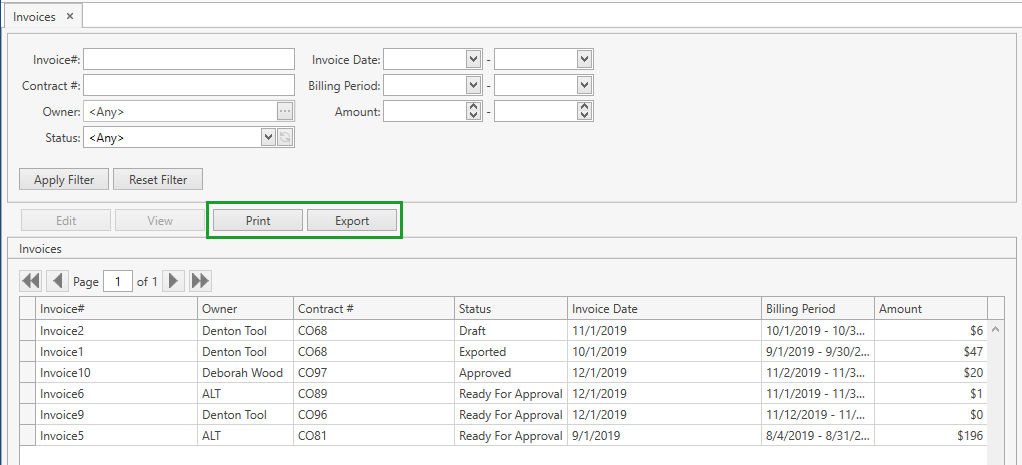
Search Invoice
Required Permissions
- View Billing
- ability to work with contracts, invoices
- Setup Billing
- ability to modify billing settings in System Setup
- View Reports
- ability to print and export Invoices List Report
Note. Billing Module requires to be activated separately and can be enabled only if Ownership mode is set up as Item Level or Stock Level in System Settings.
Search Invoice
- Go to Billing tab of the main menu.
- Select Invoices -> Search Invoice menu item.
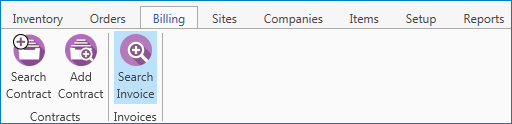
The following window displaying invoices will show up:
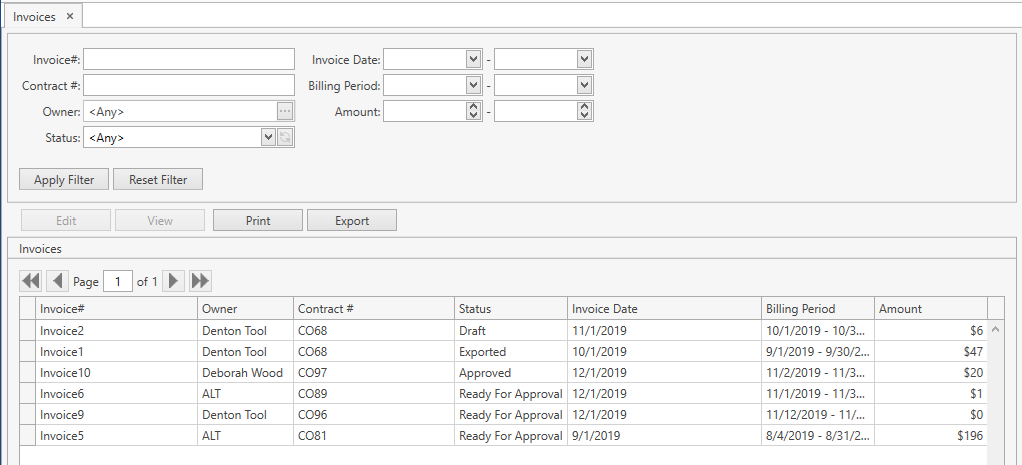
- Specify the necessary search criteria in the following frame:

The following optional filters can be applied:
| Filter | Comment |
|---|---|
| Invoice # | |
| Contract # | |
| Owner | Drop-down list of active Companies marked as Owner. The necessary Company can be searched by the ellipsis button [...] as well. |
| Status | Drop-down list of the predefined system values: Draft, Ready For Approval, Approved, Exported. Refer to this section for more info on invoice statuses. |
| Invoice Date | From / To |
| Billing Period | From / To |
| Amount Range | You can specify the range of Amount for the invoice(s) you are looking for. |
CoreIMS allows you to do the following when searching:
1) search by the beginning or by any part of text fields;
2) hide/unhide search filters.
- Once you specify all necessary filter criteria, click Enter or Apply Filter button.
The results that satisfy the search criteria will be loaded to Invoices frame:
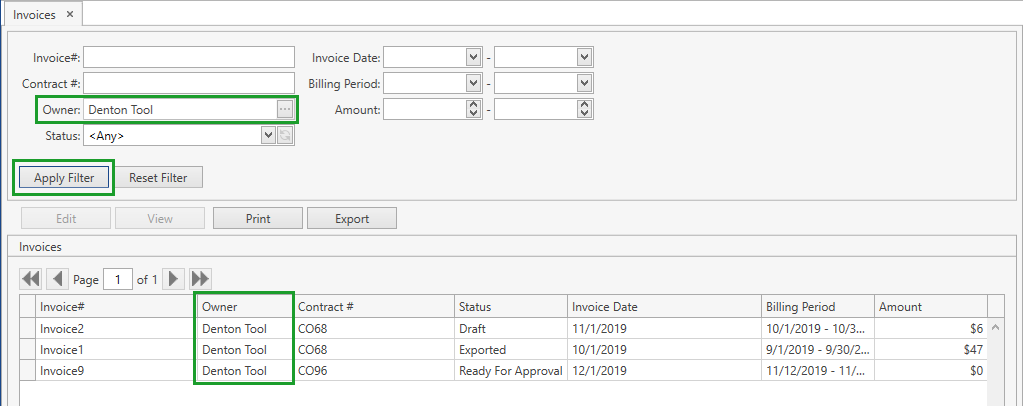
If needed, reset previously specified filter criteria by clicking Reset Filter button.
Use navigation buttons
 to switch the pages of the grid.
You can also customize the view of the grid and use Ctrl+F for searching.
View Invoice
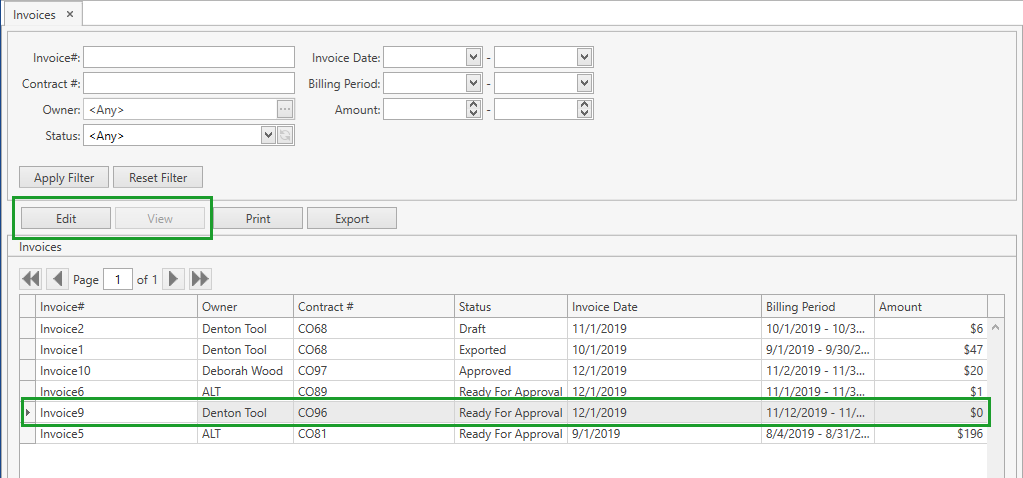
You can view and, if needed, edit an invoice by clicking on it and then on Edit/View button or simply by double-clicking on the necessary invoice on the grid:
Edit Invoice or View Invoice window (depending on the invoice status) opens:
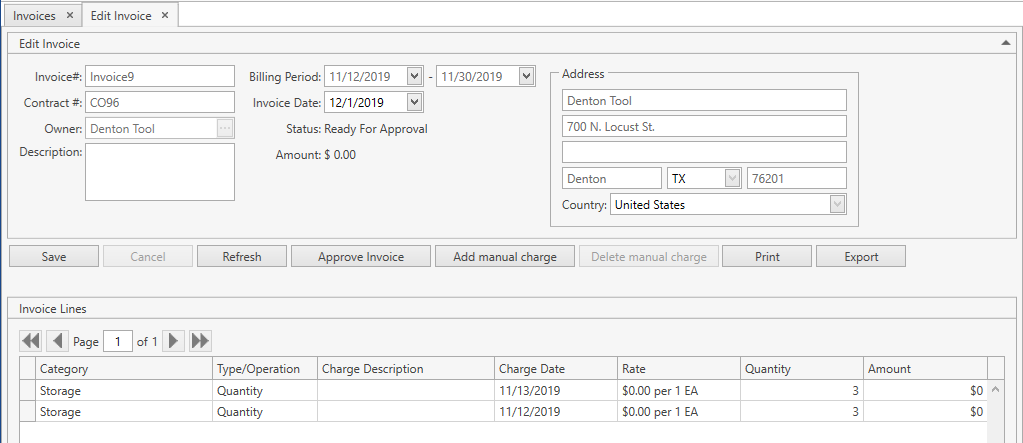
You can only view, print and export invoices that are in Approved or Exported status. In case the invoice is in Draft or Ready For Approval status, you can edit it. Ready For Approval invoices can be also approved.
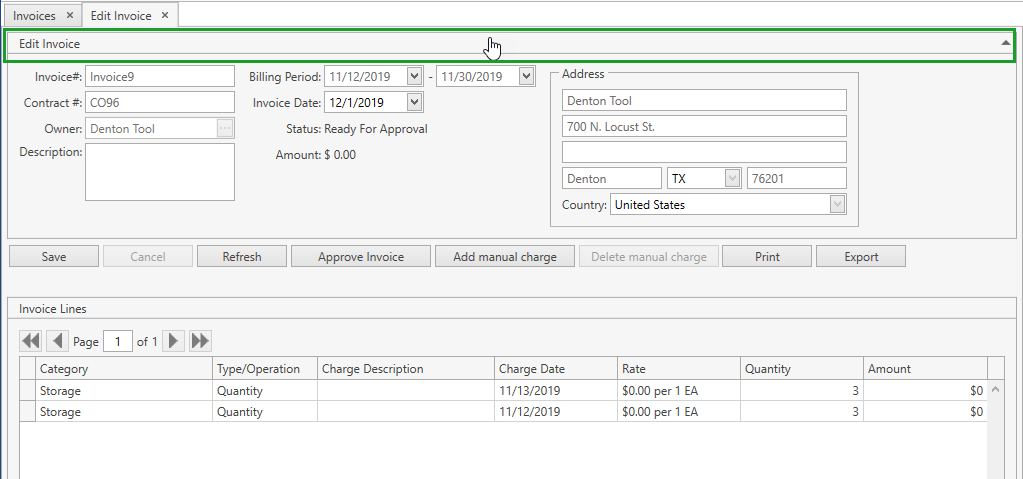
You can collapse/expand an invoice header by clicking within the area which is highlighted in the screenshot below:
If needed, use navigation buttons  to switch the pages of Invoice Lines grid.
You can also customize the view of the grid and use Ctrl+F for searching.
Edit Invoice
You can edit invoices in the statuses Draft and Ready For Approval from Edit Invoice screen:
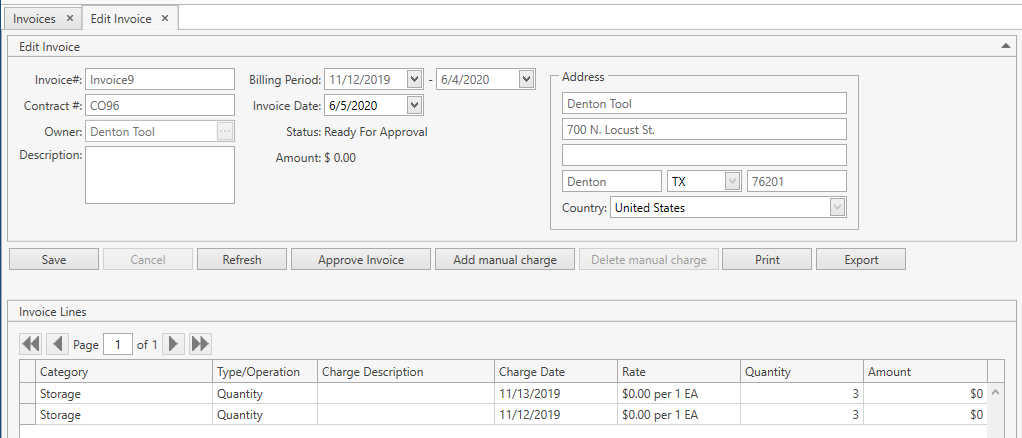
CoreIMS allows you to do the following:
- Change Invoice Date. By default it is set to the invoice Billing Period To date + 1 day.
Add Manual Charges:
- Click Add manual charge button and specify the necessary data:
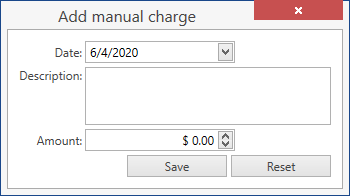
- Click Save button to complete the operation or Reset button to cancel it.
- Click Add manual charge button and specify the necessary data:
Delete Manual Charges:
- Click on the Manual Charge you want to delete and then on Delete manual charge button:

- Confirm the operation:
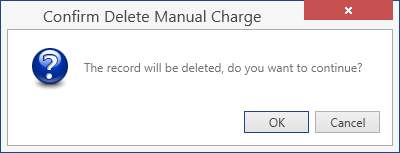
- Click on the Manual Charge you want to delete and then on Delete manual charge button:
Notes:
- You can add negative Manual Charges to invoices.
- When you add/delete Manual Charges, CoreIMS automatically recalculates Amount for the invoice.
Approve Invoice
You can approve invoices only for past billing periods. When the billing period is over, CoreIMS automatically sets all Draft invoices into Ready For Approval status — so that you can approve them.
In order to approve an invoice you need to do the following:
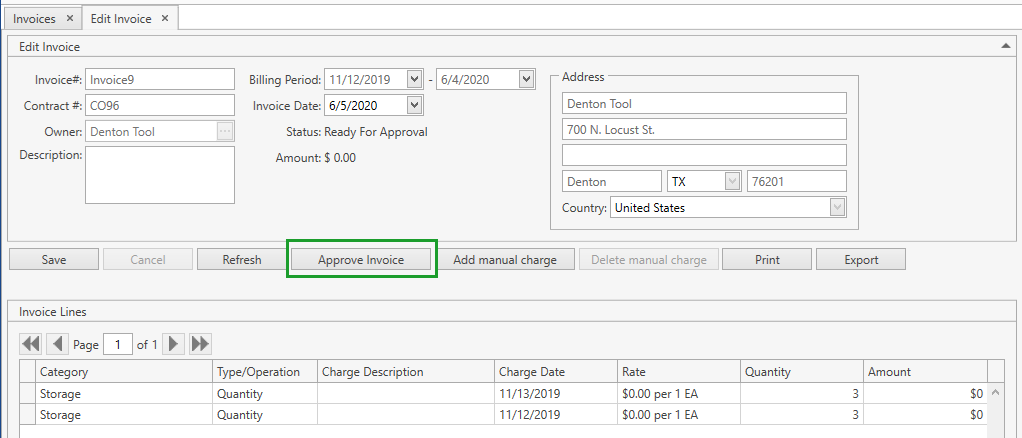
- Confirm the operation:
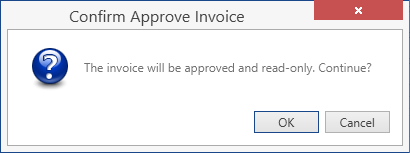
Once you approved the invoice, it becomes read-only and you are not able to change anything in it.
Print & Export Invoice
You can print or export invoices of any status.
Click Print or Export button on Edit Invoice or View Invoice screen (depending on the invoice status):

Invoices List Report
You can print or export Invoices List report displaying the data from the grid on Invoices screen. To this end use Print or Export button accordingly.