Search Receiving Document
- Search Receiving Document
- View Receiving Document
- Receiving Order Documents List Report
- Troubleshooting
Required Permissions
- View Reports
- ability to search and view, print and export Receiving Documents
- ability to print and export Receiving Order Documents List Report
- Modify Receiving Orders
- ability to edit Receiving Document Numbers
- View Receiving Orders
- ability to search for Receiving Documents by Receiving Order Numbers
- View Cost
- ability to view Unit Cost in Receiving Documents
Search Receiving Document
- Go to Orders tab of the main menu.
- Select Receiving -> Search Document menu item.

The following window displaying Receiving Documents (Receipts) opens:
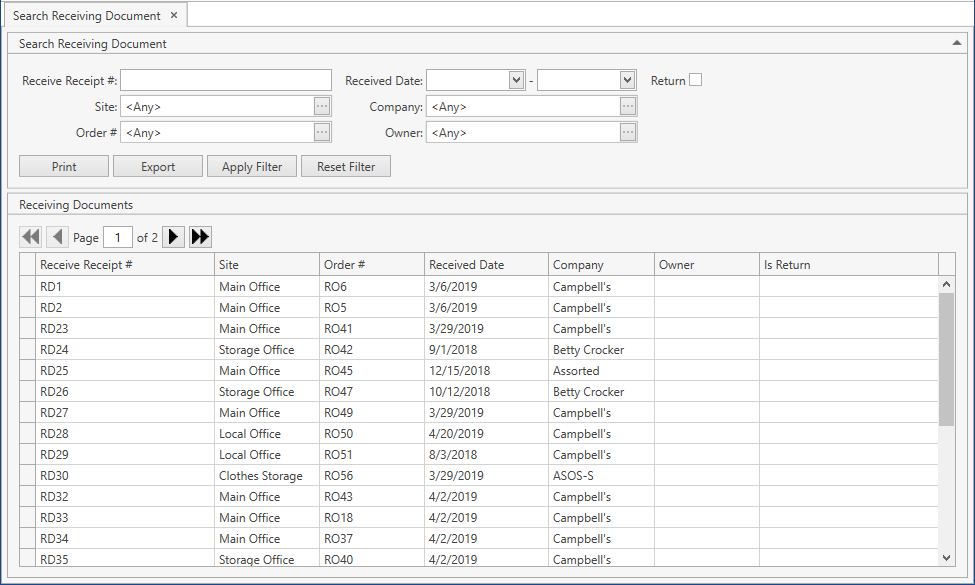
- Specify the necessary search criteria in Search Receiving Document frame:

The following optional filters can be applied:
| Filter | Comment |
|---|---|
| Receive Receipt # | A number of the Receiving Document (Receipt). |
| Site | Drop-down list of active Sites that you have access to. The necessary Site can be searched by the ellipsis button [...] as well. CoreIMS automatically prepopulates this field if you have a specified Default Site (please refer to Users section). |
| Order # | Drop-down list of Receiving Orders. The necessary Receiving Order can be searched by the ellipsis button [...] as well. |
| Received Date | You can specify the date range when the Receipt(s) you are looking for was generated, i.e. the respective Receiving Order(s) was received. |
| Company | Drop-down list of active Companies. The necessary Company can be searched by the ellipsis button [...] as well. |
| Owner | Drop-down list of active Companies marked as Owner. The necessary Company can be searched by the ellipsis button [...] as well. Visible only if Ownership mode is set up as Item level or Stock Level in System Settings. If you (your CoreIMS user) have a specified Owner (please refer to Users section), you will be able to search for Receipts of Receiving Orders only of this Owner or without owner. |
| Return | Check this flag if you want to search for Return Documents (Receipts). |
CoreIMS allows you to do the following when searching:
1) search by the beginning of text fields;
2) set checkboxes to one of three states for searching;
3) hide/unhide search filters;
4) collapse/expand the filter area.
- Once you specify all necessary filter criteria, click Enter or Apply Filter button.
The results that satisfy the search criteria will be loaded to Receiving Documents frame:
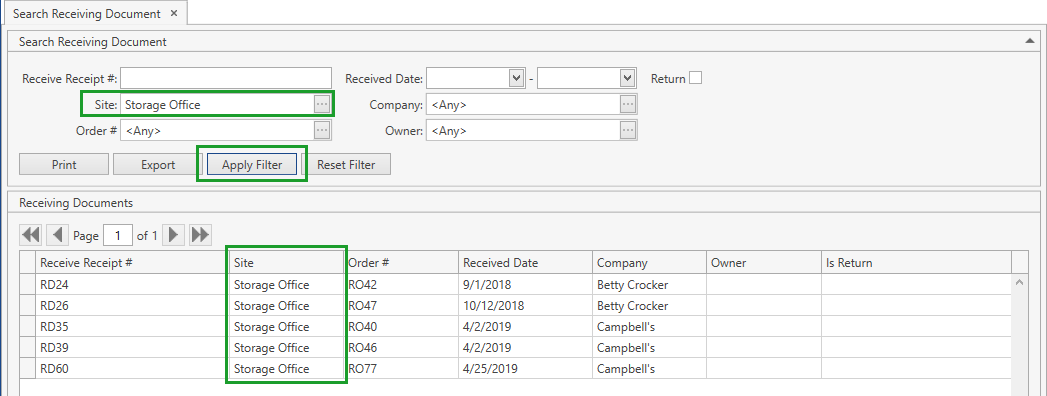
If needed, reset previously specified filter criteria by clicking Reset Filter button.
Use navigation buttons
 to switch the pages of the grid.
You can also customize the view of the grid and use Ctrl+F for searching.
View Receiving Document
- View the necessary Receiving Document (Receipt) by double-clicking on it on the grid:

Edit Receiving Document window opens:
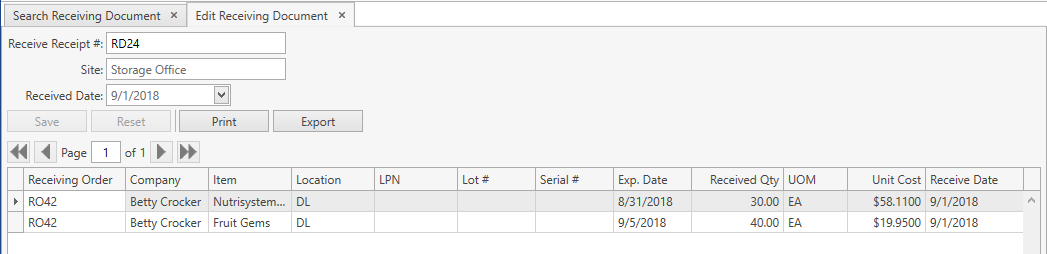
You can edit the Receiving Document Number (Receive Receipt #). Remember that it should be unique across the system.
- Click Save button.
- Click Reset button if you want to reset the unsaved changes.
If needed, print or export the Receiving Document. Use Print or Export button accordingly.
Receiving Order Documents List Report
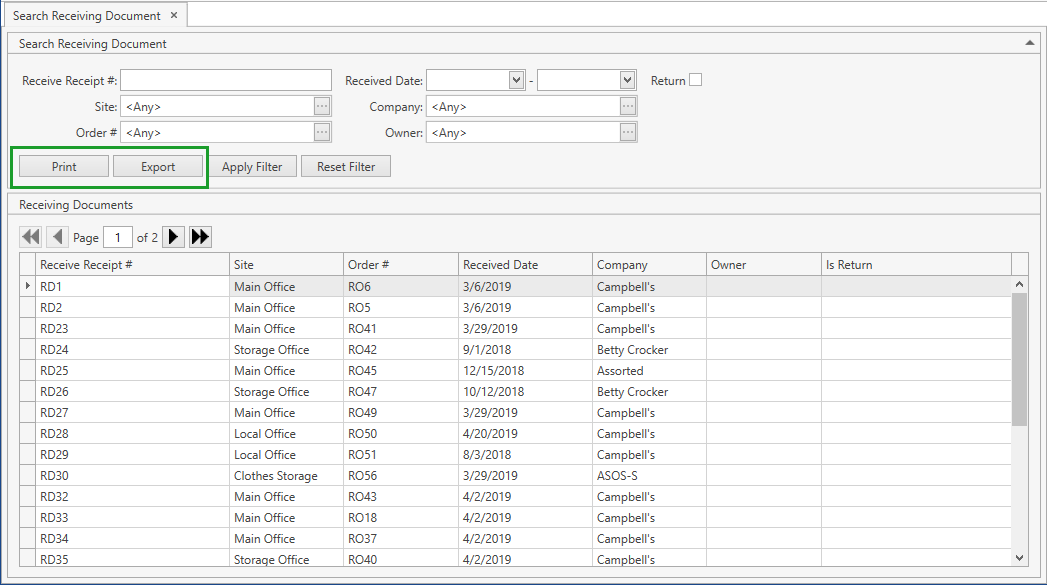
You can print or export Receiving Order Documents List report displaying the data from the grid on Search Receiving Document screen. To this end use Print or Export button accordingly.
Troubleshooting
1) The Receipt cannot be found.
Check if you specified the necessary search criteria correctly (please refer to Search Receiving Document section for more details).
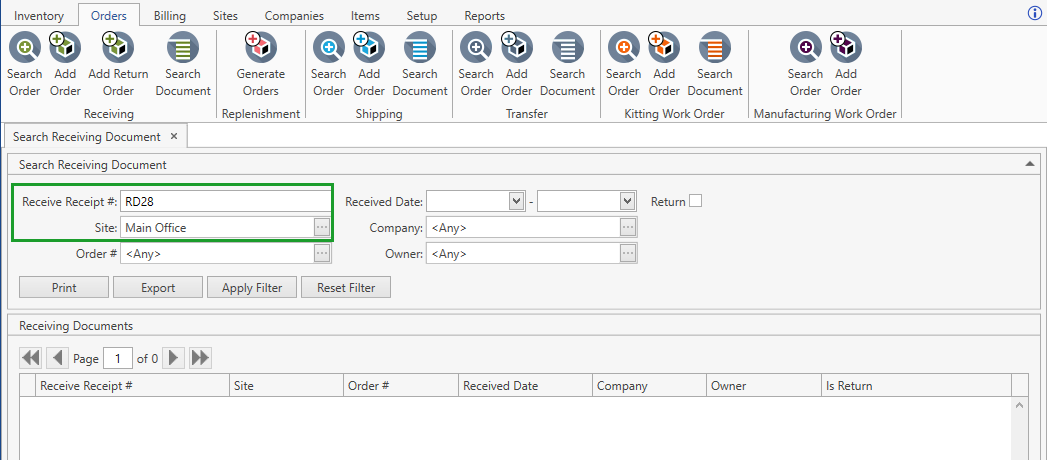
For example, you specified Main Office as a Site for searching and expected to find RD28 Receipt there. But the Receipt is located in Local Office Site, so you wouldn't see the Receipt on the search grid:
After specifying the correct Site, the Receipt you are looking for is available on the search grid:
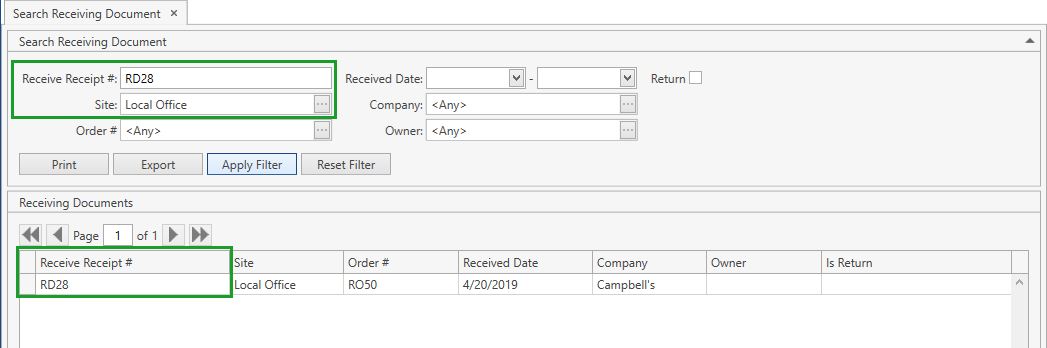
Therefore, if you know the Receipt Number, you can omit to specify Site, Order # and other search parameters in order to prevent such errors:

2) The Receipt is blank.
This can occur if Unreceive operation was performed: the receipt is not deleted from the system, although it is blank.