Countries
Required Permissions
- Setup System
- ability to add, view, edit and delete countries and their states
- View System Setup
- ability to view countries and their states in read-only mode
View
Go to Setup section of the main menu.
Select Countries menu item:

The following window with countries opens:
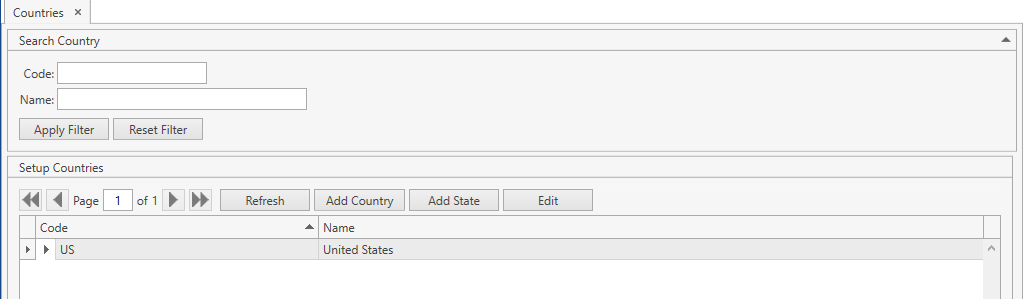
- If a country has specified states, you can view them too. Select the necessary country and click the button:
 . You will see the states that belong to the country selected:
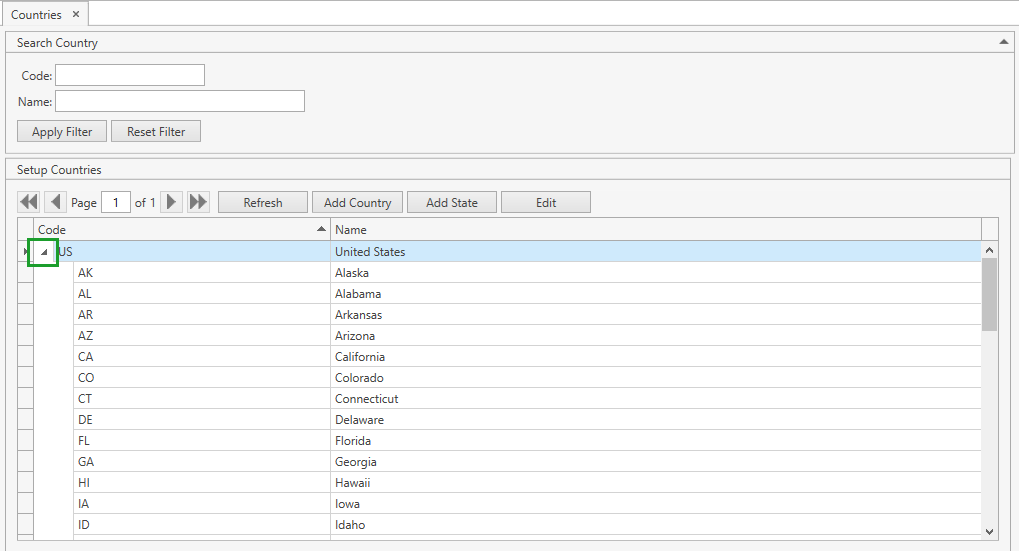
Use navigation buttons
 to switch the pages of the grid.
You can also customize the view of the grid and use Ctrl+F for searching.Search countries by Code/Name:
- Specify Code and/or Name. You can also search by the beginning of a word.
- Click Apply Filter button.
- Reset previously specified filter criteria by clicking Reset Filter button.
- If needed, collapse/expand the filter area.
You can update the list of displayed countries with the up-to-date data from the database by clicking Refresh button.
Add
- Select Countries menu item from Setup tab of the main menu.
- Click Add Country. The following frame will show up:

Note. Alternatively, you can reach the same window from Setup section of the main menu: click Add Country there.
- Specify Code and Name for a new country.
- Code is required.
- Name indicates the name that you see for this country across the system.
- Click Save button.
- Click Reset button if you want to cancel adding of a new country.
You can define a country as Default in System Settings. Then Country field will be automatically prepopulated across the system with this country.
Once you created a country, you can add a state to it:
- Click on a necessary country. Then click Add State button. The following frame will show up:

- Specify Code and Name for a new state.
- Code is required.
- Click Save button.
- Click Reset button if you want to cancel adding of a new state.
You can add a new state from the main menu as well:
Go to Setup section of the main menu.
Select Add State menu item:
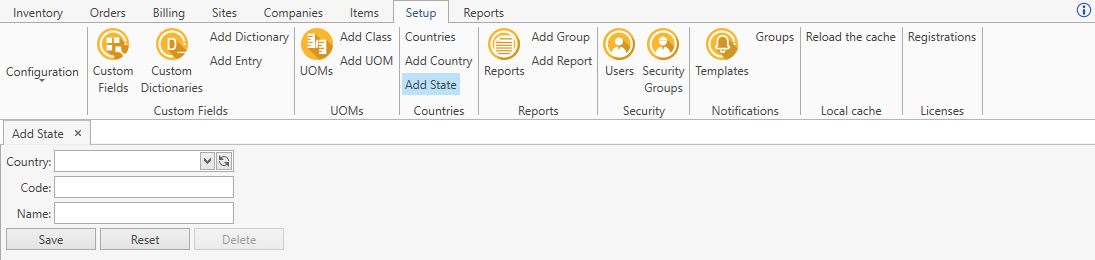
- Select a country you want to add a state to.
- Specify Code and Name for a new state.
- Country and Code are required.
- Click Save button.
- Click Reset button if you want to cancel adding of a new state.
Edit
- Select Countries menu item from Setup tab of the main menu.
- Click on a country or its state and then click Edit button or, if the filter area is collapsed, simply click on the necessary entity to be edited. The following frame will show up:
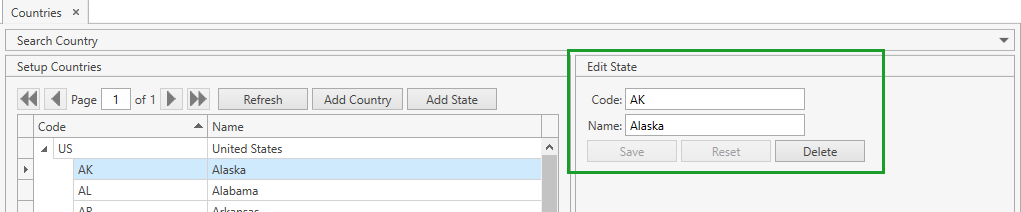
- Edit all the necessary attributes.
- Click Save button.
- Click Reset button if you want to reset the unsaved changes.
Delete
- Select Countries menu item from Setup tab of the main menu.
- Click on a country or its state and then click Edit button or, if the filter area is collapsed, simply click on the necessary entity to be deleted. The following frame will show up:
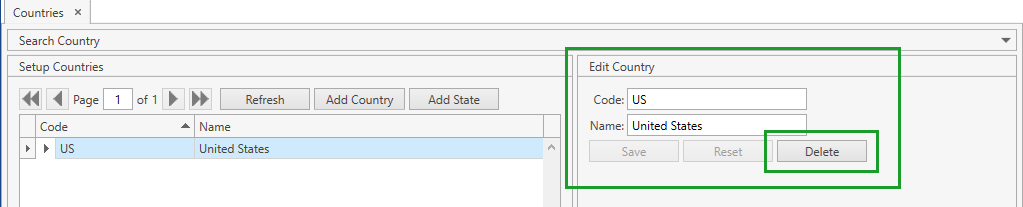
- Click Delete button.
Note. You cannot delete the country:
- if it is specified as Default in System Settings;
- if it has Sites associated with it;
- if it has Company Addresses associated with it.