Manufacturers
Required Permissions
- Setup Items
- ability to add, view, edit and delete manufacturers
- View Items
- ability to view manufacturers in read-only mode
Search
- Go to Items tab of the main menu.
- Select Manufacturers menu item.
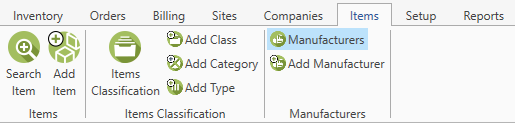
The following window with manufacturers opens:
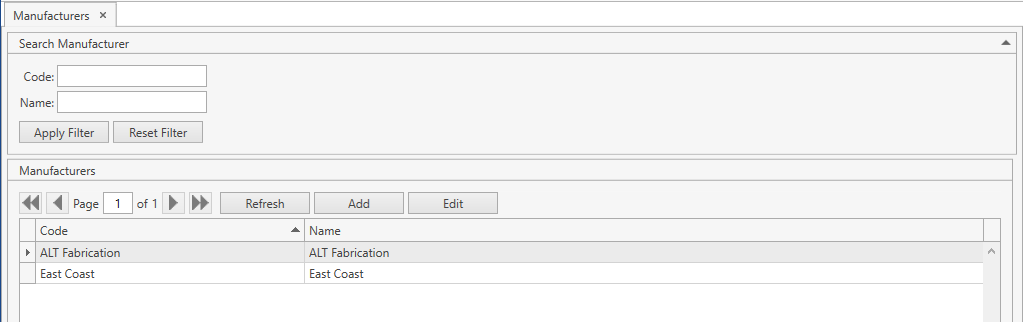
Use navigation buttons
 to switch the pages of the grid.
You can also customize the view of the grid and use Ctrl+F for searching.Search manufacturers by Code/Name:
- Specify Code and/or Name. You can search by the beginning of a word.
- Click Apply Filter button.
- Reset previously specified filter criteria by clicking Reset Filter button.
- If needed, collapse/expand the filter area.
You can also update the list of displayed manufacturers with the up-to-date data from the database by clicking Refresh button.
Add
Option 1.
- Select Manufacturers menu item from Items tab of the main menu.
- Click Add button.
- Specify the necessary attributes.
- Code is required.

- Click Save button.
- Click Reset button if you want to cancel adding of a new manufacturer.
Option 2.
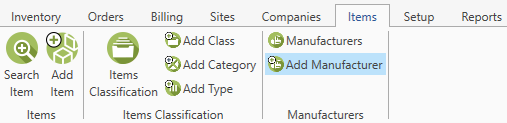
- Select Add Manufacturer menu item from Items tab of the main menu.
- Specify the necessary attributes.
- Code is required.
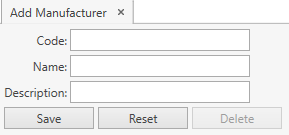
- Click Save button.
- Click Reset button if you want to cancel adding of a new manufacturer.
Edit
- Select Manufacturers menu item from Items tab of the main menu.
- Click on a manufacturer and then click Edit button or, if the filter area is collapsed, simply click on the necessary manufacturer to be edited. The following frame will show up:
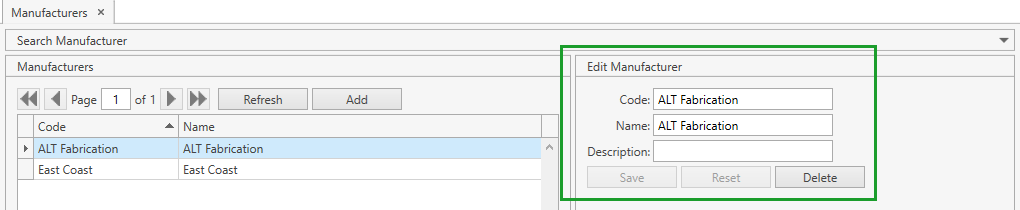
- Edit the necessary attributes.
- Click Save button.
- Click Reset button if you want to reset the unsaved changes.
Delete
- Select Manufacturers menu item from Items tab of the main menu.
- Click on a manufacturer and then click Edit button or, if the filter area is collapsed, simply click on the necessary manufacturer to be deleted:

- Click Delete button.
Note. You cannot delete a manufacturer that has items associated with it.