Licenses
Overview
CoreIMS supports Track Active User licensing policy. This approach allows you to create an unlimited number of user registrations but only the restricted number of users can work simultaneously according to the number of licenses that you acquired.
For example, if you purchased 10 licenses for Desktop and Mobile applications, the following cases are possible:
- 10 users are simultaneously logged in to the Desktop;
- 10 users are simultaneously logged in to the Mobile app;
- 6 users are simultaneously logged in to the Desktop and 4 – to the Mobile app, etc.
Your workstation will be automatically registered each time during the login process if the number of registered active users (who logged in and are currently using CoreIMS application) is less than the max number of licenses.
The user of CoreIMS Desktop is considered inactive and their registration is released if they:
- close CoreIMS application;
- are automatically logged off due to the session expiration time which is 1 hour by default.
Note that you can create as many CoreIMS users as you want.
Required Permissions
If you are assigned to Administrators Security Group, you can do the following:
- view a list of registered users;
- remove a registered device from the list of registrations;
- update the license.
View Registered Users
- Go to Setup tab of the main menu.
- Select Registrations menu item.

The window with all registrations opens:
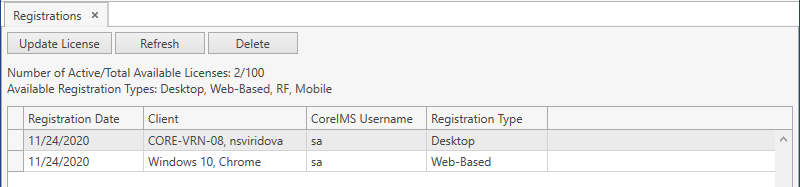
Here you can view:
- Number of Active/Total Available Licenses, where the first number is a total number of active users (who logged in and are currently using CoreIMS application) and the second number – a total number of licenses that you purchased.
- Available Registration Types – a list of CoreIMS applications (Desktop/Web-Based/RF/Mobile) that you acquired.
- Expiration Date – the expiration date of your license; will be visible only if the expiration date was specified in the license that you purchased.
A list of registrations (i.e. active users).
A registration is a combination of Registration Date, Client, CoreIMS Username and Registration Type.If necessary, update the list of displayed registrations with the up-to-date data from the database by clicking Refresh button.
If necessary, remove a registered device from the environment by selecting the necessary device and clicking Delete button. CoreIMS will release a registration and automatically log out the user whose registration was deleted.
Update License
- Go to Setup tab of the main menu.
- Select Registrations menu item.
- Click Update License button. The following pop-up window appears:
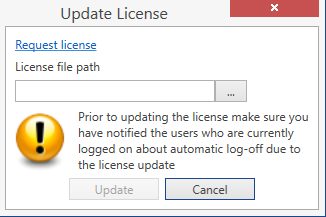
- Upload a necessary license file via [...] button.
- Click Update button. The following confirmation window appears:
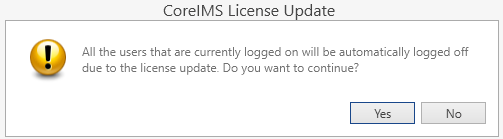
- Click Yes to confirm the license update.
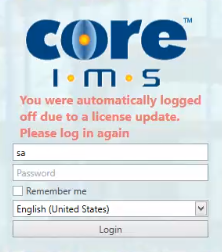
The users who were logged off due to the license update will be returned to the login screen with the following message: